Picking the right photo editing software really boils down to one key trade-off: are you after meticulous manual control or lightning-fast automated speed? Traditional powerhouses like Photoshop give you pixel-perfect precision, while modern AI-driven platforms can conjure up incredible results from a simple text prompt. The best tool for you depends entirely on your creative vision and how you like to work.
How to Choose Your Perfect Photo Editor
With so many options out there, choosing an editor can feel like a huge task. But it doesn't have to be. We're going to move past the simple feature lists to give you a clear photo editing software comparison that helps you make a choice you can feel good about. The trick is to figure out what you need before you even look at what any single program can do.
The market for these tools is growing fast. The global photo editing software market was valued at USD 1.15 billion in 2024 and is projected to hit USD 1.82 billion by 2034. And with individual users making up 58% of the market, these tools are clearly not just for pros anymore.
Aligning Software with Your Creative Goals
Before we jump into a head-to-head comparison, take a moment to think about what you actually need to get done. Are you a professional photographer juggling thousands of RAW files from a wedding, or a social media manager who needs eye-catching posts ready in minutes?
- For Detailed Control: If your work demands complex layering, intricate masking, and pinpoint color adjustments, a classic desktop editor like Adobe Photoshop or Affinity Photo is non-negotiable.
- For Efficient Workflow: If you're managing huge batches of photos and need consistent, high-quality tweaks across all of them, a catalog-based system like Adobe Lightroom or Capture One is built for that exact purpose.
- For Instant Creation: If you want to generate totally unique marketing assets, social media content, or concept art without even starting with a photo, an AI-native platform is the most direct path.
The smartest creative workflows today often blend the old with the new—using a traditional editor for fine-tuning and an AI tool for generating ideas and content quickly. The question is no longer "which one?" but "which combination works for me?"
Evaluating Your Skill Level and Budget
Of course, your experience level and how much you're willing to spend are massive factors. Subscription models like Adobe's offer constant updates and cloud features but come with a recurring cost. On the other hand, one-time purchases like Affinity Photo pack in powerful features for a single payment.
AI tools often play by different rules. Many, like AI Media Studio, have free tiers to let you test the waters and then scale up with credit-based plans. This means your costs are tied directly to how much you use it. You can explore the full range of AI Media Studio features to see how that model works.
For a deeper dive to help you make your choice, this comprehensive photo editing software comparison guide is a fantastic resource. It's all about balancing what you want to create with the practical limits of your budget and time.
Comparing the Titans of Traditional Photo Editing
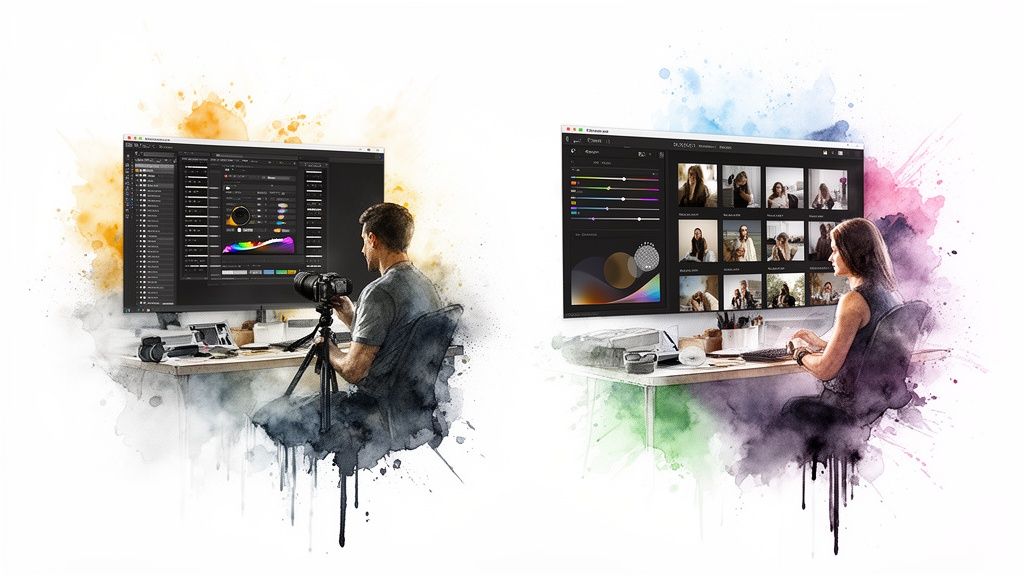
When you dive into the world of professional photo editing, two names inevitably surface: Adobe Photoshop and Adobe Lightroom. For decades, they’ve been the gold standard, but they're built for fundamentally different jobs. Getting a handle on their distinct philosophies is the first step in picking the right one for your creative workflow.
Think of Photoshop as the master of pixel-level manipulation. It's your digital darkroom, artist's canvas, and graphic design studio all rolled into one. Its real power comes from its layer-based system, which lets you perform incredibly detailed retouching, build complex composites, and alter the very DNA of an image.
Lightroom, on the other hand, is a photo management and processing powerhouse. It was designed from the ground up to organize, catalog, and edit huge volumes of photos—especially RAW files—through a non-destructive workflow. This is key: your original image is always safe, and every edit is just a set of instructions that you can tweak or scrap at any time.
The Power of Pixel Manipulation with Photoshop
Photoshop is the specialist you bring in for major surgery on a single image. Its toolset is all about precision and depth, making it the clear winner for any task that needs detailed, localized changes.
Here are a few scenarios where Photoshop is really the only choice:
- Complex Compositing: Merging elements from several photos into one seamless reality, like dropping a new product into a custom background.
- Advanced Retouching: Performing meticulous skin smoothing, using tools like the Clone Stamp or Generative Fill to remove distracting objects, or reshaping parts of an image with the Liquify tool.
- Graphic Design and Text Overlays: Building posters, ads, or social media graphics that demand a sophisticated blend of typography and imagery.
Sure, the learning curve is steeper—the sheer number of tools and panels can be intimidating. But for digital artists and photographers who need to create something that doesn't exist in the real world, its power is simply unmatched. Each project is its own self-contained document, perfect for that kind of deep, focused work.
Key Differentiator: Photoshop’s entire philosophy is built around manipulation. It shines when you need to add, remove, or fundamentally transform the pixels within one image to realize a specific creative vision.
The Efficiency of a Catalog-Based Workflow in Lightroom
Lightroom was built to answer a completely different question: "How do I efficiently manage and edit thousands of photos while keeping a consistent look?" It’s the command center for a photographer’s entire library. Its catalog is a smart database that keeps track of every photo, edit, keyword, and rating without ever duplicating a file.
This is what makes Lightroom essential for any high-volume workflow. Imagine a wedding photographer coming home with 3,000 RAW images. They can use Lightroom to:
- Cull and Organize: Rip through the entire shoot, quickly flagging the keepers and ditching the rest.
- Batch Edit: Apply a consistent color grade or exposure fix to hundreds of photos at once with presets.
- Fine-Tune: Make specific adjustments to individual photos, all within the same interface.
- Export for Delivery: Batch export all the final images in different formats and sizes for the client, the web, and print.
The interface is cleaner and laser-focused on photographic adjustments like exposure, color, and sharpening. While it has some powerful masking tools, it just doesn't have the deep compositing and pixel-level control that Photoshop offers.
Integration: The Adobe Ecosystem Advantage
For most pros, the real magic happens when you use Photoshop and Lightroom together. Adobe built them to work in harmony. You can do 90% of your work in Lightroom—organizing, culling, and making global edits—and then, with a simple click, send an image over to Photoshop for that final, detailed touch-up.
Once you save the file in Photoshop, the edited version pops right back into your Lightroom catalog, neatly stacked with the original. This integrated workflow delivers the best of both worlds: Lightroom's organizational muscle and Photoshop's surgical precision. This synergy is exactly why the Adobe Photography Plan, which bundles both, is still the top choice for serious photographers.
Evaluating Powerful and Accessible Alternatives
While Adobe’s suite often feels like the default choice, a growing wave of photographers and designers are looking for tools that better fit their specific workflows and budgets. And they're not alone. The market has responded in a big way, with prosumer-level software now commanding a massive 44.6% market share. This isn't just a niche movement; it's a clear signal that professionals want tools that blend powerful features with greater accessibility. You can see the full breakdown in the photo editing software market research.
This has opened the door for some truly fantastic alternatives to shine. Let's break down three of the strongest contenders: Capture One for the demanding studio pro, Affinity Photo for the subscription-weary designer, and GIMP for anyone who loves the power of open-source. Each one offers a compelling reason to look beyond the Adobe ecosystem.
Capture One for Unmatched Color and Tethering
Among studio, commercial, and fashion photographers, Capture One has earned a fiercely loyal following for one core reason: its phenomenal RAW processing and color grading engine. While Lightroom is a brilliant jack-of-all-trades, Capture One is a specialist's tool, built from the ground up for workflows where image fidelity is absolutely non-negotiable.
Its color tools are legendary for their nuance, giving you incredibly precise control that many pros argue is superior for nailing perfect skin tones and product colors. The other game-changer is its tethered shooting capability. For photographers working in a studio with a camera connected directly to a computer, Capture One’s performance is rock-solid and blazing fast. It has become the undisputed industry standard for instantly reviewing images mid-shoot.
- Best for: Studio photographers, commercial artists, and anyone whose work demands surgical color accuracy.
- Pricing Model: You can choose between a monthly subscription or a one-time purchase license.
- Key Takeaway: If your world revolves around studio work and perfect color is your top priority, Capture One is worth every penny.
Affinity Photo The One-Time Purchase Powerhouse
For creatives searching for a true Photoshop-level powerhouse without the monthly fee, Affinity Photo is the undisputed champion. This isn't just a budget-friendly option; it's a full-blown, professional-grade raster editor that delivers a robust, layer-based workflow that stands toe-to-toe with Adobe's flagship.
Affinity Photo chews through demanding tasks like focus stacking, HDR merging, and intricate retouching with a performance-first engine that won’t buckle under the weight of massive files. One of its most celebrated features is its live filter layers, which apply adjustments non-destructively, offering a level of flexibility that mirrors Photoshop's Smart Objects. Its full compatibility with PSD files also makes it a breeze for freelancers to collaborate with clients still living in the Adobe world.
Affinity Photo's value proposition is simple yet incredibly powerful: pay once for a professional tool you own forever. This model resonates deeply with freelancers, small agencies, and hobbyists who want to break free from subscriptions without sacrificing core functionality.
It’s a direct Photoshop replacement, not a Lightroom one, meaning it lacks a built-in photo organizer. But for anyone focused on deep, single-image manipulation, its value is hard to overstate. It’s also the perfect partner for our AI Image Editor, letting you take AI-generated assets and fine-tune them with traditional, pixel-perfect control.
GIMP The Free and Open-Source Solution
For decades, GIMP (GNU Image Manipulation Program) has been the champion of free photo editing, offering a surprisingly deep feature set for absolutely zero cost. As a community-driven, open-source project, it’s endlessly customizable through a vast library of third-party plugins and scripts.
GIMP delivers all the core functionalities you’d expect, including layers, masks, and advanced selection tools, making it more than capable of handling serious editing jobs. But that power comes with a trade-off. Its user interface is widely considered less intuitive than its paid rivals, and the learning curve can be steep for newcomers. Performance can also start to drag when you're working with very large files or complex, multi-layer operations.
Despite those hurdles, GIMP remains an incredible resource for students, hobbyists, or any professional who needs advanced capabilities on a non-existent budget. It’s living proof that you don’t have to spend a dime to access high-level image manipulation tools—as long as you’re willing to invest the time to learn its quirks.
Below is a quick look at how these tools stack up against the industry standards for specific, professional-grade tasks.
Feature Showdown Traditional vs Alternative Software
When you get down to the brass tacks of day-to-day professional work, the differences between platforms become much clearer. It's not just about what a tool can do, but how well it handles the specific tasks you rely on. This table breaks down some key use cases to show where each program truly shines or falls short.
| Feature/Use Case | Adobe Photoshop/Lightroom | Capture One | Affinity Photo | GIMP |
|---|---|---|---|---|
| Studio Tethering | Supported, but can be slow. | Industry standard; fast and stable. | Not supported. | Not a core feature. |
| RAW Color Grading | Excellent all-around tools. | Best-in-class for nuance & accuracy. | Good, but less advanced than specialists. | Basic support; not its strength. |
| Subscription Cost | Required monthly/annually. | Subscription or one-time purchase. | One-time purchase only. | Completely free. |
| Layer-Based Compositing | The gold standard. | Not its primary focus. | Excellent, rivals Photoshop. | Very capable and robust. |
| Asset Management | Lightroom is top-tier. | Strong session/catalog system. | None built-in. | None built-in. |
| Plugin Ecosystem | Massive and unparalleled. | Growing, especially for pro workflows. | Limited but growing. | Huge, thanks to open-source community. |
This comparison highlights a critical point: the "best" software is entirely dependent on your primary workflow. A studio photographer's top pick will be very different from a digital artist's, even if their projects overlap. The key is to match the tool to your most frequent and critical tasks.
What AI in Photo Editing Actually Means Today
For a long time, the conversation around photo editing was all about manual adjustments and getting pixel-perfect control. Not anymore. Artificial intelligence has completely changed the game, evolving from a simple helper for quick fixes into a legitimate creative partner. In fact, this is probably the biggest shake-up in digital imaging since the invention of layers, and it’s created two very different paths for modern creatives.
On one side, you have AI-assisted features baked into the traditional software we all know. On the other, you have entirely new AI-native platforms built from the ground up to generate images from text alone. Figuring out which is which—and what each is for—is the first step in any real photo editing software comparison.
The market is already making its choice clear. The AI image editor market is blowing up, expanding at a CAGR of 16.3% from 2024 to 2029. To put that in perspective, the broader photo editing market is growing at just 4.70%. This explosion is being driven by the relentless demand for instant, high-quality visuals in digital marketing and e-commerce.
AI as an Assistant in Traditional Software
Big, established editors like Adobe Photoshop have done an impressive job of weaving AI tools directly into their classic workflows. Think of features like Generative Fill, sky replacement, or those eerily accurate object selection tools. They’re all designed to make familiar manual tasks faster and easier.
They work like an incredibly smart assistant, helping you get to your final result without the usual grunt work.
- Generative Fill: Need to get rid of a distracting sign in the background? Instead of spending an hour with the clone stamp tool, Photoshop can now intelligently fill that space in seconds.
- Subject Selection: That task of meticulously tracing around a subject’s hair, which used to take ages, can now be done with a single click.
These tools are so effective because they slot right into a process you already understand. They don't fundamentally change what you’re trying to do—they just make you ridiculously efficient at it.
The whole point of AI assistance is to augment the human editor. You're still in the director's chair, making all the creative calls. The AI just handles the technical heavy lifting for specific, clearly defined jobs.
AI as the Primary Creation Engine
Then you have AI-native platforms like AI Media Studio, which represent a totally different way of thinking. Here, AI isn't just assisting a manual process; it is the process. The workflow isn't about tweaking pixels on a photo you already have. It’s about creating entirely new images from nothing but a text prompt.
This approach completely flips the creative script. You begin with an idea, describe it with words, and the AI builds the visual from scratch. This isn’t editing; it's pure creation.
For example, a marketing team can generate a "photorealistic image of a futuristic electric car driving through a neon-lit Tokyo street at night" without hiring a photographer, scouting locations, or digging through stock photo sites. The AI becomes the camera, the set, and the subject, all at once.
The Real-World Difference in Workflow
Ultimately, the distinction comes down to your intent. When you open Photoshop, your goal is to improve or manipulate an image that already exists. When you log into an AI image generator, your goal is to create an image that has never existed before.
| Workflow Approach | AI-Assisted (e.g., Photoshop) | AI-Native (e.g., AI Media Studio) |
|---|---|---|
| Starting Point | An existing photograph or design. | A text prompt or a basic idea. |
| Primary Goal | Modify, retouch, or composite. | Generate a new, original visual. |
| User Role | Director and hands-on manipulator. | Creative director and prompter. |
| Key AI Function | Accelerate manual editing tasks. | Translate text concepts into images. |
This new way of creating opens up some mind-bending possibilities. Tools like AI inpainting, for example, blur the lines between editing and generation. They let you select a part of an existing image and regenerate just that area with a simple prompt. You can see just how AI inpainting transforms creative workflows and its practical uses.
As AI continues to reshape how we make images, it also kicks off some important conversations. The ongoing AI art vs. human art debate is a huge one, touching on the ethical implications for creators and the industry. In the end, choosing between these two AI models isn’t about which is "better"—it’s about knowing exactly what you need to get done.
Matching the Right Software to Your Workflow
Let's be honest: the idea of a single, perfect piece of software that does everything is a myth. The most effective creatives don't search for a unicorn; they build a personalized toolkit. The smartest approach is almost always a strategic pairing: a powerful primary editor for the heavy lifting, supplemented by an AI tool for speed and innovation.
This section cuts through the feature lists to give you clear, actionable recommendations based on who you are and what you do. We'll look at the specific needs of three distinct user profiles—the social media manager, the professional photographer, and the marketing team—and assemble the ideal software stack for each. The goal is to match the right tools to the right job, building a workflow that’s both powerful and efficient.
For the Social Media Manager: Speed Is Everything
The life of a social media manager is a constant race against the clock. Content has to be fresh, engaging, and pumped out at a relentless pace. The primary challenge isn't about pixel-perfect retouching; it's about generating a high volume of quality visuals that stop the scroll, often with ridiculously short turnaround times.
For this kind of workflow, a beast like Photoshop is often overkill and just slows things down. The right tool here is fast, intuitive, and capable of delivering polished results in minutes, not hours.
-
Primary Tool Recommendation: Adobe Lightroom (or a streamlined alternative like Luminar Neo) Lightroom is a fantastic choice for its ability to apply presets across entire batches of photos, locking in brand consistency with a single click. Its mobile version is also a powerhouse for on-the-go edits. Luminar Neo is another strong contender, offering AI-driven tools like sky replacement and portrait enhancement that can produce share-ready images in seconds.
-
Complementary AI Tool: AI Media Studio This is where the real acceleration happens. Instead of wasting time scrolling through stock photo sites for a new campaign, a social media manager can use AI Media Studio to generate completely unique, on-brand images from a simple text prompt. Need a lifestyle shot of someone using a new product in a specific city? You can generate it in seconds, eliminating licensing headaches and opening up an endless well of original content.
The modern social media workflow isn't about choosing one tool over the other; it’s about a hybrid approach. Use Lightroom for quick, consistent edits on your photos, and lean on an AI image generator to create novel, eye-catching visuals that stock photography simply can’t offer.
For the Professional Photographer: Precision Is Paramount
Professional photographers—especially those shooting weddings, portraits, or commercial campaigns—operate on a different level. Their entire workflow is built on a foundation of image fidelity, color accuracy, and non-destructive editing. They’re often juggling thousands of RAW files and need a rock-solid system to manage, cull, and process huge volumes of data without ever compromising on quality.
For this user, the primary tool absolutely must be a robust RAW processor and asset manager. Speed is nice, but it never trumps control and precision.
-
Primary Tool Recommendation: Adobe Lightroom or Capture One There's a reason these two titans dominate the professional space. Lightroom provides a seamless, all-in-one ecosystem for organizing and editing, especially when paired with Photoshop for intricate retouching. Capture One is the specialist's choice, particularly for studio work, known for its superior color grading tools and the industry's best tethered shooting performance.
-
Complementary AI Tool: AI Media Studio & Photoshop's Generative AI AI can be a massive workflow enhancer for photographers. A portrait photographer might use Photoshop's Generative Fill to seamlessly extend a backdrop or remove a distracting element from a client's photo. They could also use AI Media Studio to create entirely new, artistic backdrops or environments to composite their subjects into, offering clients unique creative options that would be impossible or prohibitively expensive to shoot in the real world.
This combination offers the ultimate balance: technical precision for the core edit and creative freedom for specialized, value-added tasks.
For the Marketing Team: Versatility Is Key
A marketing team's visual needs are incredibly diverse. One day they're creating assets for a digital ad campaign, the next they're designing website banners, and the day after that they're producing visuals for a new product launch. They require a versatile toolkit that can handle everything from complex photo manipulation and graphic design to rapid-fire content generation.
The real challenge is maintaining strict brand consistency while producing a wide array of assets quickly and cost-effectively.
-
Primary Tool Recommendation: The Adobe Creative Cloud Suite (Photoshop & Illustrator) or The Affinity Suite For teams, a full suite of tools is almost always the answer. The Adobe suite offers a deeply integrated system where assets flow effortlessly between Photoshop for image work and Illustrator for vector graphics. The Affinity suite (Photo, Designer) provides a powerful, subscription-free alternative that covers the same ground with professional-grade features.
-
Complementary AI Tool: AI Media Studio This is a genuine game-changer for marketing teams. AI Media Studio becomes the team's in-house conceptual artist and stock photo replacement. It can generate product mockups, campaign-specific imagery, and abstract visuals for presentations, all perfectly aligned with the campaign's specific messaging and aesthetic. This drastically cuts reliance on expensive stock photo subscriptions and empowers the team to create visuals that are 100% unique to their brand.
By combining a traditional design suite with an AI generation platform, marketing teams can cover all their bases, from detailed manual design to instant, on-demand visual creation.
Building Your Perfect Software Stack
The final takeaway is simple: a single program is rarely the answer. The most productive and creative professionals build a workflow that plays to the strengths of multiple tools. The key is to identify your primary, most critical task and choose the best software for that job. Then, you supplement it with tools that fill the gaps and accelerate your process.
To make things even clearer, here’s a quick-glance table summarizing our recommendations for each user profile.
Software Recommendations by User Profile
| User Profile | Primary Software Recommendation | Why It Fits | Complementary AI Tool |
|---|---|---|---|
| Social Media Manager | Adobe Lightroom or Luminar Neo | Fast, preset-driven workflow for high-volume, consistent output. | AI Media Studio |
| Professional Photographer | Adobe Lightroom or Capture One | Unmatched RAW processing, color control, and asset management. | Photoshop AI & AI Media Studio |
| Marketing Team | Adobe Creative Cloud or Affinity Suite | A versatile suite for handling both raster and vector design needs. | AI Media Studio |
Ultimately, this table serves as a starting point. Use it to guide your choices, but always prioritize what feels most intuitive and powerful for the work you actually do every day.
Your Top Questions About Photo Editing Software, Answered
Jumping into the world of photo editing always brings up a few practical questions, especially after you've weighed the pros and cons of different platforms. This is where we clear up the common sticking points to help you finalize your decision, understand modern workflows, and pick your tools with confidence.
To make things even simpler, here’s a quick decision tree to guide you based on what you’re trying to accomplish.
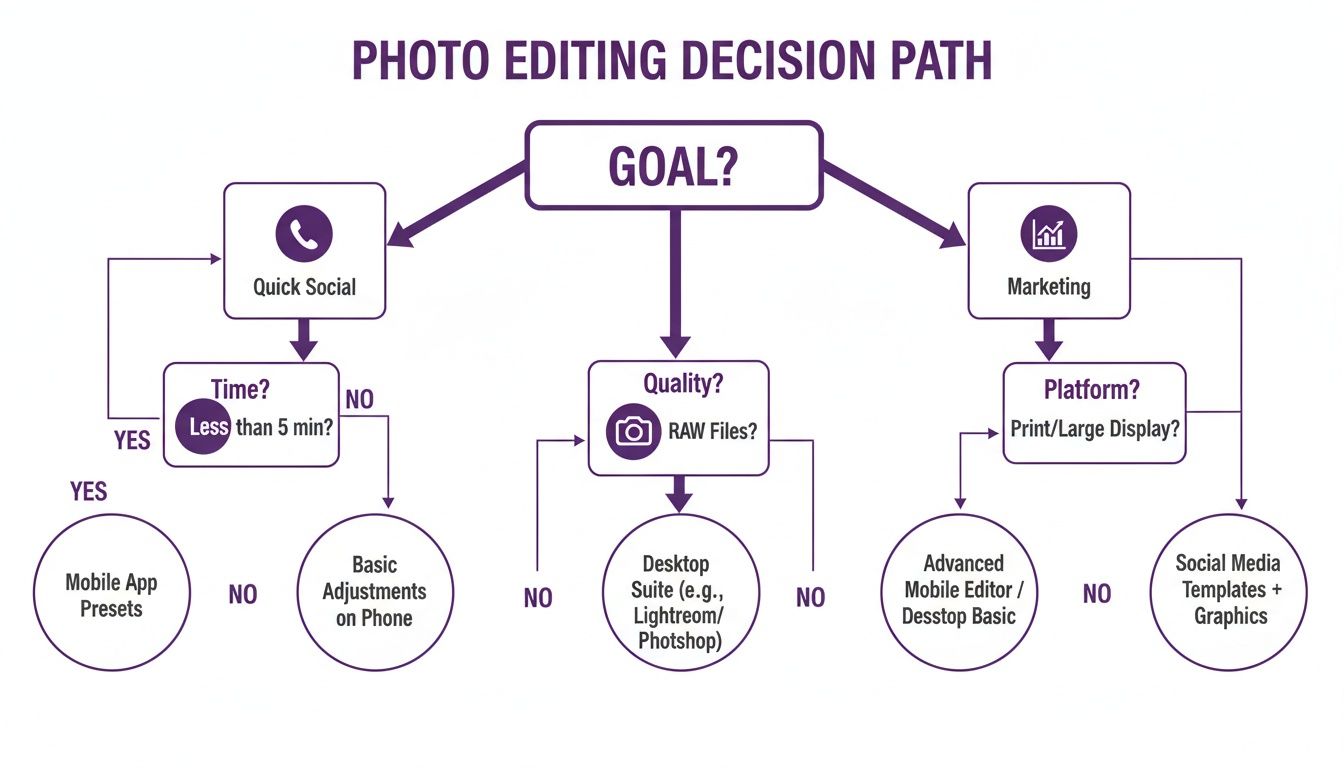
As the flowchart shows, the "best" software is all about your end goal—whether that's churning out content for social media, making pixel-perfect edits for a client, or creating scalable assets for a marketing campaign.
Do I Really Need More Than One Photo Editor?
For most serious creators, the answer is a resounding yes. It's incredibly rare for a single program to be the master of every single task. A common and highly effective workflow is to pair a primary editor for organization and core adjustments with a secondary tool for more specialized jobs.
Think of it this way: a professional photographer might live in Lightroom for 90% of their work—culling, organizing, and batch editing hundreds of photos. But for that one hero shot that needs intricate retouching, they’ll jump over to Photoshop. This hybrid approach has become the new standard, blending raw efficiency with deep creative control.
The most powerful setup is a personalized toolkit, not a single piece of software. A traditional editor for precision and an AI generator for speed covers virtually every creative need, from meticulous client work to rapid content creation.
How Much Should I Expect to Pay?
This is a big one, as pricing models are all over the map. Your budget will definitely steer you toward certain options.
- Subscription Models: This is Adobe's world. Creative Cloud plans give you continuous updates and cloud features for a recurring monthly or annual fee.
- One-Time Purchases: Tools like Affinity Photo are huge with freelancers and anyone trying to avoid another subscription. You get a professional-grade tool for a single payment.
- Free and Open-Source: Programs like GIMP or Darktable offer powerful capabilities for free, but they often come with a steeper learning curve and a less polished feel.
AI platforms, on the other hand, often use a flexible pay-as-you-go or credit-based system, which is great for aligning your costs directly with your usage.
Is AI Replacing Traditional Photo Editors?
Not at all. AI isn't replacing traditional editors; it's supercharging them. The technology is really splitting into two distinct paths: AI-assisted features that speed up manual tasks (like Photoshop's Generative Fill) and AI-native platforms that generate entirely new images from a text prompt.
Here's the best way to think about it: traditional editors are for perfecting what you've already captured with a camera. AI generators are for creating visuals that have never existed before. A modern creative process often involves both—using AI to brainstorm concepts or generate assets, then jumping into a traditional editor to refine them with precision.
Ready to integrate the speed and creativity of AI into your workflow? Explore how AI Media Studio can help you generate stunning, unique visuals in seconds. Generate your first image for free and see the difference for yourself.