For decades, Adobe Photoshop has been the undisputed king of image editing, but its subscription-only model and professional-grade complexity aren't the right fit for everyone. Whether you're a freelancer feeling the pinch of recurring fees, a small business needing a more streamlined tool, or a hobbyist just starting out, the good news is the market is filled with powerful and affordable options. Finding the best alternatives to Photoshop means navigating a sea of choices, each with unique strengths and specific use cases.
This guide cuts through the noise. We've compiled a detailed list of the top contenders, moving beyond simple feature rundowns to provide a practical analysis of each platform. You’ll find everything you need to make an informed decision, from one-time purchase software like Affinity Photo to robust free options like GIMP and browser-based editors like Photopea. If the job is a prompt-first photo edit rather than a layered PSD, see our Photoshop Generative Fill / Canva Magic Edit alternative. Our goal is to help you find the perfect tool that matches your workflow, budget, and creative ambitions without being tethered to Adobe's ecosystem.
Each entry includes a deep dive into:
- Key Features: What makes the software stand out.
- Pricing: A clear breakdown of costs, including free and one-time payment options.
- Best For: Identifying the ideal user, from digital painters to marketing teams.
- Pros & Cons: An honest assessment of strengths and weaknesses.
We'll also cover essential skills that transition across platforms. For instance, many of these tools can handle common but tricky tasks, so learning how to make GIFs transparent is a valuable skill regardless of the software you choose. This resource is designed to be your definitive guide, complete with direct links and screenshots, to help you confidently select your next creative powerhouse.
1. Affinity (by Canva)
Affinity has long been a heavyweight contender for the title of best alternative to Photoshop, known for its one-time purchase model and professional-grade tools. Following its acquisition by Canva, it has shifted to a new, even more accessible model: a free, unified desktop application for Windows and macOS that integrates raster editing, vector design, and page layout into a single interface. This move drastically lowers the barrier to entry for users seeking powerful, non-subscription-based creative software.
Loading image...
The platform shines with its "studios" concept, allowing you to seamlessly switch between pixel-based editing (Photo), vector work (Designer), and desktop publishing (Publisher) without ever leaving the app. This is a game-changer for multi-disciplinary projects. For those migrating from Adobe, Affinity offers excellent PSD compatibility, preserving layers, adjustments, and effects, which makes transitioning existing projects relatively painless.
Key Features & Use Cases
- Unified Creative Suite: A single app for photo editing, vector illustration, and page layout.
- Pro-Grade Tools: Features like non-destructive live filters, RAW development, HDR merging, and full 32-bit workflow support cater to professional photographers and designers.
- Canva Integration: Native hand-off allows you to send designs directly to Canva for team collaboration, asset management, or leveraging Canva's template library.
- Best For: Freelancers, small business owners, and students who need a powerful, free Photoshop replacement and appreciate the streamlined workflow of an all-in-one creative tool.
Pricing and Access
| Tier | Price | Key Features |
|---|---|---|
| Affinity Core | Free | Full desktop suite access (Photo, Designer, Publisher studios), PSD/AI import/export, professional editing tools. |
| Canva Pro (Optional) | Subscription | Unlocks integrated AI features, cloud storage, and full access to Canva's premium assets and tools. |
Pros & Cons
| Pros | Cons |
|---|---|
| Core app is completely free. | Requires a Canva account to use. |
| Familiar, layer-based workflow. | Some advanced AI features are behind the Canva Pro paywall. |
| Excellent PSD file compatibility. | Long-term update plan for V2 license holders is unclear. |
Website: https://affinity.studio
2. GIMP
GIMP (GNU Image Manipulation Program) is one of the most well-known and long-standing best alternatives to Photoshop, celebrated for its powerful, open-source, and completely free framework. Available for Windows, macOS, and Linux, it provides a comprehensive suite of professional-grade tools for tasks like photo retouching, image composition, and graphic design. It's a community-driven project that has evolved over decades, offering deep functionality without any cost or ads.
Loading image...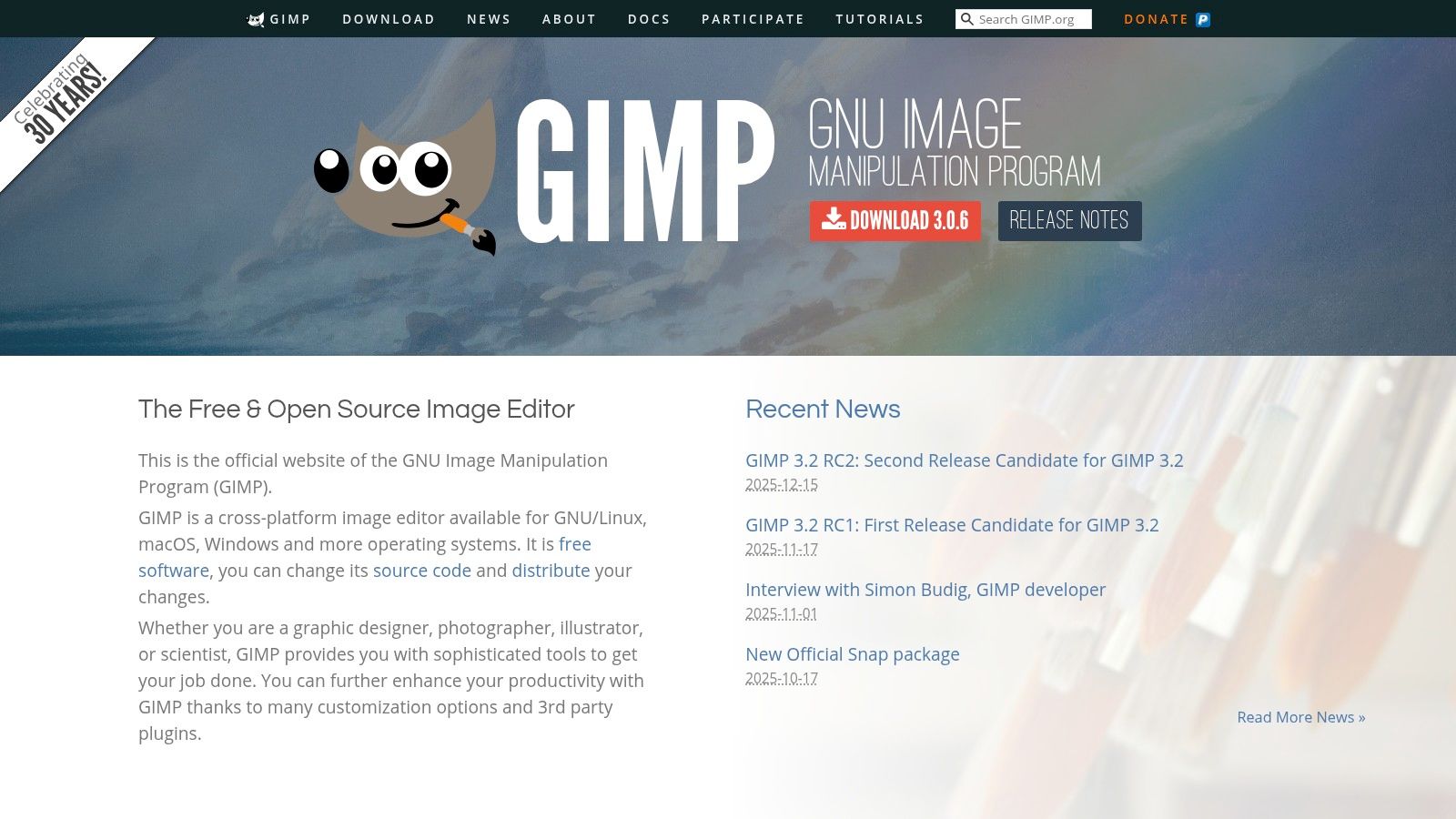
The platform supports a highly customizable interface and a workflow centered around layers, masks, and advanced selection tools, making it feel familiar to anyone coming from Photoshop. Its key strength lies in its extensibility; a vast ecosystem of third-party plug-ins and scripts allows users to add new features and automate repetitive tasks. While its user interface can present a steeper learning curve than some modern rivals, its commitment to being a free, cross-platform tool makes it an invaluable resource for many creators.
Key Features & Use Cases
- Comprehensive Editing Toolkit: Includes layers, masks, paths, advanced color correction, and a wide array of filters and brushes.
- Extensive File Support: Handles a broad range of formats, including the ability to import and export PSD files, preserving key elements like layers.
- Highly Extensible: A robust plug-in architecture allows for significant customization with community-developed add-ons for new filters, effects, and workflow tools. For a different approach to editing, open the AI photo editor (the editor tool remains available).
- Best For: Hobbyists, students, Linux users, and professionals on a budget who need a powerful, fully-featured image editor and are willing to navigate a less-polished UI.
Pricing and Access
| Tier | Price | Key Features |
|---|---|---|
| GIMP | Free | Full access to all features, cross-platform support (Windows, macOS, Linux), community support, plug-in extensibility. |
Pros & Cons
| Pros | Cons |
|---|---|
| Completely free and open-source. | UI/UX can feel dated and less intuitive than Photoshop. |
| Cross-platform with native builds. | Lacks integrated AI features found in commercial tools. |
| Active community for support and updates. | Performance can sometimes lag with very large files. |
Website: https://www.gimp.org
3. Photopea
Photopea is a remarkably powerful browser-based editor that has earned its reputation as one of the best alternatives to Photoshop, primarily for its stunning similarity in interface and functionality. It requires no installation and runs directly in any modern web browser, making it incredibly accessible. This free, ad-supported tool can handle a vast array of file formats, including PSD, AI, XD, FIG, and RAW, preserving layers, smart objects, and adjustment layers with impressive fidelity.
Loading image...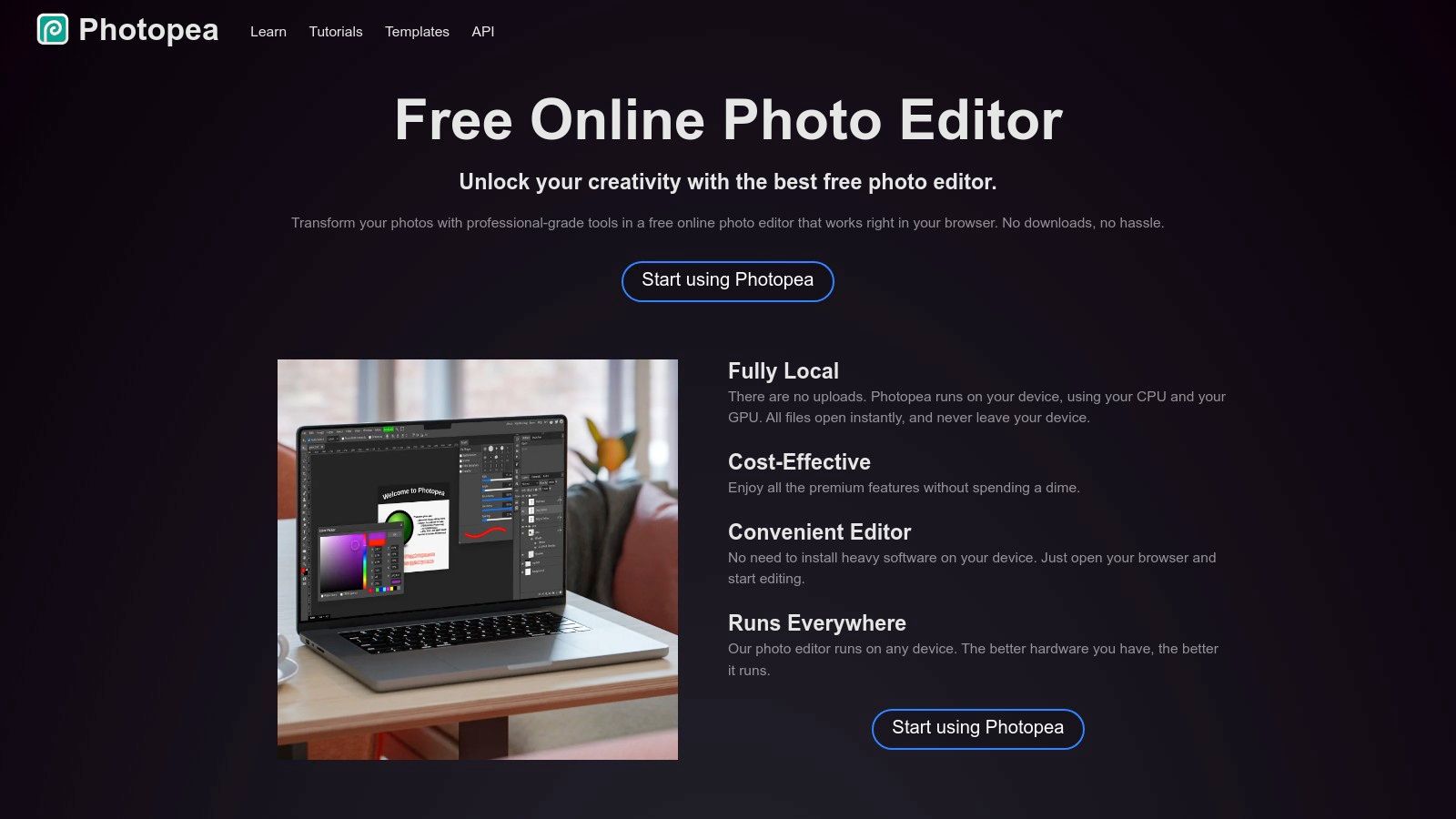
The platform’s greatest strength is its near-identical workflow to Photoshop, which dramatically shortens the learning curve for anyone migrating from Adobe. Because it’s a web app, it’s a perfect solution for quick edits on devices where installing software isn’t possible, like Chromebooks or public computers. For more dedicated use, it can be installed as a Progressive Web App (PWA) for offline access, behaving almost like a native desktop application.
Key Features & Use Cases
- Browser-Based & Offline Capable: Access your editor from anywhere with an internet connection, or use the PWA for offline work.
- Extensive File Support: Edit complex PSD files with layers and smart objects, or work with vector formats like AI and design files from Figma (FIG).
- Familiar Photoshop-like UI: A layer-based system, toolbars, and shortcut keys that will feel immediately intuitive to Photoshop users.
- Best For: Users needing a free, portable Photoshop clone for quick edits, students on a budget, or designers working on locked-down systems or Chromebooks.
Pricing and Access
| Tier | Price | Key Features |
|---|---|---|
| Free | Free | Full editor access, supported by advertisements. |
| Premium | Subscription | Removes ads, provides more history steps, and enables email support. |
| Team/Enterprise | Custom | Self-hosted deployment options for teams needing more control and collaboration features. |
Pros & Cons
| Pros | Cons |
|---|---|
| Instant access from any device. | Free tier includes ads that can be distracting. |
| Very close Photoshop-style workflow. | Premium pricing details are primarily found within the app's account window. |
| Excellent multi-format file support. | Performance can be slower with very large files compared to desktop apps. |
Website: https://www.photopea.com
4. Pixelmator Pro
Pixelmator Pro is a powerful and beautifully designed image editor built exclusively for macOS. It stands out as one of the best alternatives to Photoshop for Apple users, leveraging native technologies like Metal, Core ML, and Apple silicon for incredibly fast, responsive performance. Its clean, single-window interface is intuitive for both beginners and professionals, offering a full suite of non-destructive editing tools without the complexity of a subscription model.
Loading image...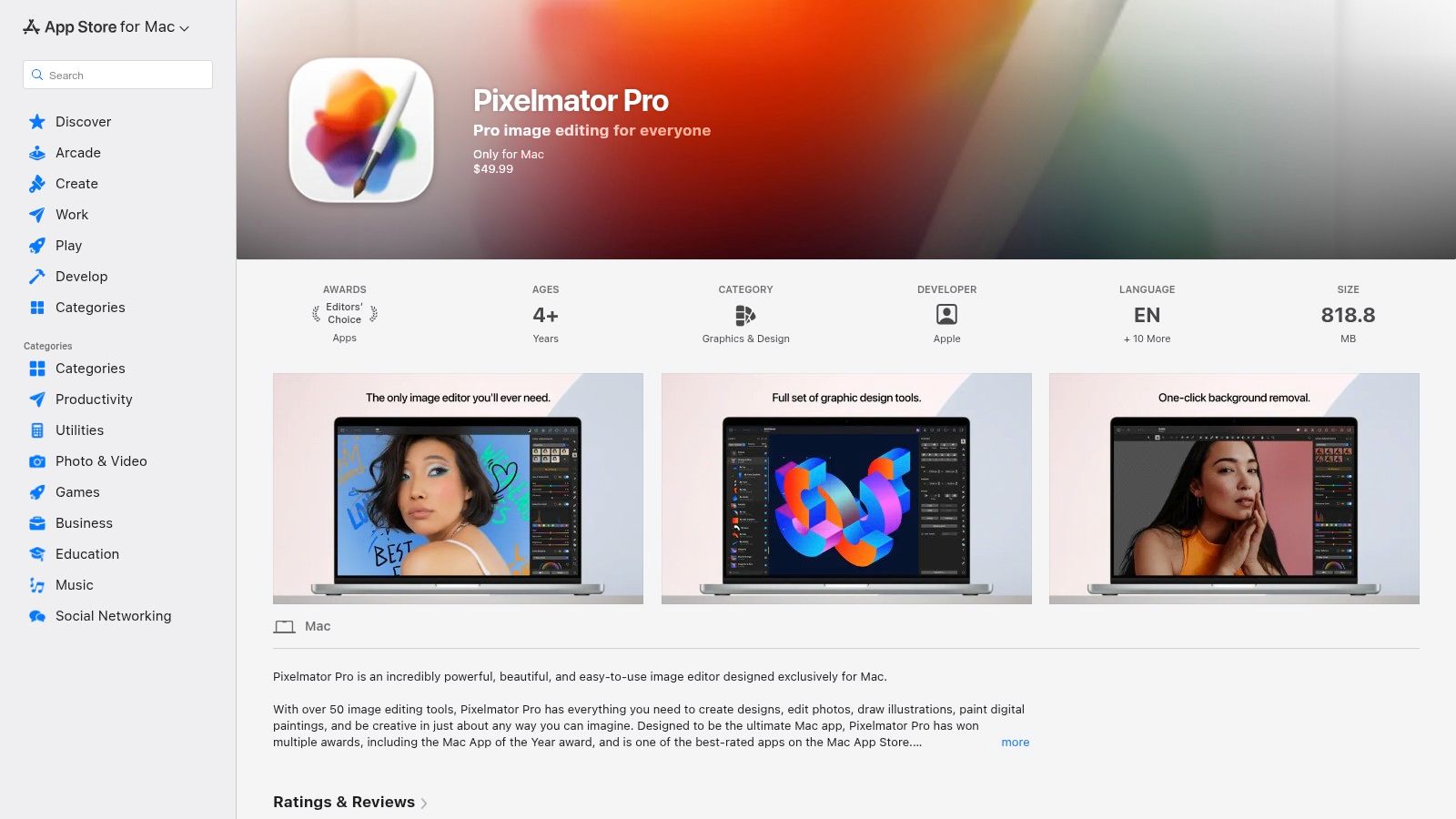
The platform shines with its intelligent, machine-learning-powered features. Tools like ML Super Resolution can upscale images with stunning clarity, while ML Enhance automatically perfects photos with a single click. It also provides robust support for RAW photos, handles PSD files with ease, and even includes vector tools, making it a versatile choice for a wide range of creative projects from photo editing to graphic design.
Key Features & Use Cases
- ML-Powered Tools: Automated adjustments like ML Enhance, Denoise, and Super Resolution streamline common editing tasks.
- Full RAW Workflow: Comprehensive support for RAW photos, including non-destructive edits and support for all major camera formats.
- Vector and Pixel Editing: A unified environment for both raster and vector graphics, ideal for mixed-media projects.
- Best For: Mac users, photographers, and digital artists who want a fast, modern, and subscription-free editor that is deeply integrated with the Apple ecosystem.
Pricing and Access
| Tier | Price | Key Features |
|---|---|---|
| Full License | $49.99 (One-Time) | Full, permanent access to all features, professional tools, vector graphics support, and future updates. |
Pros & Cons
| Pros | Cons |
|---|---|
| Fast native macOS performance. | macOS-only - no Windows or web versions. |
| One-time purchase model (no subscription). | Smaller plug-in ecosystem compared to Adobe. |
| Clean, user-friendly interface. | Lacks some of Photoshop's most advanced, niche features. |
Website: https://apps.apple.com/us/app/pixelmator-pro/id1289583905
5. Krita
Krita is a powerful, free, and open-source digital painting program that has carved out a niche as a top-tier tool for illustrators, concept artists, and comic creators. While its primary focus is on digital art, its robust layer management, extensive brush engine, and support for non-destructive filters make it a surprisingly capable alternative to Photoshop for certain image editing tasks, especially those involving creative manipulation or texturing. It is available across Windows, macOS, and Linux, making it highly accessible.
Loading image...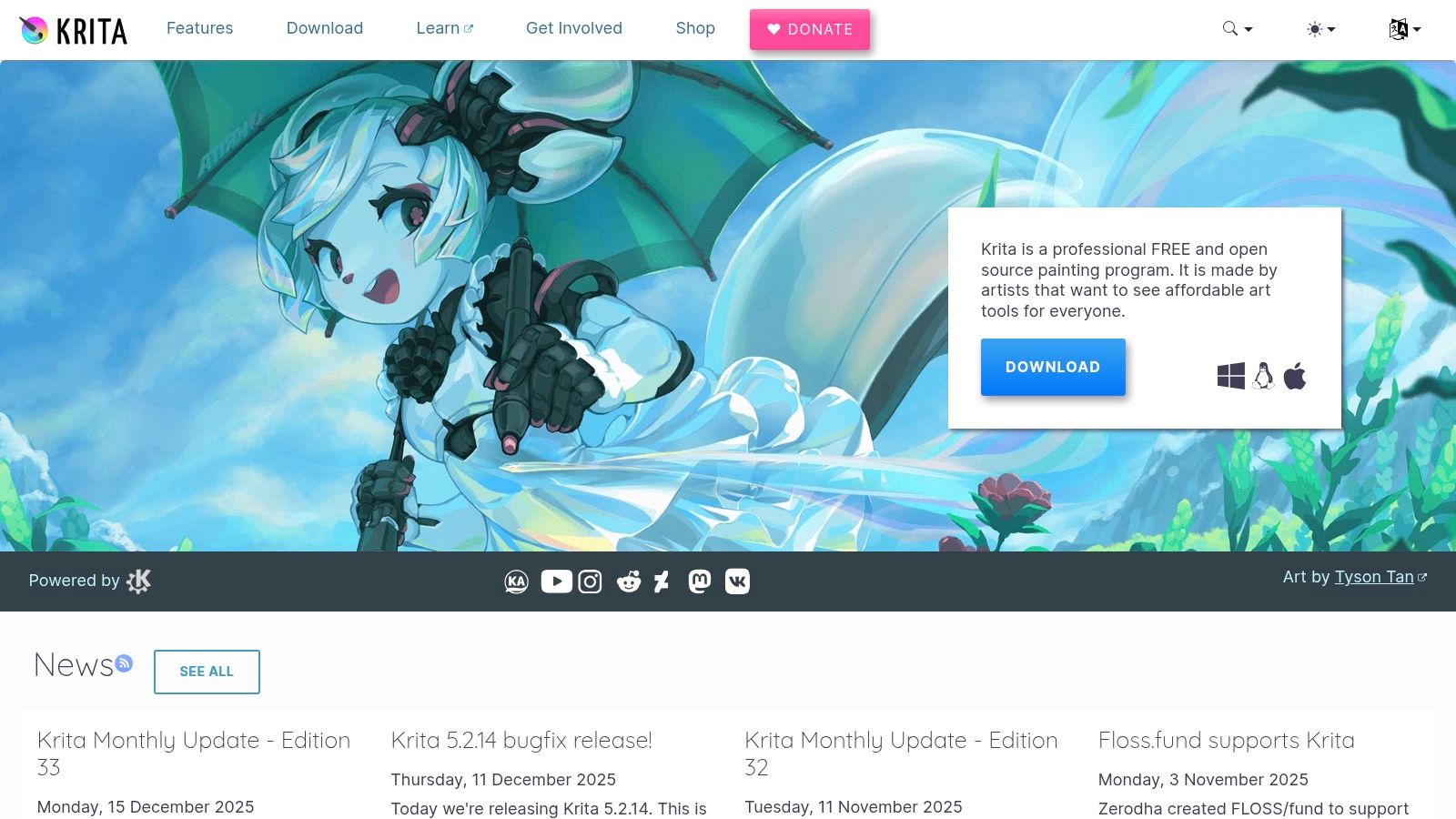
The platform's strength lies in its artist-centric design. Features like brush stabilizers, a pop-up palette for quick tool access, and advanced layer masks are built for creative workflows. For users coming from Photoshop, the interface will feel somewhat familiar, with a similar layer-based system, blending modes, and a comparable set of selection tools. While it lacks the advanced photographic tools of its peers, its core editing features are solid and constantly improving with community-driven development.
Key Features & Use Cases
- Advanced Brush Engines: Over 100 professional brushes, a brush stabilizer for smooth lines, and extensive customization options with tablet pressure support.
- Comprehensive Layer Management: Full support for layers, groups, vector layers, and non-destructive filter and file layers.
- Animation Tools: Built-in tools for creating frame-by-frame raster animations, complete with an onion-skinning display.
- Best For: Digital painters, illustrators, comic book artists, and hobbyists who need a free, high-powered painting tool with competent photo editing capabilities.
Pricing and Access
| Tier | Price | Key Features |
|---|---|---|
| Direct Download | Free | Full access to all features, manual updates. |
| Store Versions | One-time fee (~$15) | Supports development, provides automatic updates via Steam, Epic Games, or Microsoft Store. |
Pros & Cons
| Pros | Cons |
|---|---|
| Completely free and open-source. | Photo-editing toolset is not as deep as dedicated editors. |
| Excellent for digital painting and illustration. | The interface can have a learning curve for non-artists. |
| Cross-platform (Windows, macOS, Linux). | Lacks advanced features like Content-Aware Fill. |
Website: https://krita.org
6. ON1 Photo RAW
ON1 Photo RAW carves out a unique space by positioning itself as a direct competitor to both Photoshop and Lightroom combined. It merges a powerful, non-destructive RAW processor with a robust, layer-based photo editor into a single, cohesive application. This all-in-one approach appeals to photographers who want to manage, catalog, and perform intricate edits without constantly switching between different programs, streamlining their entire workflow from import to final export.
Loading image...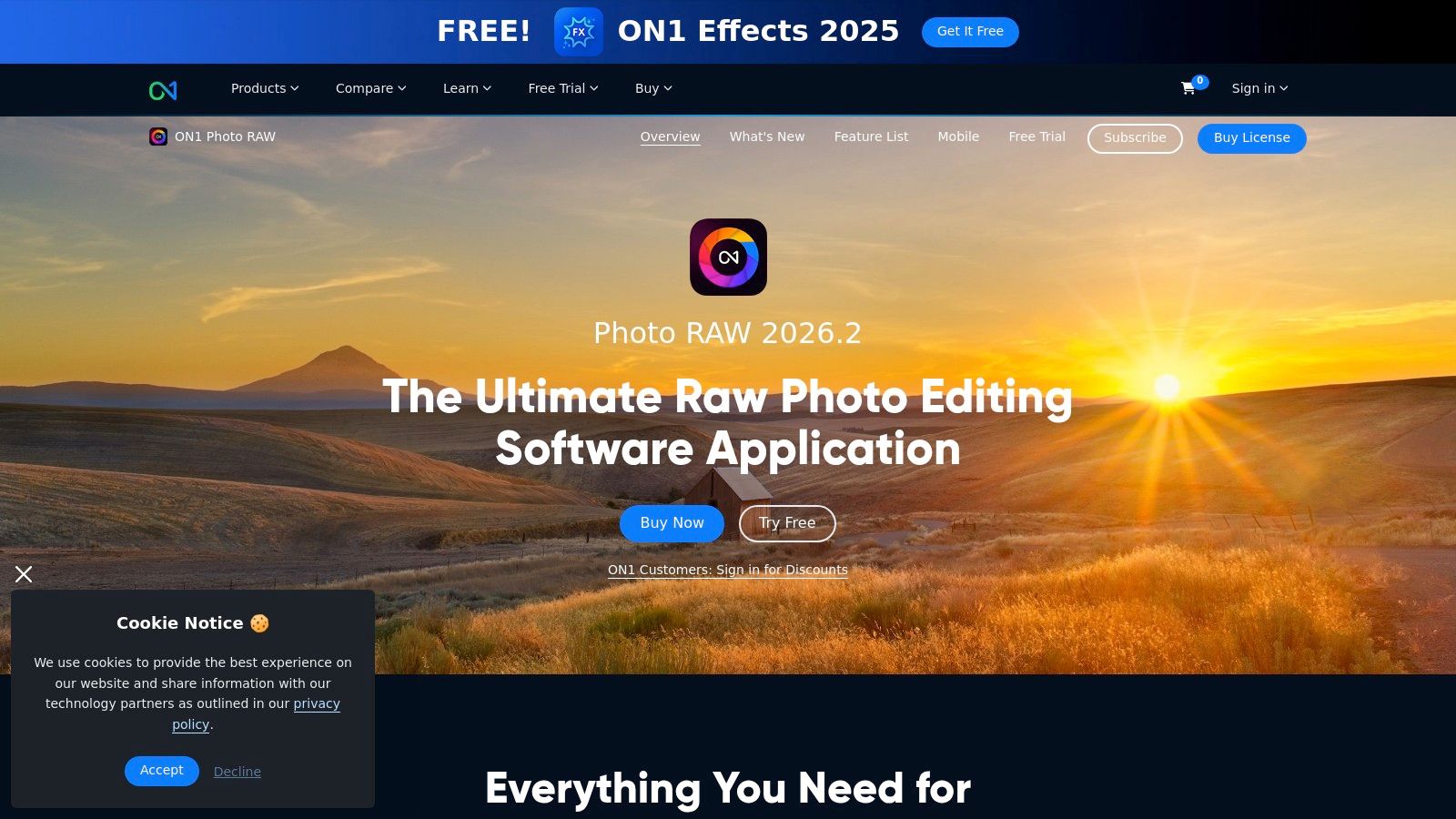
The platform stands out with its powerful AI-driven tools, such as Sky Swap AI, NoNoise AI for noise reduction, and Resize AI for intelligent upscaling. Its layered editing capabilities feel familiar to Photoshop users, supporting masks, blending modes, and a wide array of filters and effects. Unlike many subscription-only services, ON1 Photo RAW offers a perpetual license, giving users the choice to own their software outright.
Key Features & Use Cases
- Integrated Workflow: Combines photo organization (browse), RAW development (develop), and layered editing (edit) in one interface.
- Advanced AI Tools: Features like AI Masking, NoNoise AI, and Portrait AI automate complex and time-consuming editing tasks.
- Flexible Access: Can be used as a standalone application or as a plug-in for other hosts like Adobe Photoshop, Lightroom Classic, and Affinity Photo.
- Best For: Professional and enthusiast photographers who want a single application to replace both Lightroom and Photoshop, with a preference for a perpetual license.
Pricing and Access
| Tier | Price | Key Features |
|---|---|---|
| ON1 Photo RAW MAX | Subscription or Perpetual License | Full suite of AI tools, standalone & plug-in access, cloud sync, mobile apps. |
| ON1 Photo RAW 2024 | Perpetual License | Core standalone application with all major editing and AI features, no plug-in access. |
Pros & Cons
| Pros | Cons |
|---|---|
| Offers a perpetual license option. | The interface can feel dense and overwhelming for new users. |
| Broad feature set reduces the need for multiple apps. | Can be resource-intensive on older or lower-spec hardware. |
| Powerful AI-driven masking and enhancement tools. | Some users report a steeper learning curve than competitors. |
Website: https://www.on1.com/products/photo-raw/
7. Luminar Neo
Luminar Neo by Skylum positions itself as an AI-powered photo editor designed to simplify complex editing tasks and produce stunning results quickly. It stands out by focusing on AI-driven tools that automate tedious processes like masking, relighting, and object removal, making it a compelling Photoshop alternative for photographers who prioritize speed and creative effects over granular, manual control. It works both as a standalone application and as a plug-in for Adobe Photoshop and Lightroom, offering flexibility for various workflows.
Loading image...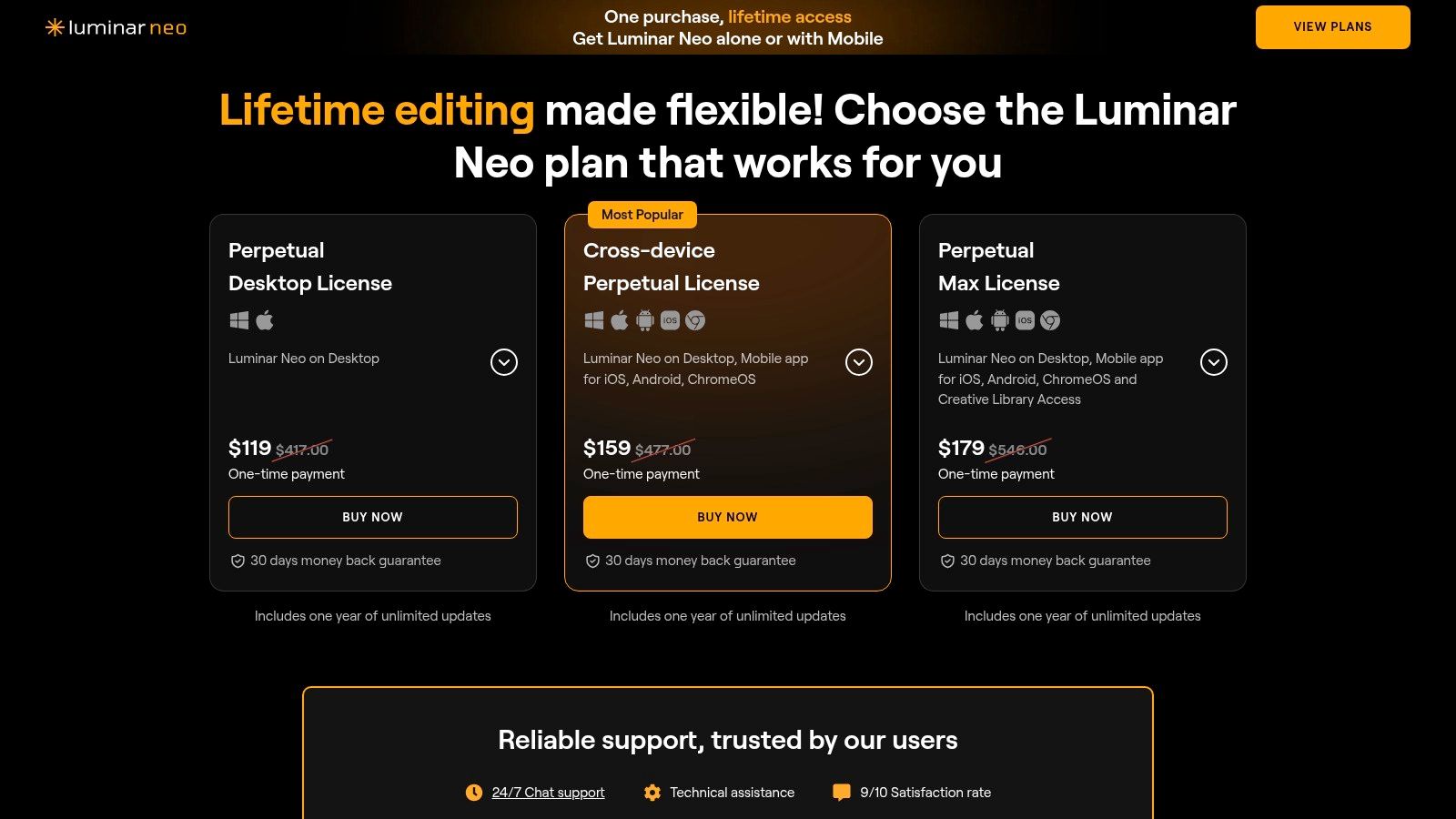
The platform's strength lies in its powerful, one-click features. Tools like Sky AI for dramatic sky replacement, Portrait Bokeh AI for creamy backgrounds, and Relight AI for adjusting foreground and background lighting independently can achieve professional-looking edits in seconds. More recent additions like GenErase and GenExpand bring generative AI capabilities, allowing users to remove distractions or extend photo backgrounds intelligently, keeping it competitive in the modern editing landscape.
Key Features & Use Cases
- AI-Driven Tools: Features like Sky AI, Enhance AI, Portrait AI, and generative tools (GenErase, GenSwap) automate complex edits.
- Layer and Masking AI: Supports a layer-based workflow with smart AI masking that can automatically detect up to nine separate elements in a photo.
- Preset Ecosystem: An extensive library of built-in and marketplace presets (called "Looks") allows for rapid, one-click transformations.
- Best For: Photographers (portrait, landscape, real estate) and content creators who want to achieve high-impact results with minimal effort and benefit from a streamlined, AI-assisted workflow.
Pricing and Access
| Tier | Price | Key Features |
|---|---|---|
| Perpetual License | One-time purchase | Lifetime access to the core Luminar Neo software; may not include future major generative AI updates. |
| Pro Subscription | Monthly/Yearly | Access to the core app, all extensions, future updates, and a selection of creative assets. |
| Ultimate Plan | Yearly | Includes everything in the Pro plan plus access to a more extensive library of creative assets and tutorials. |
Pros & Cons
| Pros | Cons |
|---|---|
| Fast, AI-powered results. | Creative libraries and assets often require a separate subscription. |
| Perpetual license option is available. | AI tools can be demanding on system resources (CPU/GPU). |
| User-friendly, approachable interface. | Less focused on graphic design and text tools than Photoshop. |
Website: https://skylum.com/luminar/pricing
8. Capture One Pro
Capture One Pro has carved out a niche as the gold standard for professional photographers, particularly in studio and commercial environments. While Photoshop offers broad image manipulation capabilities, Capture One excels in RAW processing, tethered shooting, and unparalleled color grading tools. It is a high-end editor designed for workflows where color accuracy and efficient culling are paramount.
Loading image...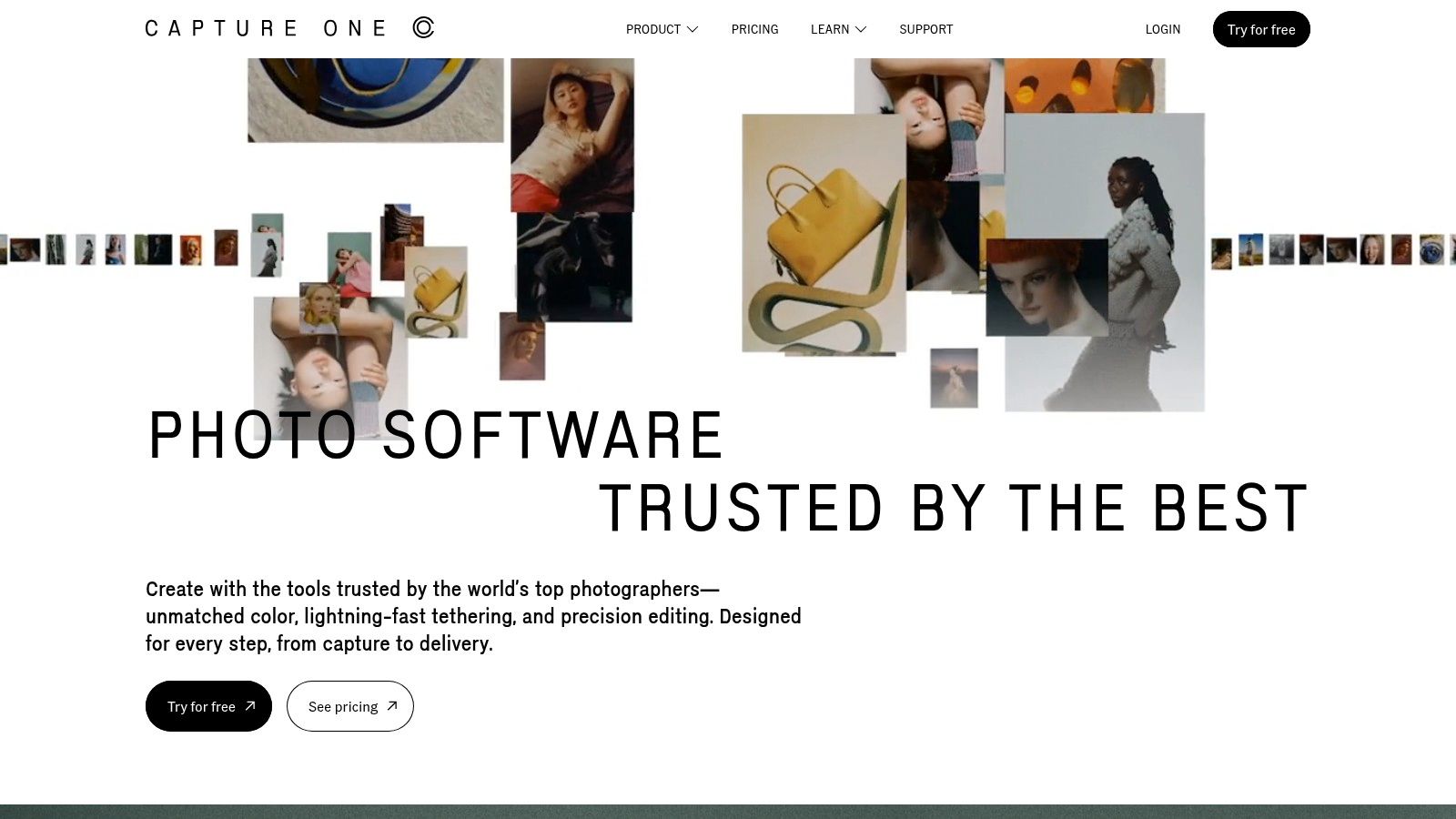
The platform is renowned for its world-class tethering, allowing photographers to shoot directly into the software for instant review and adjustment. Its organizational tools, built around "Sessions" and "Catalogs," provide a robust framework for managing large volumes of high-resolution images, a critical feature for professional shoots. Its advanced layer and masking system rivals Photoshop's, offering precise control over adjustments without sacrificing image quality.
Key Features & Use Cases
- Elite Color Control: Advanced Color Editor and skin tone tools offer granular control over hues, saturation, and lightness, ensuring superior color accuracy. You can learn more about how advanced editing styles can be achieved with these tools.
- World-Class Tethering: Industry-leading live view and camera control for Canon, Nikon, Sony, and more, making it indispensable for studio work.
- Advanced Masking: Features like Luminosity Masking, Radial Masks, and Linear Gradient Masks allow for complex, targeted edits.
- Best For: Commercial photographers, studio professionals, and high-end portrait artists who require the absolute best in RAW processing, color grading, and tethered shooting.
Pricing and Access
| Tier | Price | Key Features |
|---|---|---|
| Subscription | Starts at $24/month | Full access to all features, updates, and new versions. Desktop and mobile options. |
| Perpetual License | From $299 (one-time) | Own the current version forever, but only receives bug fixes, not new feature updates. |
Pros & Cons
| Pros | Cons |
|---|---|
| Industry-standard tethering and color tools. | Higher overall cost than consumer-focused alternatives. |
| Deep professional ecosystem and training resources. | Perpetual licenses do not receive new feature updates. |
| Superior RAW file rendering engine. | Steeper learning curve for those new to pro workflows. |
Website: https://www.captureone.com
9. Corel PaintShop Pro
Corel PaintShop Pro has been a staple in the creative software space for decades, carving out a niche as a powerful yet affordable, subscription-free Photoshop alternative for Windows users. It offers a familiar, layer-based workflow packed with professional-grade tools, including RAW editing, HDR merging, and a host of AI-powered features. Its one-time purchase model makes it particularly appealing for hobbyists and professionals looking to escape recurring subscription fees.
Loading image...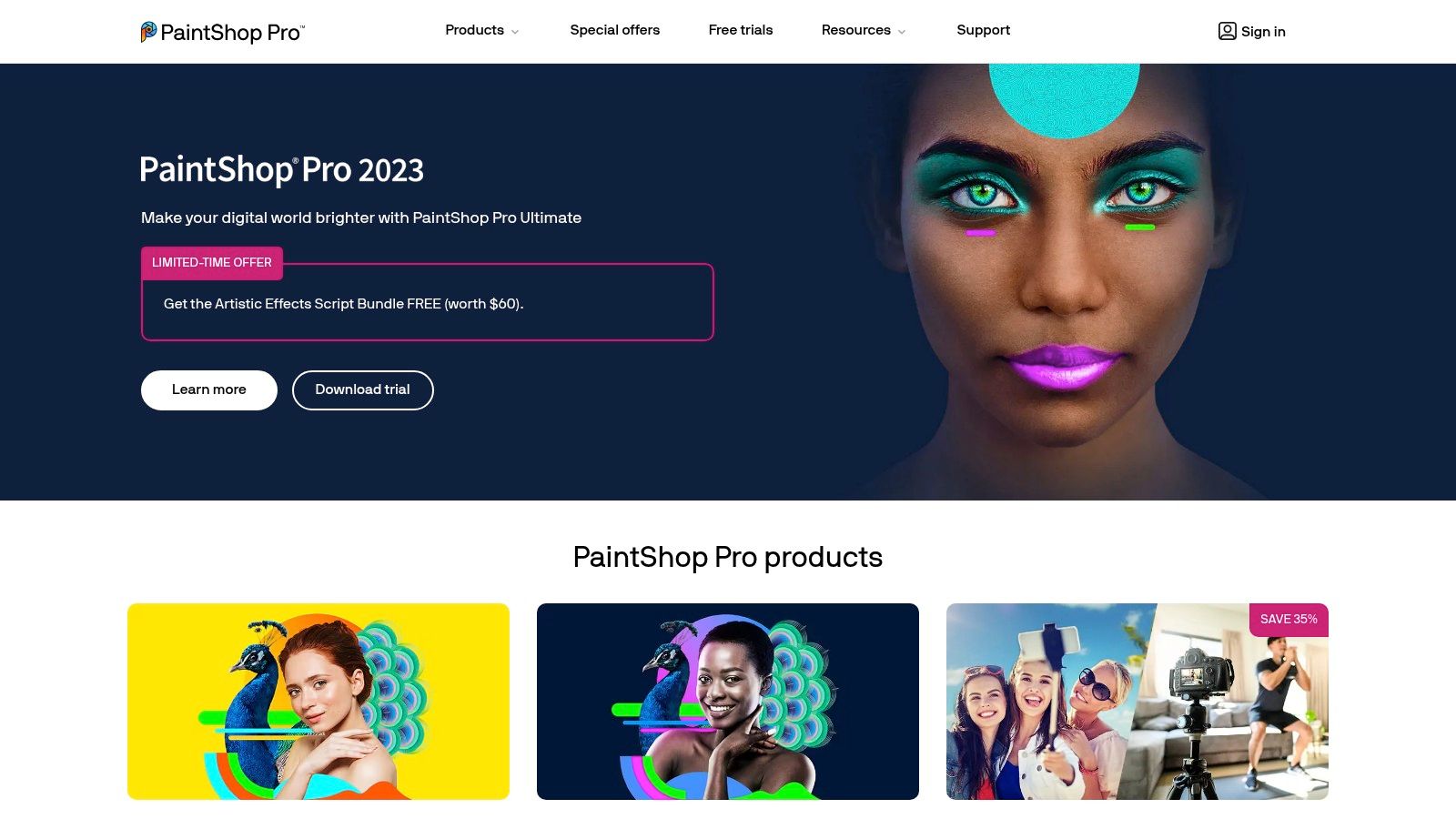
The platform stands out by bundling comprehensive photo editing, graphic design, and smart solutions into one package. The AI-driven tools, such as AI Background Replacement and AI Upsampling, streamline common but time-consuming tasks, allowing users to achieve complex results quickly. With a customizable interface and extensive support for third-party plugins, PaintShop Pro offers a flexible and robust environment for a wide range of creative projects without a steep learning curve.
Key Features & Use Cases
- Comprehensive Toolset: Features a full RAW Lab for photo processing, layers, masks, brushes, and content-aware tools.
- AI-Powered Editing: Includes smart tools for background replacement, noise reduction, artifact removal, and upscaling images with impressive clarity.
- One-Time Purchase: A key differentiator, providing lifetime access to a specific version with a single payment, often at a discounted price.
- Best For: Windows users, from amateur photographers to graphic designers, who want a feature-rich editor with AI assistance and a perpetual license.
Pricing and Access
| Tier | Price | Key Features |
|---|---|---|
| PaintShop Pro | One-Time Purchase (~$79.99) | Full-featured photo editing, graphic design tools, AI features, RAW editor. |
| PaintShop Pro Ultimate | One-Time Purchase (~$99.99) | Includes the core editor plus bonus software like MultiCam Capture and a creative content pack. |
Pros & Cons
| Pros | Cons |
|---|---|
| Affordable one-time purchase. | Windows-only, with no macOS version available. |
| Powerful AI-assisted tools. | Development and major updates can be slower than subscription models. |
| Familiar interface for Photoshop users. | Some UI elements can feel slightly dated compared to modern competitors. |
Website: https://www.paintshoppro.com
10. Canva
Canva has positioned itself as the go-to design platform for speed and accessibility, particularly for marketers, social media managers, and small businesses. Rather than competing with Photoshop's pixel-level complexity, Canva focuses on a template-driven workflow that makes creating professional-looking marketing assets, social media graphics, and presentations incredibly fast. Its browser-first approach and intuitive drag-and-drop interface remove the steep learning curve associated with traditional photo editors.
Loading image...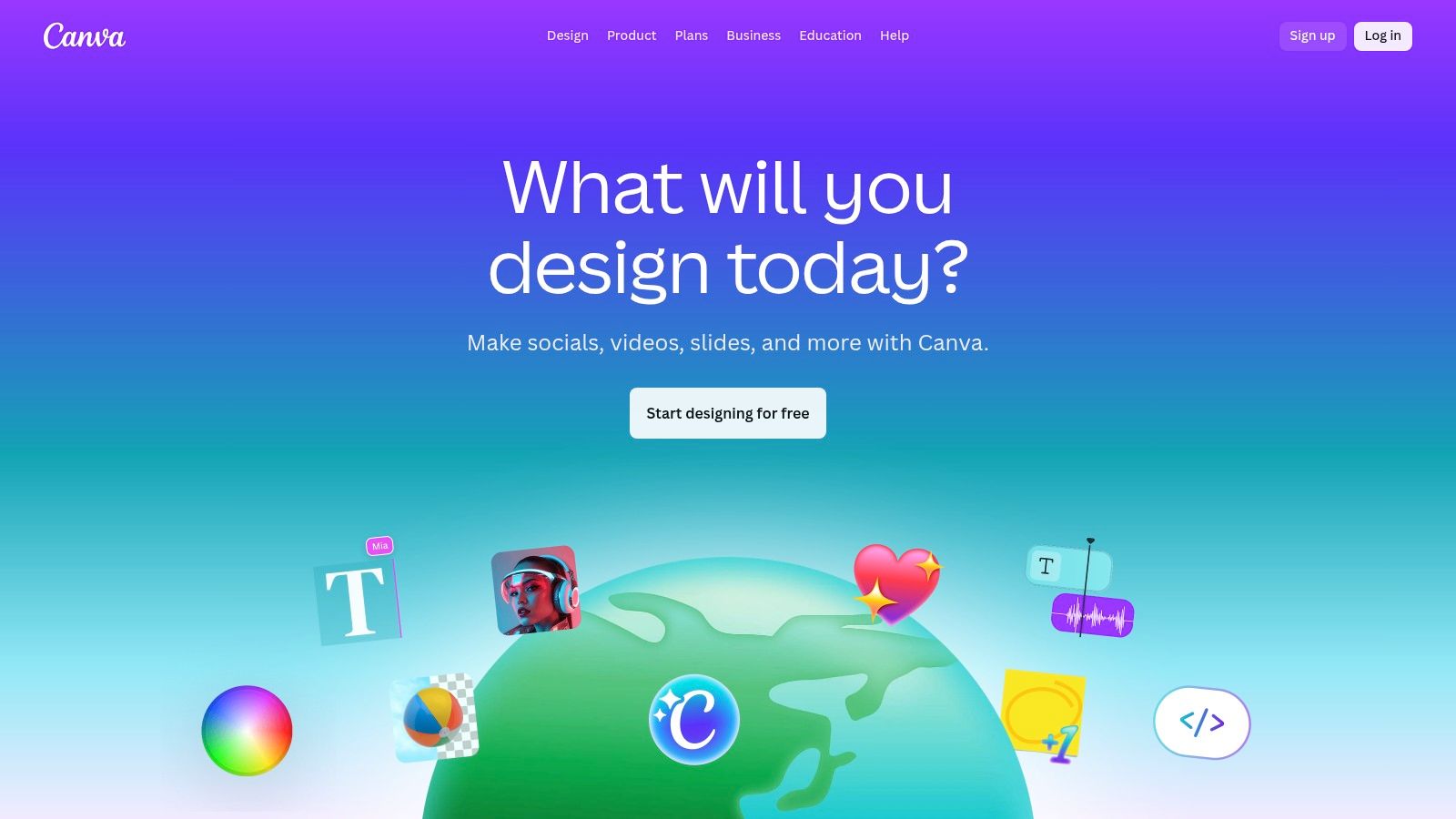
The platform's strength lies in its vast ecosystem of templates, stock photos, videos, and elements, combined with powerful AI-driven "Magic" tools for tasks like background removal, content generation, and smart resizing. For those exploring various design platforms, you might be interested in comparing different options, including a robust Canva alternative to see how they stack up. While not a direct replacement for intricate photo manipulation, it serves as an excellent, user-friendly tool for the majority of everyday business design needs and is a strong contender for one of the best alternatives to Photoshop for that audience.
Key Features & Use Cases
- Magic Studio: A suite of AI-powered tools for background removal, object erasing, content creation, and automatically resizing designs for different platforms.
- Vast Template & Asset Library: Thousands of professionally designed templates and a massive library of stock photos, videos, and graphics to accelerate the design process.
- Team Collaboration: Features like brand kits, real-time commenting, and approval workflows are built for marketing and social teams. Its suite also includes a free AI art generator to create unique assets.
- Best For: Marketing teams, social media managers, and entrepreneurs who need to quickly produce branded content without extensive design training.
Pricing and Access
| Tier | Price | Key Features |
|---|---|---|
| Canva Free | Free | 1M+ free assets, basic editing tools, 5GB cloud storage. |
| Canva Pro | Subscription | 100M+ premium assets, Magic Studio tools, Brand Kit, 1TB storage. |
| Canva for Teams | Subscription (per user) | All Pro features plus real-time collaboration, approval workflows, and centralized team management. |
Pros & Cons
| Pros | Cons |
|---|---|
| Extremely fast for social and marketing graphics. | Browser-first with limited advanced pixel editing versus desktop apps. |
| Huge template and stock ecosystem. | Teams pricing has historically seen large changes. |
| Minimal learning curve; very intuitive. | Some AI features can produce generic-looking results. |
Website: https://www.canva.com
11. Pixlr
Pixlr has established itself as a leading browser-based photo editing suite, offering a powerful and accessible alternative to Photoshop without the need for software installation. It provides two distinct interfaces: Pixlr X for quick, intuitive edits, and Pixlr E for more advanced, layer-based manipulation reminiscent of traditional desktop editors. This dual-editor approach makes it uniquely versatile for users of all skill levels, from social media managers needing a fast crop to designers requiring more granular control.
Loading image...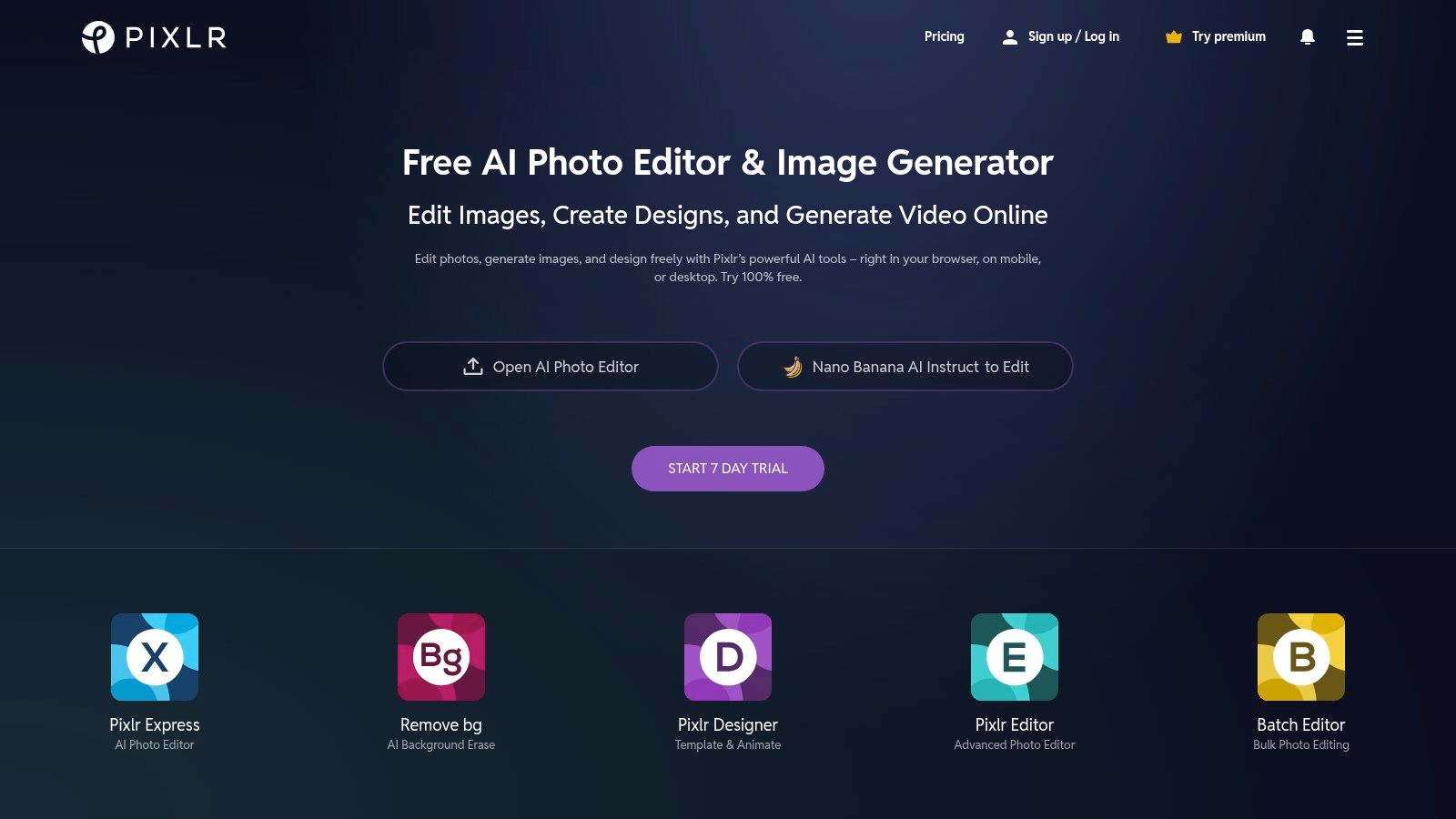
The platform is particularly known for its strong suite of AI-powered tools, including one-click background removal, object cutouts, and generative AI features. With web, desktop, and mobile apps all syncing to a single account, Pixlr ensures a seamless workflow across devices. Its extensive library of templates, overlays, and stock assets further streamlines the creative process for producing marketing materials and social media content quickly.
Key Features & Use Cases
- Dual Editor Interface: Choose between the simple Pixlr X for quick fixes or the advanced Pixlr E for detailed, layer-based editing.
- AI-Powered Tools: Features like AI Cutout, Generative Fill, and AI Image Generator accelerate complex editing tasks.
- Cross-Platform Access: Start a project on your browser and continue on the desktop or mobile app with a unified account.
- Best For: Social media managers, bloggers, and small businesses who need a fast, web-accessible tool for routine edits, template-based designs, and AI-assisted tasks.
Pricing and Access
| Tier | Price | Key Features |
|---|---|---|
| Free | Free | Ad-supported access to basic editors and limited AI tools. |
| Plus | Starts at $0.99/mo | Ad-free experience, unlimited saves, 80 monthly AI credits. |
| Premium | Starts at $4.90/mo | Full access to Pixlr Suite, extensive assets, 1000 monthly AI credits. |
| Team | Starts at $9.91/mo/seat | Centralized billing and seat management for teams. |
Pros & Cons
| Pros | Cons |
|---|---|
| Very low-cost plans. | Free tier includes ads and feature limits. |
| Fast workflows for routine edits. | Users have reported concerns over plan and AI credit changes. |
| Cross-platform access via web, desktop, and mobile. | Advanced features may not match dedicated desktop software. |
Website: https://pixlr.com
12. ACDSee Photo Studio
ACDSee Photo Studio carves out a unique niche by combining powerful, layer-based editing with a comprehensive Digital Asset Management (DAM) system. This makes it a compelling Photoshop alternative for photographers who need to organize, catalog, and process large volumes of images within a single, integrated workflow. The platform offers both subscription and perpetual license models, giving users the flexibility to choose how they want to buy and own their software.
Loading image...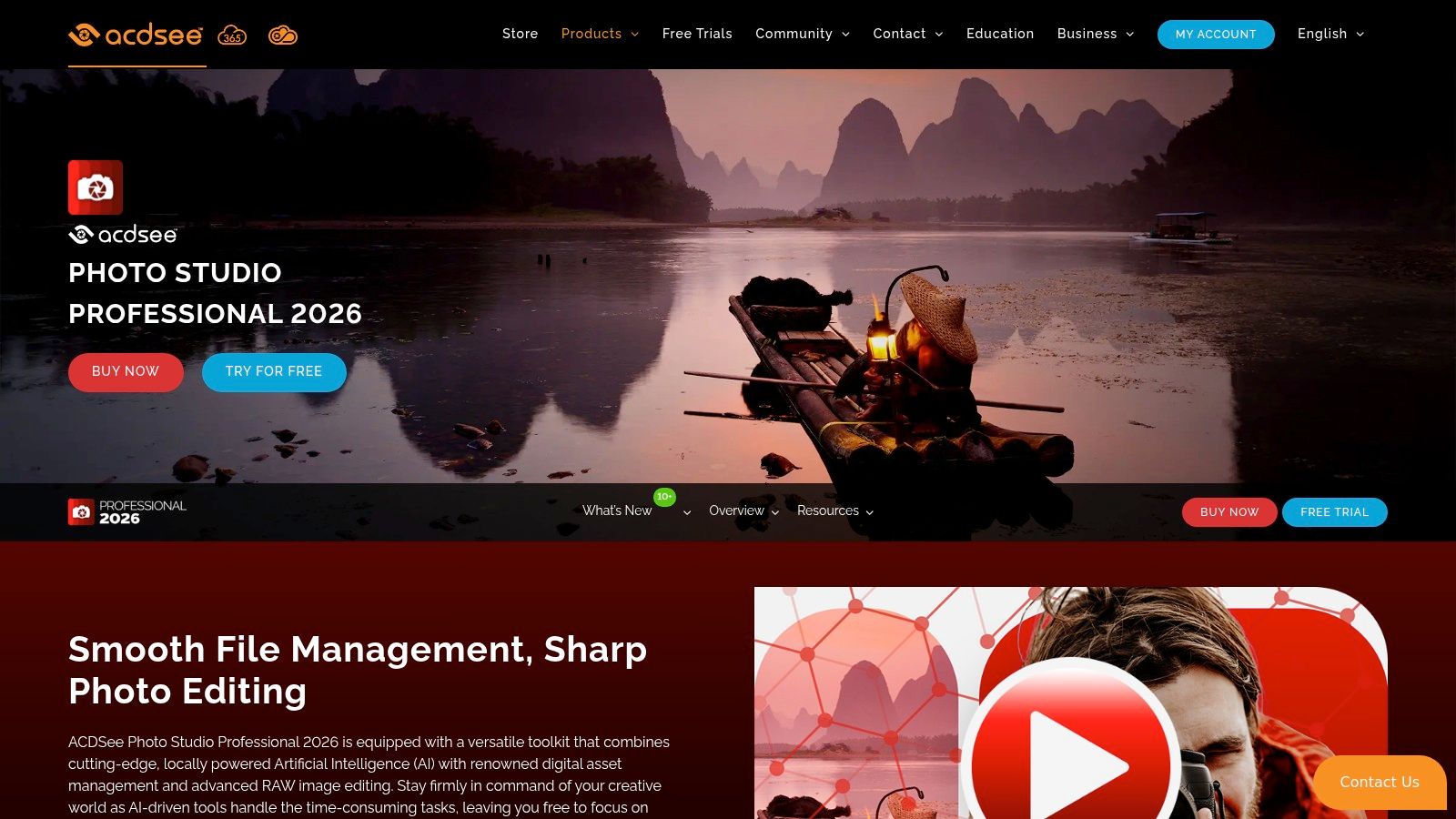
Unlike applications that focus purely on pixel editing, ACDSee's strength is its end-to-end management. You can import from your camera, apply batch edits, add keywords and ratings, perform detailed non-destructive RAW development, and then switch to a layered editor for more complex composites and retouching. This all-in-one approach eliminates the need for a separate program like Adobe Bridge or Lightroom, streamlining the entire photographic process from capture to final edit.
Key Features & Use Cases
- Integrated DAM: Advanced tools for organizing, keywording, rating, and searching large photo libraries.
- RAW and Layered Editing: A full suite of non-destructive RAW development tools combined with a layer-based editor for composites and fine-tuned adjustments.
- Flexible Licensing: Choose between a one-time perpetual license or a low-cost subscription that includes cloud storage and multiple installs.
- Best For: Photographers and high-volume image creators who want a single application for both library management and advanced editing, avoiding a multi-app subscription.
Pricing and Access
| Tier | Price | Key Features |
|---|---|---|
| Perpetual License | One-time fee | Buy the current version and own it forever, includes basic editing and DAM. |
| Subscription | Annual fee | Includes the latest software versions, cloud storage, and video editing tools in higher tiers. |
Pros & Cons
| Pros | Cons |
|---|---|
| Perpetual licenses are a core offering. | Windows version is significantly more feature-rich than the macOS version. |
| Strong DAM and editing in one package. | The interface can feel cluttered for new users. |
| Great value, especially with frequent sales. | Fewer third-party plug-ins compared to Photoshop. |
Website: https://www.acdsee.com/en/products/photo-studio-professional/
Top 12 Photoshop Alternatives — Feature Comparison
| Tool | Core features ✨ | UX / Quality ★ | Price / Value 💰 | Target audience 👥 | Standout 🏆 |
|---|---|---|---|---|---|
| Affinity (by Canva) | Pixel/vector/layout studios, PSD/RAW support, Canva hand‑off ✨ | ★★★★ | 💰 Free core; some AI via Canva Pro | 👥 Designers switching from Photoshop, teams | 🏆 Pro‑grade desktop + Canva integration |
| GIMP | Layers, masks, filters, plugin ecosystem ✨ | ★★★ | 💰 Free / open‑source | 👥 Hobbyists, budget‑conscious pros, Linux users | 🏆 Fully local, extensible free editor |
| Photopea | Browser PSD/AI/RAW support, PWA, smart objects ✨ | ★★★★ | 💰 Freemium (ads) / Premium | 👥 Quick editors, Chromebook users, students | 🏆 Photoshop‑like in browser (no install) |
| Pixelmator Pro | ML Enhance, Super Resolution, RAW, PSD support ✨ | ★★★★★ | 💰 One‑time (Mac App Store) | 👥 macOS creatives, Apple Silicon users | 🏆 Fast native macOS performance & ML tools |
| Krita | Advanced brush engines, tablet support, painting workflow ✨ | ★★★★ | 💰 Free (optional paid store builds) | 👥 Illustrators, concept artists | 🏆 Best toolset for digital painting |
| ON1 Photo RAW | RAW processor + layers, AI masking & resize ✨ | ★★★★ | 💰 Perpetual or subscription | 👥 Photographers who want all‑in‑one RAW + edits | 🏆 RAW + layered editing in one app |
| Luminar Neo | Generative tools (GenErase/Expand/Swap), sky/portrait AI ✨ | ★★★★ | 💰 Perpetual + optional asset subscriptions | 👥 Creators who favor AI‑first retouching | 🏆 Strong generative AI toolset |
| Capture One Pro | Elite color control, tethering, session/catalog workflows ✨ | ★★★★★ | 💰 High cost: subscription or perpetual | 👥 Studio/commercial photographers, pros | 🏆 Industry‑standard color & tethering |
| Corel PaintShop Pro | Layers, RAW Lab, AI background & upscaling ✨ | ★★★ | 💰 One‑time (Windows) — often discounted | 👥 Windows users seeking budget Photoshop alternative | 🏆 Affordable, subscription‑free option |
| Canva | Templates, background remover, brand kits, collaboration ✨ | ★★★★ | 💰 Freemium; Pro/team tiers | 👥 Marketers, social teams, non‑designers | 🏆 Fast templated workflows & team features |
| Pixlr | Web/desktop/mobile, AI cutout, templates, AI credits ✨ | ★★★ | 💰 Low‑cost freemium | 👥 Social editors, quick marketers | 🏆 Quick web edits with unified account access |
| ACDSee Photo Studio | DAM + RAW processing + layered editing ✨ | ★★★ | 💰 Perpetual or subscription; bundles/promos | 👥 Photographers needing library + edits | 🏆 Integrated DAM + editing at good value |
Choosing Your Creative Future: Generation Over Manipulation
Navigating the expansive landscape of digital creativity can feel overwhelming, especially when breaking away from an industry giant like Adobe Photoshop. We've explored a diverse array of the best alternatives to Photoshop, each with its unique strengths, from the professional-grade power of Affinity Photo and Capture One Pro to the accessible, browser-based convenience of Photopea and Canva. The key takeaway is clear: the "perfect" tool is not a universal title but a personal fit, defined by your specific workflow, budget, and creative ambitions.
The journey away from subscription-based models is no longer a compromise on quality. Tools like Pixelmator Pro for Mac users and the venerable GIMP for the open-source community demonstrate that powerful, feature-rich environments are accessible without recurring fees. For photographers, specialized raw editors like ON1 Photo RAW and Luminar Neo offer AI-powered enhancements that can dramatically accelerate editing tasks, proving that niche tools can often outperform a generalist application.
Synthesizing Your Options: How to Choose
Making the right choice requires a moment of introspection about your creative process. Don't just look for a one-to-one feature replacement for Photoshop; instead, evaluate how a new tool could fundamentally improve your workflow.
Consider these final evaluation points before you commit:
- Workflow Integration: How well does the software fit with other tools you use? Consider file compatibility (PSD, RAW, SVG) and whether it supports a non-destructive workflow, which is crucial for professional work.
- Learning Curve vs. Long-Term Gain: A tool like GIMP might have a steeper learning curve but offers immense customization. Conversely, a platform like Canva prioritizes speed and ease of use. Weigh the initial time investment against the long-term efficiency you'll gain.
- Performance and Hardware: Some applications, particularly those handling large RAW files or complex vector illustrations, demand significant system resources. Check the system requirements and, if possible, test the trial version on your current hardware to ensure a smooth experience.
- Community and Support: An active user community, comprehensive tutorials, and responsive customer support are invaluable. Platforms with robust communities (like Krita or Affinity) provide a safety net for troubleshooting and learning advanced techniques.
Embracing the Next Wave of Creativity
The shift in the creative software market is not just about avoiding subscriptions; it's about embracing a new paradigm. The tools we've covered, from robust editors to streamlined web apps, signal a move towards specialization, accessibility, and efficiency. The era of needing one monolithic program to do everything is fading. Today, the smartest creators build a flexible toolkit, selecting the best alternatives to Photoshop for specific tasks.
This new ecosystem empowers you to define your own creative process, unbound by a single vendor. Whether you are a freelance designer seeking a cost-effective powerhouse, a marketer needing to create social graphics in minutes, or a professional photographer demanding uncompromising image quality, your ideal solution exists. The power is now in your hands to build a more efficient, affordable, and enjoyable creative future.
For prompt-first edits on a photo you already have, open the AI photo editor. Paid plans for AI Media Studio start at $19/month. A paid plan is required to generate images and videos.