Canva's AI video generator, officially known as Magic Media, is a feature that lets you create short video clips from nothing more than a simple text prompt. It’s designed to give anyone the ability to instantly produce custom footage, B-roll, or animations without needing any technical skills. Video creation just got a whole lot more accessible.
What Is the Canva AI Video Generator
Imagine typing a sentence like, "a drone shot of a futuristic city at sunset," and then watching as that idea materializes into a real video clip right on your screen. That’s the magic behind the Canva AI video generator. It acts like a creative sidekick, translating your written ideas into moving visuals while handling all the complex animation and rendering behind the scenes.
This completely flips the old video creation workflow on its head. The focus shifts from wrestling with technical settings to pure storytelling and bringing your vision to life.
Loading image...
This isn't a tool reserved for professional videographers. It’s built for pretty much anyone who needs high-quality video content without the usual hassle and high costs.
Who Benefits from This Tool
The real strength of Canva's AI video generator is just how versatile it is. It's a problem-solver for a ton of different people, knocking down the barriers that used to make video production so expensive and time-consuming.
Here’s who it’s perfect for:
- Marketers who need to churn out engaging social media content, create unique B-roll for ads, or whip up animated explainers under a tight deadline.
- Educators looking to build dynamic lesson plans or visual aids that actually hold a student's attention far better than a wall of text.
- Small Business Owners trying to craft professional-looking promotional videos or website backgrounds without hiring a whole production crew.
- Content Creators searching for custom video intros, unique visuals for their podcasts, or abstract clips to make their storytelling pop.
By simplifying the entire process, Canva is empowering millions of users to produce video content that, until recently, required specialized software and a ton of expertise. It truly levels the playing field.
And this technology is booming. The AI video generator market was valued at around USD 544.65 million in 2023 and is projected to explode to USD 2,706.60 million by 2032. This incredible growth is fueled by a massive demand for tools that make production easier, with over 70% of companies reporting better engagement from AI-generated videos. You can check out the full report on the AI video generator market from SNS Insider for more details.
To get a better sense of where Canva fits into the bigger picture, the ultimate guide to AI video editing and repurposing is a great resource for exploring related tech and strategies. At the end of the day, a tool like this is becoming a must-have for any modern content strategy.
Diving Into Canva’s AI Video Creation Tools
To really get a feel for Canva's AI video generator, it helps to think of it not as a single button, but as a whole toolkit of smart features working together. Each tool is built to handle a different piece of the video-making puzzle, from dreaming up the first few clips to adding that final layer of polish.
Let's break down the key components that make Canva such a heavy hitter in the world of AI-powered video.
Canva didn't just stumble into AI and video; they dove in because millions of users were asking for it. Since they first added video editing back in 2021, their community has created over 1 billion videos. That’s not all. Their user base has shot up, tripling from 60 million in 2021 to an incredible 180 million global users today, with 16 million of them being paying subscribers. With $2 billion in annual revenue in 2023, it's clear these features are more than just a novelty—they're central to Canva's success.
Magic Media: The Text-to-Video Engine
The real heart of Canva’s AI magic is a feature called Magic Media. This is their main text-to-video tool, and its job is simple: turn your words into short, one-of-a-kind video clips. Think of it as your own personal stock footage creator on demand. Instead of scrolling for hours to find the right shot, you just describe what you’re imagining.
For instance, you could type in a prompt like, "an animated watercolor painting of a bustling Parisian street," and get a clip that perfectly fits the vibe of your project. This is a massive win for creating custom B-roll, unique background visuals, or little conceptual animations that you just can't find anywhere else. This kind of core feature is what powers most AI video tools; you can see how it stacks up against others in our complete guide to text-to-video generators.
Magic Design for Video: Your Automated Editor
While Magic Media builds clips from scratch, Magic Design for Video works a bit differently. This tool is more like an AI-powered video editor. You start by uploading your own photos and videos, and Magic Design gets to work, analyzing everything and arranging it all into a logical sequence.
Here’s a look at the Magic Media interface where you bring your text prompts to life.
As you can see, it’s clean and dead simple. The design makes this powerful AI accessible to anyone, whether you're a video pro or a total beginner.
But it does more than just dump your files onto a timeline. It also picks out a fitting soundtrack and adds smooth transitions to give you a polished first draft in minutes. This is a huge time-saver for things like event recaps, travel vlogs, or product videos where you have a ton of raw footage and just need a place to start.
Key Takeaway: Magic Design does the heavy lifting of initial editing, freeing you up to focus on telling a great story and adding your creative flair instead of getting bogged down in the basics.
Smart Tools That Save You Hours
Beyond just making new clips, Canva’s AI is brilliant at smoothing out your workflow with some seriously practical, time-saving tools. These features are designed to take care of the tedious little tasks that can slow down the whole editing process.
Two of the best examples are:
- Magic Switch: This is a social media creator's best friend. In a single click, you can take a horizontal YouTube video and instantly reformat it into a vertical version for Instagram Reels or TikTok. It’s smart enough to automatically reframe the action, which means no more painful, manual re-edits for every single platform.
- Beat Sync: We’ve all been there—spending way too long trying to time video cuts perfectly to a song. Beat Sync handles this for you. It listens to your audio track and automatically syncs your video clips to the rhythm, giving your project a dynamic, professional feel in seconds.
Put together, these tools aren't just about generating content. They work hand-in-hand to deliver a complete, intelligent video editing experience, all without ever having to leave the familiar Canva interface.
How to Create Your First AI Video in Canva
Diving into AI video might sound complex, but Canva’s built-in generator makes it surprisingly straightforward. We'll walk through the whole process right here, from writing your first text prompt to polishing the final product. By the end of this, you’ll be ready to bring your own ideas to life.
The magic happens right inside the Canva editor with a feature called Magic Media. Think of it as your creative command center, turning your written descriptions directly into short video clips.
Let's get started.
Finding and Using Magic Media
First things first, you need to find the tool. Fire up a new video project in Canva. On the left-hand panel, click on the “Apps” tab. If Magic Media isn’t immediately visible, just type its name into the search bar. Once you open it, you’ll see a simple text box—this is where your prompt goes.
Now for the fun part: making the video.
- Write Your Prompt: In the text box, describe the video clip you envision. Specificity is your best friend here.
- Generate the Clip: Hit the “Generate video” button. Canva's AI will take a moment to work its magic, creating a unique, four-second clip from your text.
- Review and Refine: The AI will show you what it came up with. Not quite right? No problem. You can either tweak your prompt to add more detail or just click “Generate again” for a new version.
This back-and-forth is a normal part of the process. The first attempt is often just a starting point, so feel free to experiment and adjust your prompt until you land on something you love.
Crafting Effective Text Prompts
The output you get from the AI is a direct reflection of the prompt you feed it. A vague idea gets you a generic clip. A detailed description, however, gives the AI a clear blueprint to follow. It’s like describing a scene to an illustrator—the more detail, the better.
Here are a few tips to sharpen your prompts:
- Be Descriptive: Instead of just "a car," try something like "a vintage red convertible driving along a coastal highway at sunset." Details about the subject, the environment, and the mood make all the difference.
- Specify the Style: You can guide the visual aesthetic. Add keywords like “cinematic,” “watercolor animation,” “pixel art,” “3D render,” or “black and white film” to shape the final look.
- Include Action and Movement: Video is all about motion. Use strong verbs to tell the AI what's happening. For example, "cherry blossoms gracefully falling from a tree in slow motion."
A well-crafted prompt is the difference between a generic stock clip and a piece of custom footage that perfectly matches your vision. The more detail you provide, the closer the Canva AI video generator will get to what you're imagining.
This graphic breaks down how your simple text prompt gets turned into a finished video clip inside Canva.
Loading image...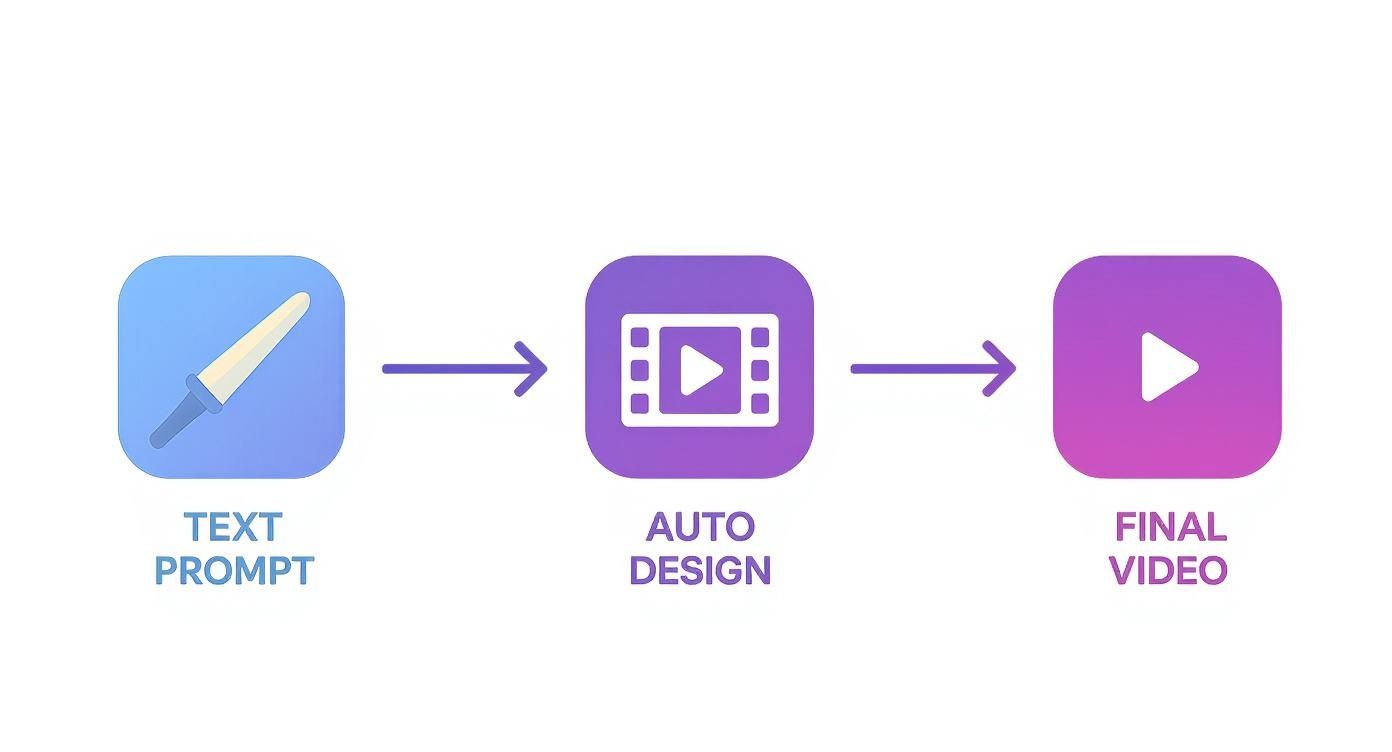
It’s a simple flow: your idea, fed into the AI, results in a polished video clip ready for your project.
Adding Professional Touches to Your Project
With your AI-generated clip ready, it’s time to weave it into your larger video and add that professional gloss. Just click on your new clip, and it will drop right into your video timeline. From there, it behaves just like any other video asset.
You can easily drag the edges to trim it or move it around the timeline. This is where you can lean on Canva's familiar video editing tools to build a complete story. For creators looking to mix things up, it's also worth exploring tools that convert static images into dynamic videos, as they can be a great complement to AI-generated footage.
Now, let's add some polish.
- Add Animated Text: Head to the "Text" tab and drop in a heading. Canva has hundreds of animation styles to make your words stand out.
- Incorporate Background Music: Jump over to the "Audio" tab to browse Canva’s massive library of royalty-free music. Drag a track you like onto the timeline to set the mood.
- Use Smooth Transitions: If you’re using more than one clip, you’ll want to smooth out the cuts. Click the little icon between clips on the timeline to add effects like a "Dissolve" or "Slide."
By blending your unique AI footage with these simple but effective edits, you can assemble a fantastic-looking video in minutes—all without ever leaving Canva.
How Marketers and Creators Are Actually Using Canva AI
Okay, knowing the features is one thing. Seeing how Canva’s AI video generator performs in the real world is where you grasp its true power. For marketers and creators, this isn't just a cool new toy; it's a practical answer to the daily grind of tight deadlines, shrinking budgets, and the relentless need for fresh content.
Loading image...
Let's break down a few specific scenarios where this tool flips creative bottlenecks into genuine opportunities for fast, high-quality video.
Real-World Marketing Applications
In marketing, speed and relevance are the name of the game. Being able to spin up video content that hits the right notes for a campaign gives teams a serious leg up. Canva's AI tool helps them do just that in a few key ways.
Social media advertising is probably the most obvious win. Instead of using the same tired stock clips everyone else has, a marketer can instantly generate dozens of unique, thumb-stopping videos for platforms like TikTok or Instagram Reels.
Imagine you're launching a new coffee blend. You could fire off prompts like:
- "A steaming mug of coffee on a rustic wooden table as the sun rises, cinematic lighting."
- "Close-up slow-motion shot of coffee beans being roasted."
- "An animated sketch of a coffee cup turning into a rocket ship, vibrant colors."
This lets you rapidly A/B test different visual hooks to see what your audience actually responds to—all without booking a single day for a video shoot. It's also fantastic for creating custom B-roll to fill in the gaps in product videos, giving you unique footage that stock libraries just can't match.
The demand for tools like this is exploding. The AI video generator market is seeing huge growth globally, with North America alone holding a 40.61% market share in 2024. Big companies are jumping on board, using this tech to automate content creation and personalize it at a massive scale. You can get a deeper dive into these AI video generator market insights to see where things are headed.
Creative Use Cases for Content Creators
From YouTubers to podcasters, creators are always under pressure to produce eye-catching visuals that grab and hold an audience's attention. The Canva AI video generator is a seriously versatile and cheap way to level up their production quality.
A compelling video intro is a classic challenge. Instead of a generic template, a creator can generate a series of abstract or thematic clips that nail their brand’s vibe. A tech channel might use "glowing circuit board patterns with data streams flowing," while a history podcast could generate "an animated ancient map slowly revealing continents."
For creators, the AI video generator is like having an infinitely creative assistant. It can visualize abstract concepts for storyboards, generate atmospheric visuals for music videos, or create looping backgrounds for live streams, all from a few simple text commands.
Here’s a quick look at how different creators can put it to work:
- Podcasters: They can create slick audiograms by generating abstract visuals that pulse or react to the audio, making their clips way more shareable on Instagram or LinkedIn.
- Musicians: An entire music video can be storyboarded and even produced by generating a sequence of dreamlike or narrative clips that match the song's lyrics and mood, all without a massive production budget.
- Storytellers: When mapping out a scene, they can generate rough clips to test the pacing and composition before ever starting a detailed animation or film shoot.
In every case, the Canva AI video generator becomes a powerful creative partner. It takes the most time-consuming part of the process—visual production—off their plate. This frees up marketers and creators to do what they do best: come up with killer ideas and tell great stories. It’s not just about saving time and money; it’s about unlocking creative doors that used to be closed for most people.
Canva AI vs Other Video Generation Tools
The world of AI video generation is buzzing, and new tools seem to pop up every week. It can be tough to cut through the noise and figure out which one is right for you. While the Canva AI video generator is a fantastic and incredibly accessible option, it's important to see how it stacks up against more specialized tools to make a smart choice.
Canva's real magic isn't just one single feature—it's the entire ecosystem. It’s built to be an all-in-one creative command center where video is just one tool in a massive toolbox. You can generate a video, design the perfect thumbnail for it, and schedule it to your social channels without ever leaving the platform. That integrated workflow is its knockout punch.
Of course, other tools are built from the ground up for more specific, high-powered jobs. They might be amazing at one particular thing, like creating mind-blowingly realistic AI avatars, but they often lack the seamless design environment that makes Canva so efficient.
Ease of Use vs Advanced Control
The first major fork in the road is the classic trade-off: simplicity versus control. Canva is the undisputed champ of user-friendliness. Its interface is clean and intuitive, practically designed for beginners and non-designers who just need to get professional-looking content out the door. Fast. Making a video clip is as simple as typing a prompt into a box.
On the flip side, specialized platforms give you way more granular control. Tools like Synthesia or HeyGen, for example, are the leaders in AI avatar tech. They let you fine-tune an avatar's speech patterns, gestures, and tone with incredible precision—a level of detail Canva just isn't focused on right now. This makes them perfect for corporate training videos or personalized sales outreach where a believable human presenter is everything.
The choice really comes down to your primary goal. If you need a quick, easy way to create custom B-roll and drop it right into a larger design project, Canva is your best friend. If your entire project hinges on a flawless, life-like AI presenter, a dedicated avatar platform is going to serve you much better.
All-in-One Platform vs Specialized Tools
Canva’s whole approach is to be your creative Swiss Army knife. It bundles its AI video generator with a gigantic library of templates, stock media, audio tracks, and a full suite of editing tools. This is a game-changer for marketers and creators who need to produce a whole campaign's worth of assets efficiently.
Meanwhile, platforms like AI Media Studio are laser-focused on perfecting the core generation technology itself. To see how these different approaches work, you can dive into this detailed overview of the AI Media Studio video generator. While you might need to export your clip to another program for the final edits, the quality of the raw video can be outstanding. For a wider view of where Canva fits in the market, it's also helpful to look at a detailed video editing software comparison that covers a broad range of tools.
Here’s a look at how these platforms compare side-by-side.
Canva AI vs Competitors Feature Comparison
This table breaks down the core differences between Canva and more specialized AI video tools, helping you decide which platform best fits your project's needs.
| Feature | Canva AI Video Generator | Alternative Tool 1 (e.g. Synthesia) | Alternative Tool 2 (e.g. Veed) |
|---|---|---|---|
| Core Strength | Seamlessly integrated into a full creative design suite. | Creating hyper-realistic AI avatars with custom voices. | All-in-one online video editing with strong subtitle/caption tools. |
| Ideal Use Case | Quick social media content, B-roll clips, marketing assets. | Corporate training, sales videos, educational presentations. | Podcast clips, webinar edits, videos needing precise text overlays. |
| Pricing Model | Included in Canva Pro subscription, with generation credits. | Subscription-based, often priced per user or per video minute. | Tiered subscription plans based on features and export length. |
Ultimately, choosing the best alternative to Canva’s tool comes down to what you’re trying to accomplish.
For 80% of everyday creative tasks—like whipping up a quick ad, a social media story, or a clip for a presentation—Canva delivers more than enough power in a convenient, all-in-one package. For that other 20% where you need state-of-the-art AI presenters or complex visual effects, it’s worth exploring a more specialized tool.
Expert Tips for Better AI Video Results
Getting a video clip out of the Canva AI video generator is one thing. Getting something genuinely great is another story. The secret isn't just typing in a few words; it's about learning how to direct the AI with a bit of precision and creativity. This is where you stop being a user and start being a director.
Think of it this way: the quality of the video you get out is a direct reflection of the quality of the prompt you put in. Your text prompt isn't just a command, it's a creative brief for a digital artist. The more specific and evocative you are, the better the AI can translate your vision into something visually compelling.
Master the Art of the Prompt
Learning to "engineer" your prompts is the single biggest key to unlocking incredible results. It’s all about being descriptive and intentional with your language to steer the AI exactly where you want it to go. A vague prompt will always get you a vague clip, but a detailed one creates something unique.
To really level up your prompts, zero in on these elements:
- Describe Everything: Don't just ask for a "dog." Instead, try something like a "fluffy golden retriever puppy playfully chasing a red ball across a sunlit green lawn." Adjectives are the details the AI needs to build the scene.
- Pick an Artistic Style: You can guide the entire visual tone just by adding a few style keywords. Phrases like "cinematic drone shot," "watercolor animation," "3D render," or "vintage black and white film" will instantly shape the look and feel.
- Add Action and Mood: Video is all about movement and emotion. Use strong action verbs and describe the atmosphere. For instance, "a lone astronaut slowly drifting in the silent, vast emptiness of space" is worlds away from just "astronaut in space."
The best approach is to just experiment. Your first result will rarely be perfect. Tweak your prompt, swap out a keyword, and generate it again. This back-and-forth process is how you fine-tune the output and land on a clip that really pops.
Mix and Match Your Media
Here's a pro strategy: don't rely only on AI-generated footage. The most professional-looking videos almost always weave together different types of media to tell a richer, more dynamic story. The Canva AI video generator is at its best when you treat it as a source for custom B-roll, not the entire film.
Try blending your AI clips with other assets:
- Your Own Footage: Mix in AI-generated establishing shots or abstract visuals with video you've shot yourself. This adds a personal, authentic touch and grounds the AI content in reality.
- Canva’s Stock Library: If you need a specific shot that the AI is struggling to create, just pull from Canva’s massive library of high-quality stock videos and photos. It's the perfect way to fill in the gaps and guarantee a polished final cut.
When you treat the AI generator as one tool in your creative arsenal—not the only one—you start producing sophisticated, high-quality videos that look anything but generic.
Got Questions? We’ve Got Answers.
Jumping into a new tool like Canva’s AI video generator always brings up a few questions. Here are the straight-up answers to the most common things people ask.
So, Is Canva’s AI Video Generator Actually Free?
Yes, you can definitely get started with the Canva AI video generator for free. The free plan gives you a handful of lifetime credits to play around with and see what it can do.
Once you’re ready to create more, you’ll need a Canva Pro, Teams, or Education account. These plans come with a much larger bucket of credits that refresh every month. It’s a great way to test the waters before you decide to dive in.
What Are the Current Limitations I Should Know About?
It’s a powerful feature, but it's good to know its boundaries. Right now, the AI spits out short, silent video clips, usually lasting about four seconds.
It can also get a bit tripped up by super complex prompts or trying to create the same human character over and over again. Think of it as a tool for creating awesome B-roll, slick abstract visuals, or short animated bits—not for producing a full-blown narrative film.
The Bottom Line: This generator is brilliant for creating supplementary footage and unique visual assets to spice up your projects. It’s here to enhance your work, not to replace a dedicated video editing suite.
Can I Use These AI Videos for Commercial Stuff?
Absolutely. Canva's content license agreement is pretty clear on this: any AI-generated videos you whip up with Magic Media are good to go for commercial use.
That means you can confidently drop them into your marketing campaigns, social media ads, and client work without sweating the legal details. For creators and businesses, this is a huge plus.
How Good Is It at Generating People?
Creating realistic people is still one of the toughest nuts for any AI video tool to crack. The Canva AI video generator can produce human-like figures, but the results can be a mixed bag.
You might see some weirdness in facial features or movements from time to time. For the best results, focus your prompts on actions and settings ("a person walking on a beach at sunset") instead of trying to get a perfect, photorealistic portrait.
Paid plans for AI Media Studio start at $19/month.