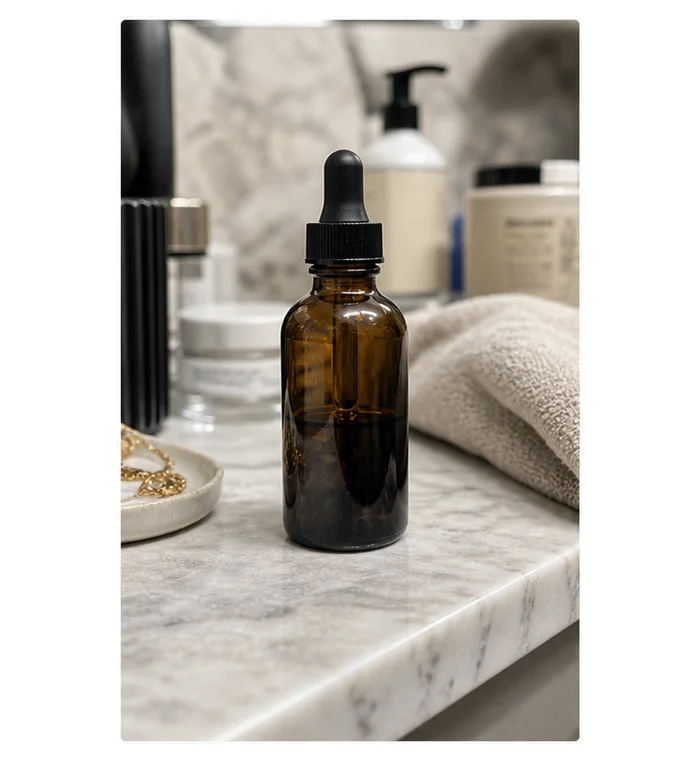
Scene
Before
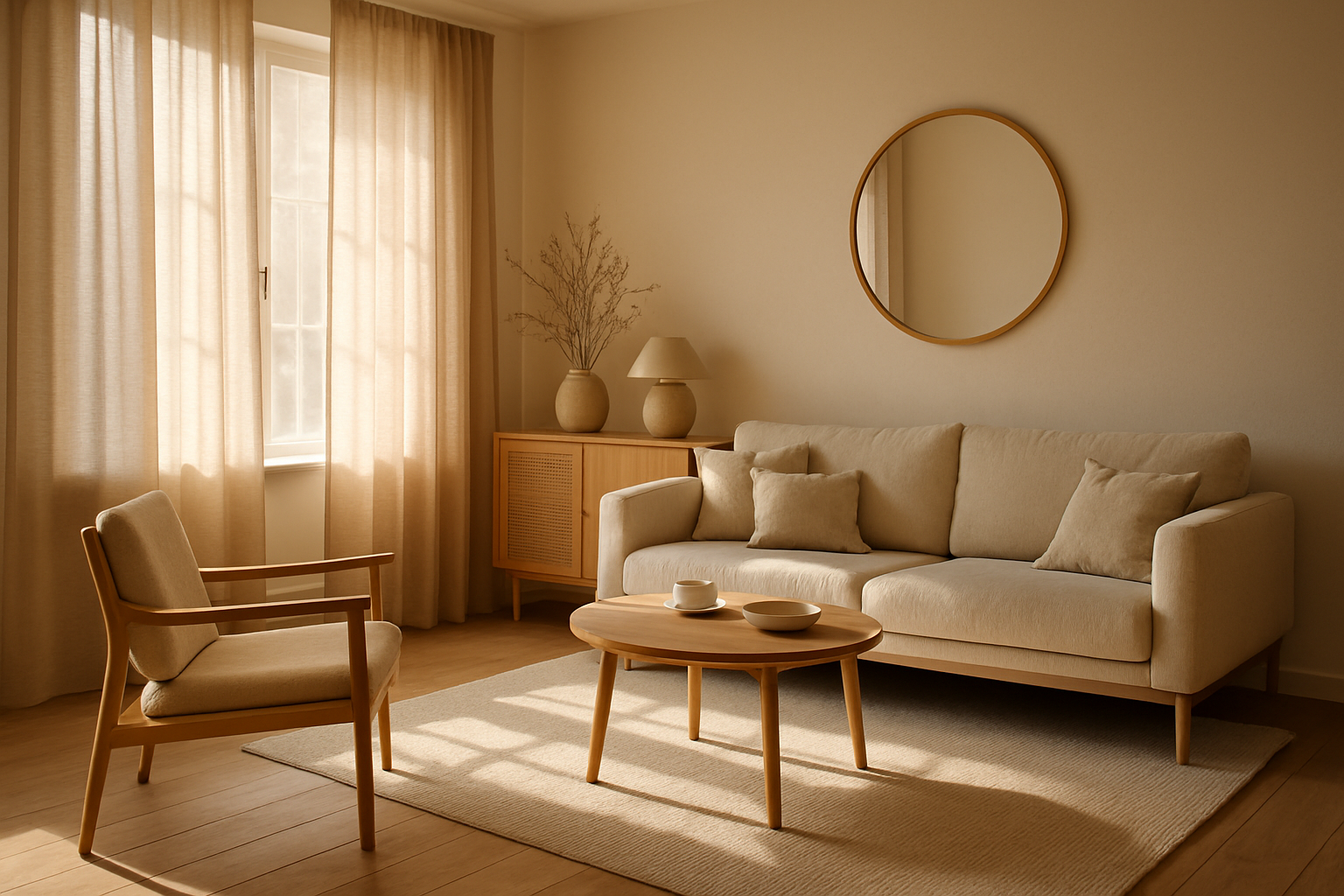
After

Canva Magic Edit and Photoshop Generative Fill alternative
Most “Generative Fill alternatives” make you brush a mask first. AI Media Studio starts from your photo: describe the change in plain language, pick a model, download. Commercial license on paid plans from $19/month.
Before
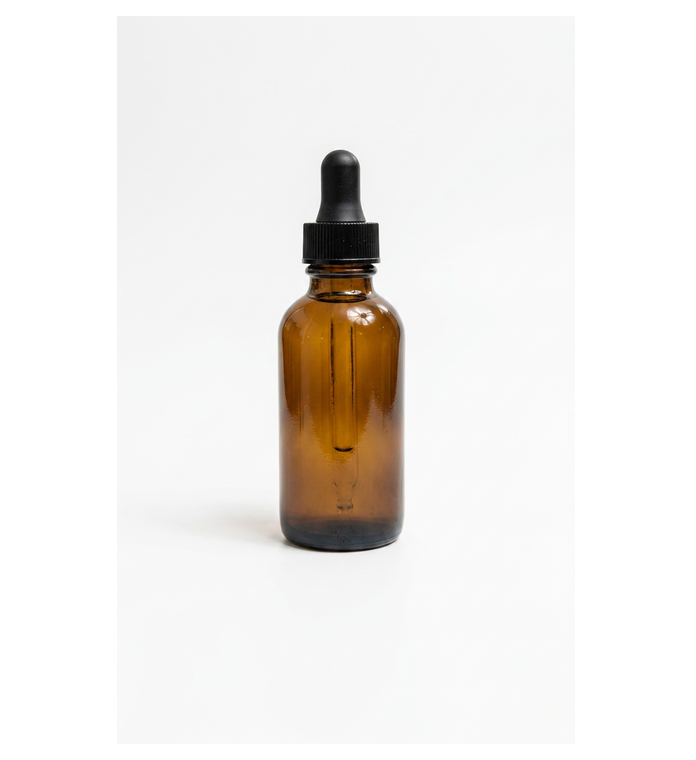
After
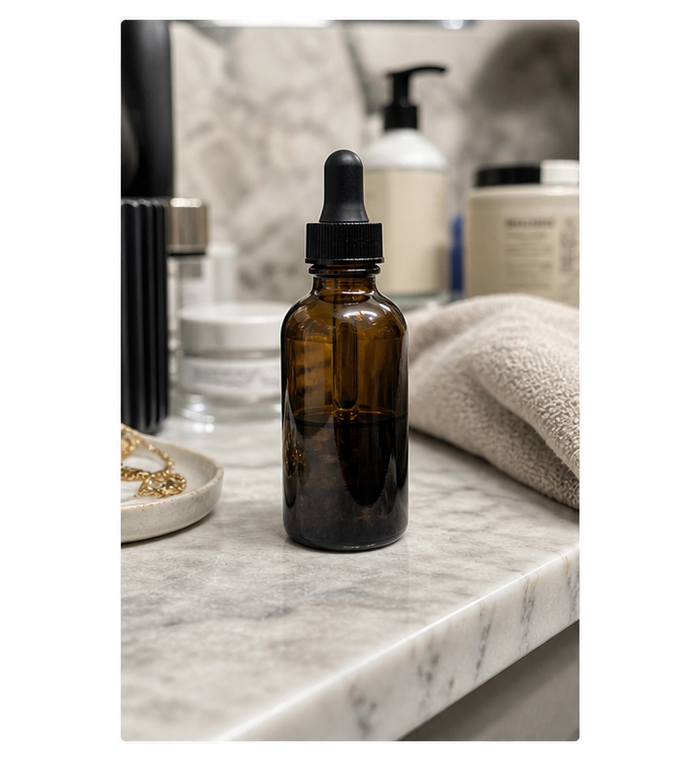
Prompt-first product restyle (existing AMS homepage hero pair).
Canva Magic Edit is strongest inside a Canva design. Photoshop Generative Fill is strongest for masked edits in Creative Cloud. If you want a browser workflow that starts from your photo — describe the change without layers — AI Media Studio is built for that.
Canva Magic Edit lets you select an area on a design and generate into it while you stay in Canva’s canvas. Canva says Magic Edit is powered by Google’s Nano Banana model.
Photoshop Generative Fill (Adobe Firefly) does the same idea with layer-aware masks inside Photoshop.
They are excellent when you already live in those tools. They are a poor fit when you only have a photo file, you do not want a design system or a Creative Cloud seat, and you want to say the edit in plain English.
Search for a Magic Edit or Generative Fill alternative and you will mostly find brush-first fill tools: upload → paint a region → type a prompt → fill the hole. Tools in that pattern include browser fill products like Pixelcut-style replacers, EditClips-style generative fill pages, Firefly-alternative guides with mask+prompt flows, Cloudinary’s generative fill, and Editpal-style selected-area editors.
| Job | Better starting point |
|---|---|
| Swap one object, patch a sky, erase a small distraction | Mask-first generative fill (brush + prompt) |
| Restyle a scene, put a product in a new setting, change portrait lighting/outfit from one instruction | Prompt-first photo editor (upload + describe) |
| Layer comps, print production, pixel-critical masks | Photoshop Generative Fill / full Photoshop |
| Edits inside a template or brand design system | Canva Magic Edit |
Rule of thumb: if the hard part is where the pixels change, use a mask. If the hard part is what the photo should become, use a prompt-first studio.
AI Media Studio is a prompt-first option:
No layers UI. Paid AI Media Studio plans include a commercial license. Plans start at $19/month. Three free edits after sign-up: your own uploaded photos, edited with Muse Image. Everything else needs a paid plan. You see credit cost before you run. When you need motion, you can continue into photo-to-video in the same studio.
Honest limits: generative edits can change details you did not name. If you need a tiny, pixel-local patch, a brush mask tool (or Photoshop) is often safer. Say what must stay unchanged in every prompt.
Step 1 — Try a sample or upload
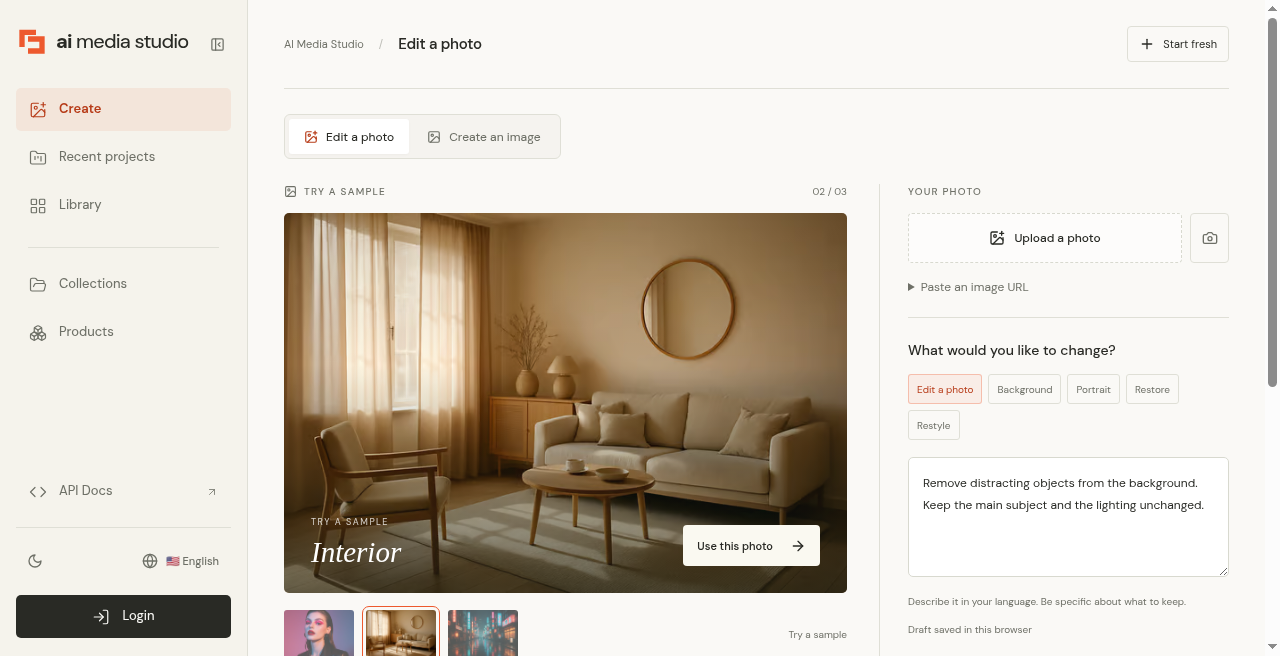
Step 2 — Write the instruction
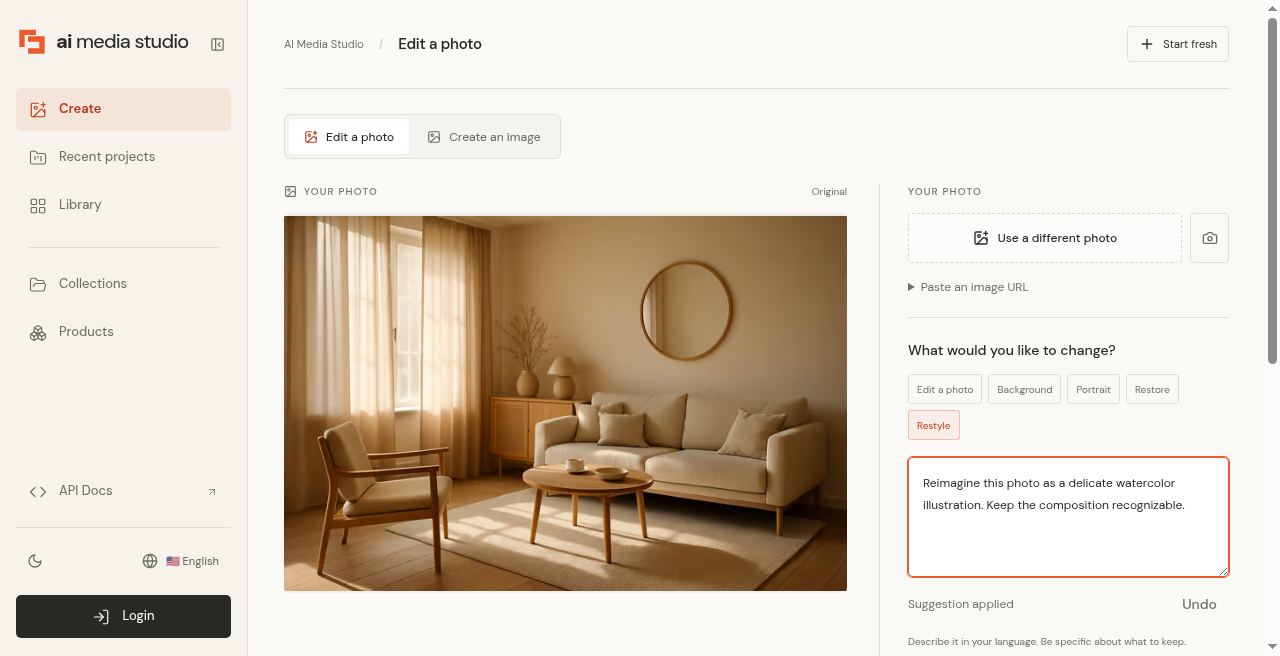
Step 3 — Choose a model
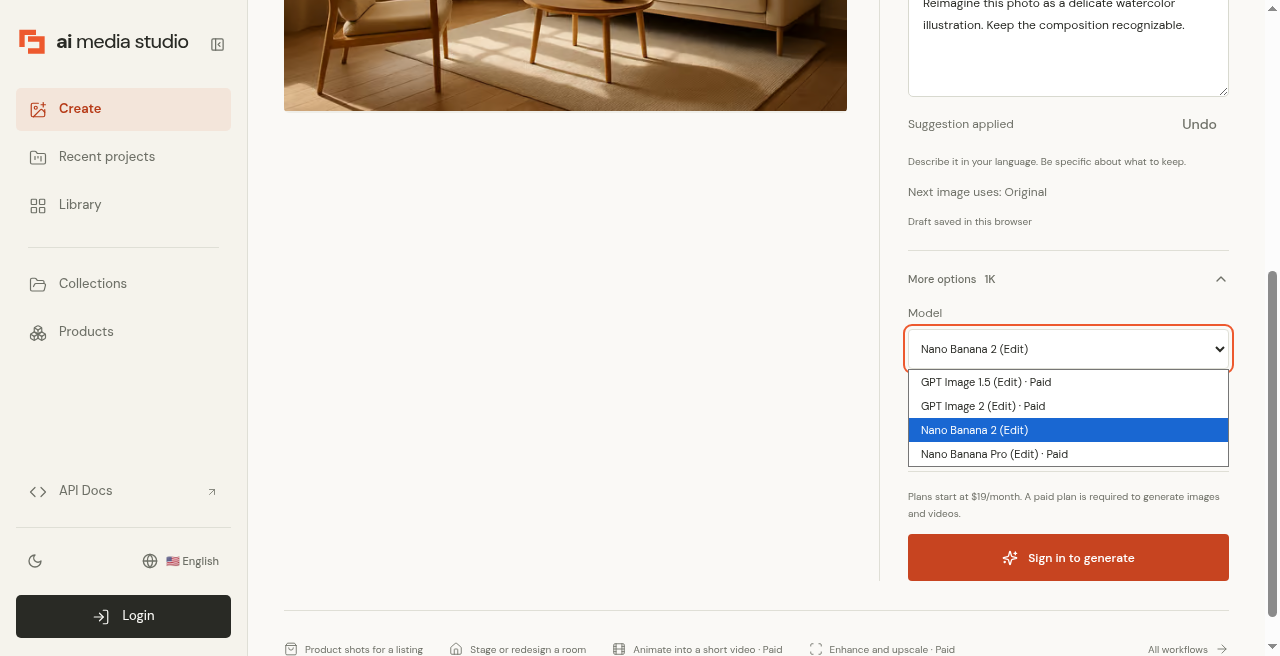
Step 4 — Cost before generate
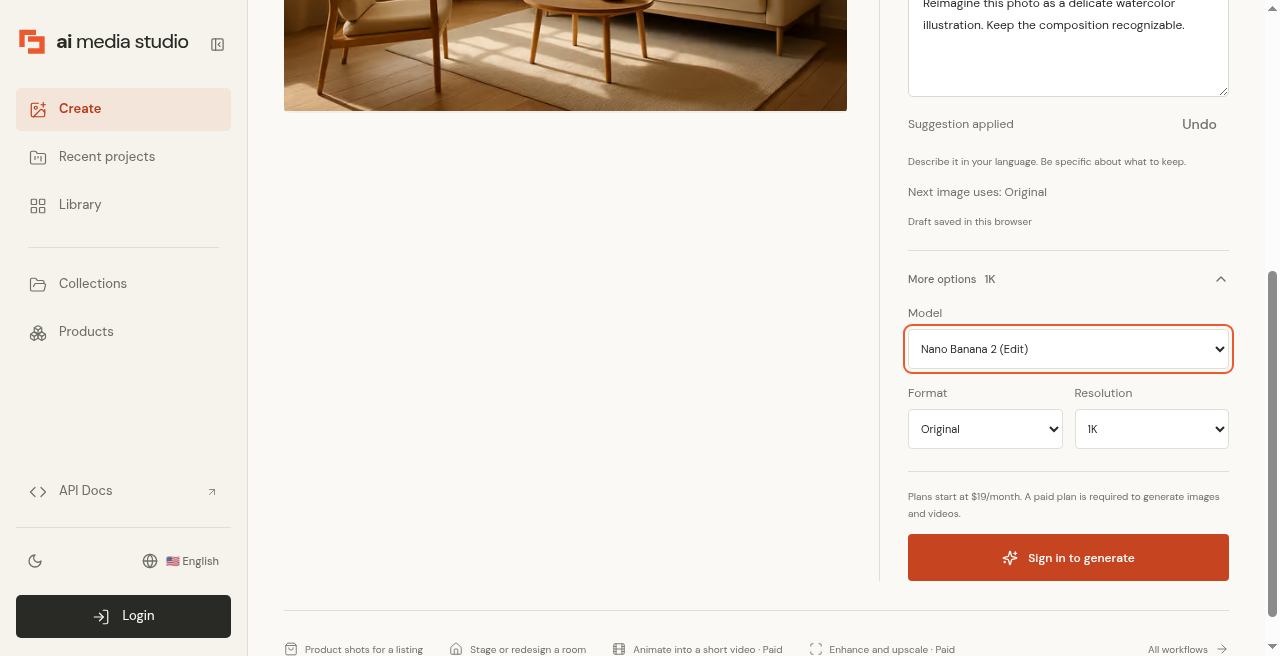
Logged-out AI Media Studio editor: sample photo → instruction → model picker → cost and Sign in to generate. Captured before the October 2026 model update, so the picker shows earlier model names.
“Replace the coffee mug with a ceramic matcha bowl. Keep the table and lighting.”
“Keep the person and clothes. Change the background to a quiet bookstore aisle, soft afternoon light.”
“Remove the exit sign and cables in the background. Keep the subject sharp.”
“Keep the sneaker and branding exact. Place it on wet asphalt at night with neon reflections.”
“Keep the face and expression. Change to golden-hour outdoor light and a linen shirt.”
Before
After
Before
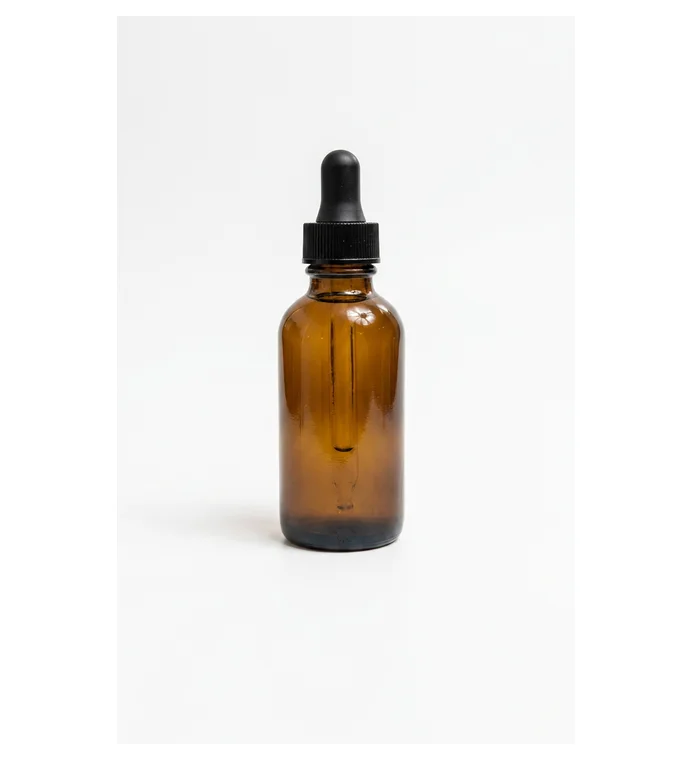
After
Before
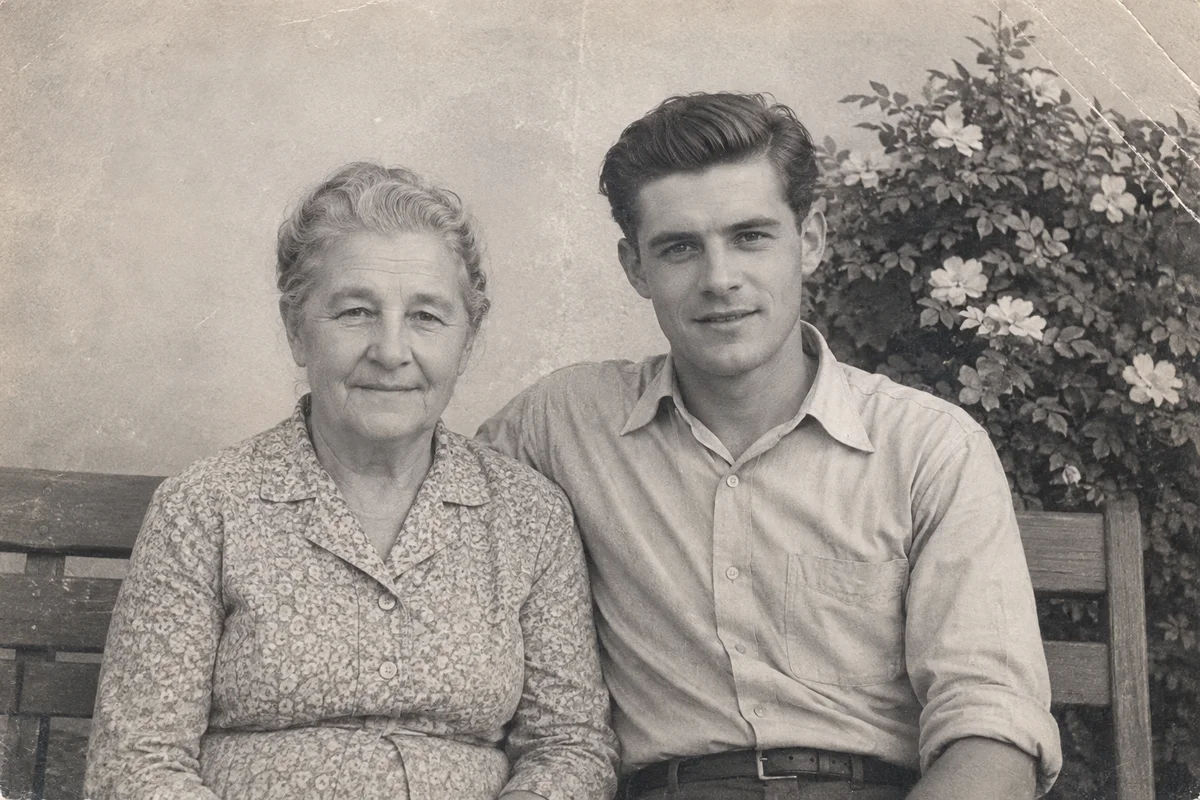
After
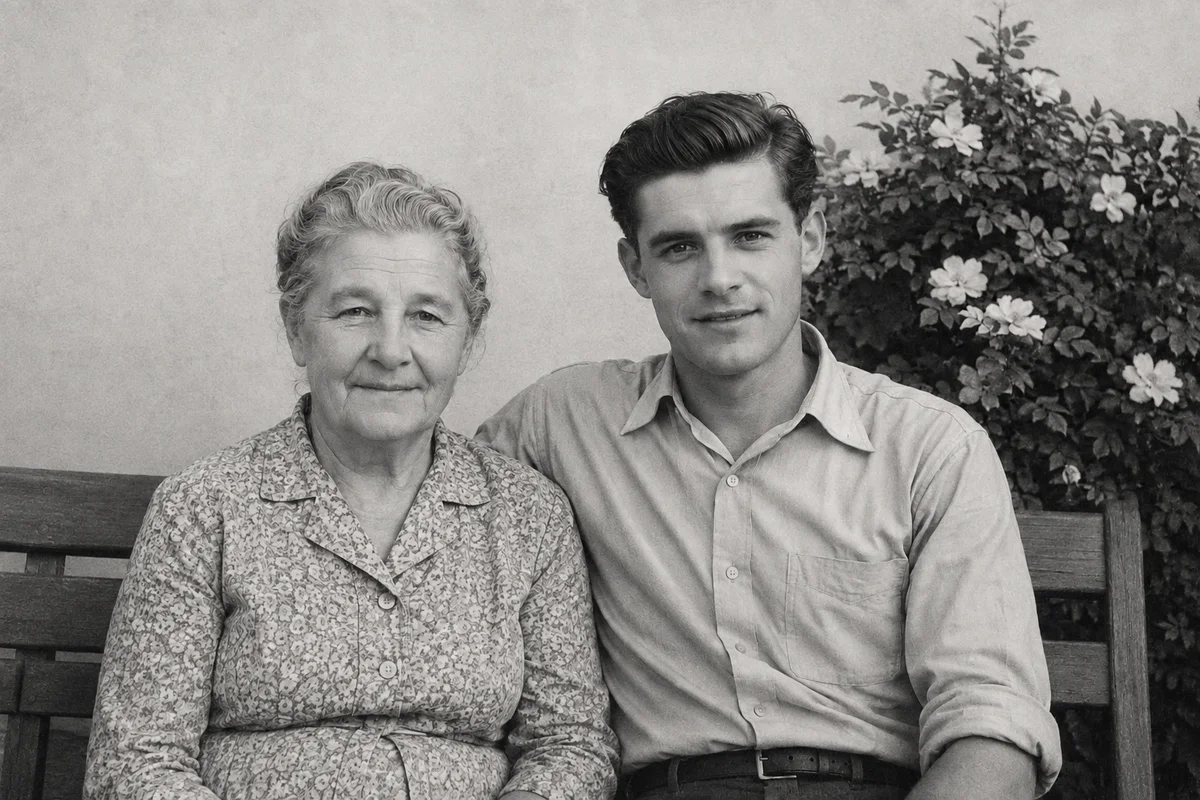
Scene is a real restyle of the Scandi sample, made with an earlier model version; Background and Restore reuse existing AMS example pairs. Paid credit cost applies.
You do not need one forever-favorite model. Match the job: Nano Banana 2.1 is the studio default and suits fast iterations; Nano Banana Pro helps when the same person or product must stay recognizable; GPT Image 2.5 fits posters, text-heavy redesigns and multi-step edits, with a Detail switch for the Sunburst variant; Muse Image from Meta is the low-cost option for everyday photo edits.
To see how the four image models handle the same photos, with the credit cost of each result, read Which AI model is best for editing photos?
| Criterion | Canva Magic Edit | Photoshop Generative Fill | Free/freemium brush fill tools | AI Media Studio |
|---|---|---|---|---|
| Starts from | Design canvas | PSD / layers | Upload + mask | Upload + describe |
| Edit style | Mask / select in Canva | Mask + Firefly | Brush-first fill | Prompt-first (optional refine) |
| Models | Google’s Nano Banana (per Canva) | Firefly (plus some third-party in Photoshop) | Usually one fill model | Multi-model (Nano Banana 2.1, Nano Banana Pro, GPT Image 2.5, Muse Image) |
| Commercial clarity | Canva plan terms | Adobe plan terms | Varies; check each tool | Commercial license on paid plans |
| Photo → video in same studio | Not the core path | Separate Adobe tools | Rare | Available in-studio |
| Free generations | Limited Magic Studio credits on Canva plans | Via Adobe subscription | Often free/freemium with limits | Three free photo edits (Muse Image); cost shown before generate |
| Price (checked October 11, 2026) | Canva Pro: US$144/year for one person, before tax | Adobe plan pricing (not compared here) | Varies; check each tool | Paid plans from $19/month |
| Best when | You already design in Canva | You need layer-aware precision | Tiny local patches on a budget | You want to transform your photo with plain language |
No fake scores. Pick from the job table above.
Stay with Canva if your work is templates, brand kits, and Magic Edit inside a layout.
Stay with Photoshop if you need layers, advanced masking, and production-critical control.
AI Media Studio is not trying to replace those suites. It is the browser path when the file is a photo, the instruction is English, and you want multi-model edits (and optional video) without a layer stack.
Related: Edit photo hub · Product background replacement · Background remover · Image to video
Canva Magic Edit is strongest when you need generative fill inside a Canva design. If you want to upload a photo, describe the edit in plain language, and download (without layers or Canva’s design chrome), AI Media Studio is built for that. You get multi-model image edits, commercial license on paid plans from $19/month, and optional photo-to-video. Three free edits after sign-up: your own uploaded photos, edited with Muse Image. Everything else needs a paid plan.
Firefly Generative Fill is strongest for masked, layer-aware edits inside Photoshop. In the browser, brush+prompt fill tools are good for local patches. AI Media Studio is the prompt-first path: whole-photo transforms from an instruction, model choice, commercial license from $19/month, and image-to-video in the same studio — not a PSD clone.
Use mask-based fill when location precision matters. Use a prompt-first editor when the goal is a scene, style, or product setting change described in one instruction. Use Photoshop when layers and production control matter most.
Paid AI Media Studio plans include a commercial license. You should have the rights to any source images you upload. Review the cost before each generation.