AI Christmas photo
AI Christmas photo: put your family in a Christmas scene from one photo
To make an AI Christmas photo, upload a clear photo of your family, describe the scene you want (for example a living room with a lit tree and snow outside) and add a line saying what must stay the same: faces, number of people, poses. In AI Media Studio one edit costs 2 credits on Muse Image or 9 on Nano Banana 2.1, and you see the cost before you generate.
Every edit needs a paid plan. Plans start at $19/month.
How do I make an AI Christmas photo?
- 01
Pick the photo
Choose a sharp photo where every face is visible, the light is even and nobody is cut off at the edge. The editor takes JPEG, PNG, WebP, HEIC and other common formats up to 10 MB.
- 02
Describe the scene
Write one or two sentences about the place, the light and the Christmas details. "A living room with a lit tree, garlands on the fireplace and snow outside the window" gives the model more to work with than "make it Christmassy".
- 03
Say what to keep
Add a keep line: "Keep every face, the number of people, their poses and expressions unchanged." Change one thing per edit; add Santa or sweaters in a second edit.
- 04
Compare and download
Put the result next to the original and check every face, the hands and any text at full size. If someone looks different, go back to the original and make a smaller change. Then download.
10 Christmas photo ideas with copy-ready prompts
Each card shows the source photo, what came back and the prompt we ran. Copy the prompt, replace the details with your own and paste it into the editor with your photo. Your result will differ from ours: check every face before you share it.
1.Living room with the tree
The classic Christmas photo: your family in front of a lit tree, without moving the furniture. We ran the same prompt on two models.
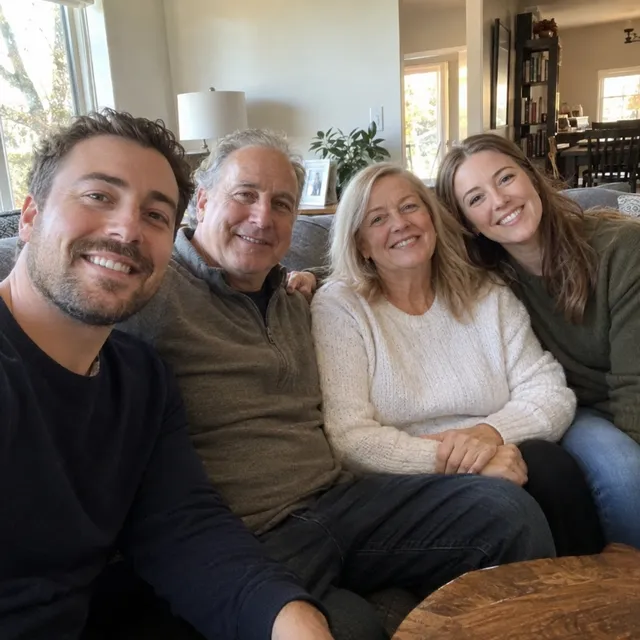
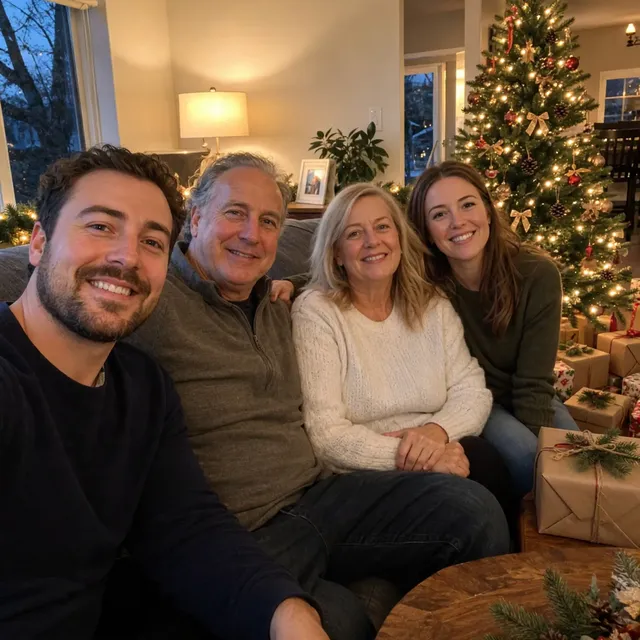
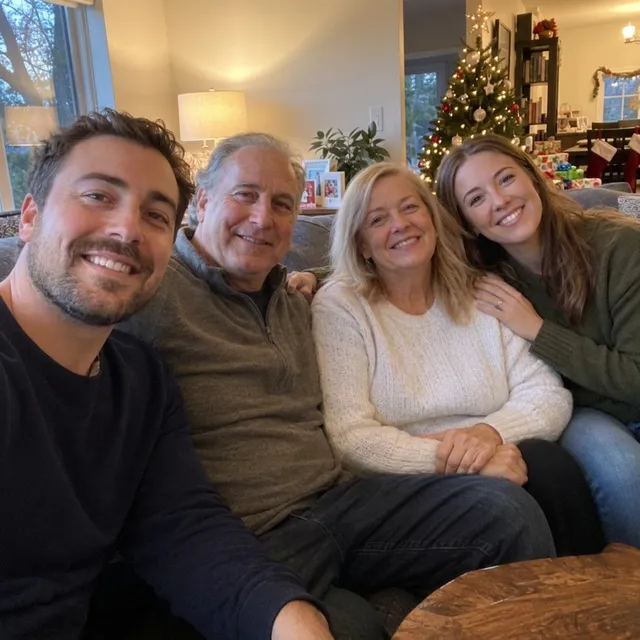
Prompt we ran
Turn this into a Christmas photo: decorate the living room with a lit Christmas tree with warm lights behind the sofa, a few wrapped presents and soft evening lamp light. Keep all four people exactly as they are: same faces, expressions, hair, number of people and poses.
Suggested model: Muse Image
2.Cabin with snow outside
Swap the living room for a wooden cabin with a fireplace and snow at the window.
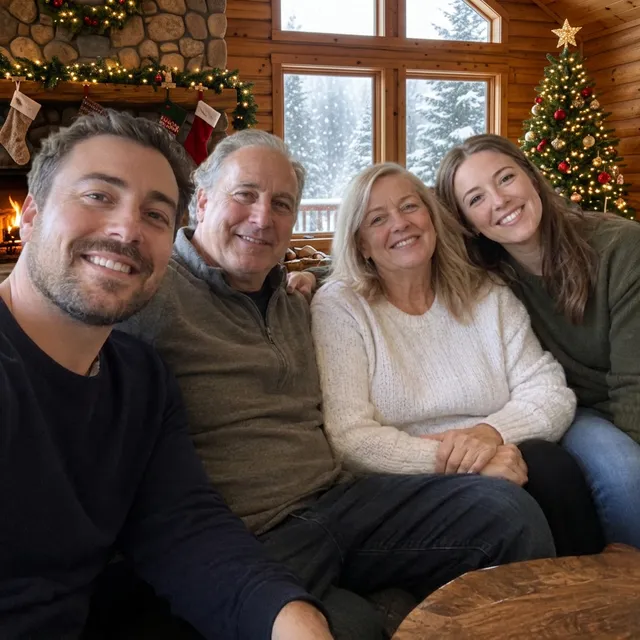
Prompt we ran
Move this family into a cosy wooden cabin at Christmas: a stone fireplace with stockings, a decorated tree, and snow falling outside the window behind them. Keep all four people exactly as they are: same faces, expressions, hair, number of people and poses.
Suggested model: Nano Banana 2.1
3.Matching Christmas sweaters
A small change that keeps the rest of the photo as it is.
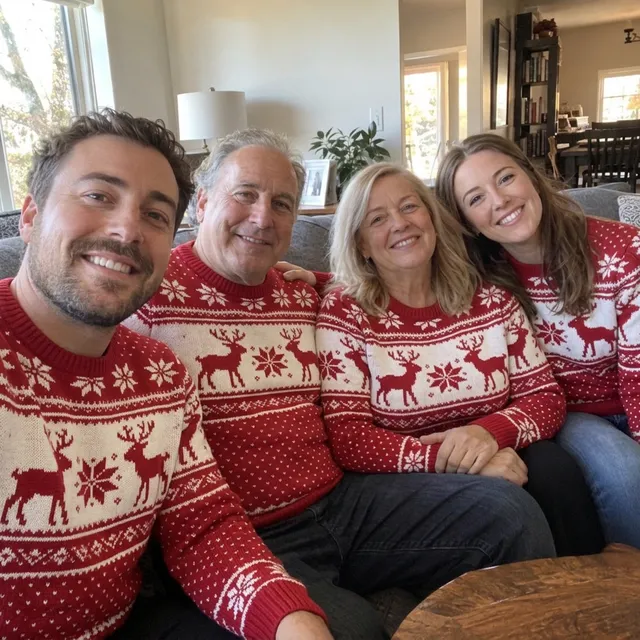
Prompt we ran
Dress everyone in matching red and white knitted Christmas sweaters with a reindeer pattern. Change only the clothes. Keep all four people exactly as they are: same faces, expressions, hair, number of people and poses.
Suggested model: Nano Banana 2.1
4.Add Santa to your photo
Santa is a generated person, so give him a place in the photo and say how many people the result must show. Our first attempt asked to keep “all four people” and the model kept four: Santa replaced the daughter. Asking for Santa as a fifth person fixed it.
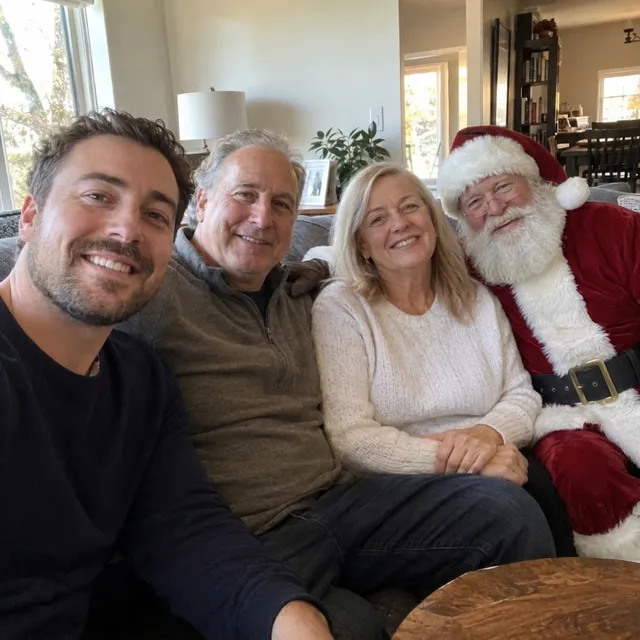
Exact prompt we ran
Add Santa Claus sitting on the arm of the sofa next to the family, smiling, in a classic red suit with a white beard, lit the same way as the room. Keep all four people exactly as they are: same faces, expressions, hair, number of people and poses.
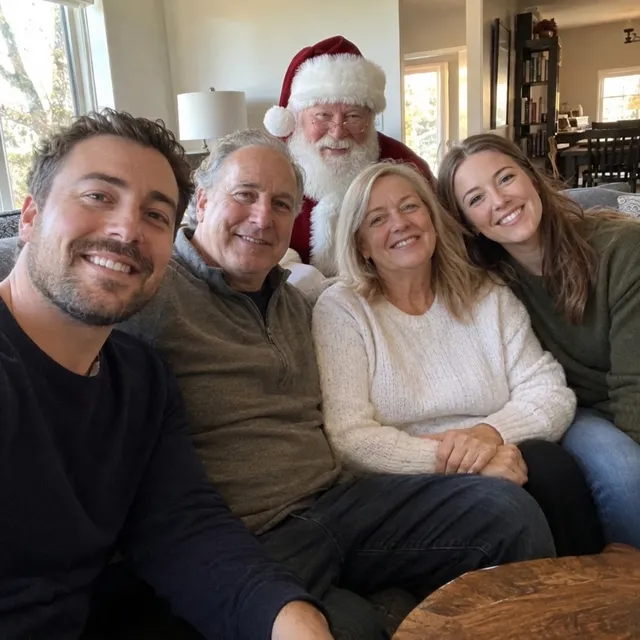
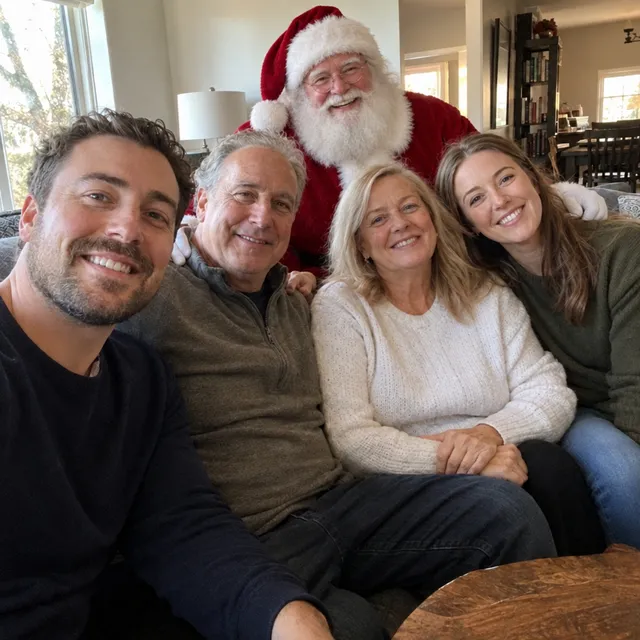
Prompt we ran
Add Santa Claus as a fifth person standing behind the sofa, between the father and the mother, smiling, in a classic red suit with a white beard, lit like the room. All four family members must stay in the photo exactly as they are: same faces, expressions, hair, clothes and seating. The photo must show five people.
Suggested model: Nano Banana 2.1
Count the people in the result, then check that the people next to Santa still look like themselves and that every visible hand has five fingers.
5.Christmas profile picture
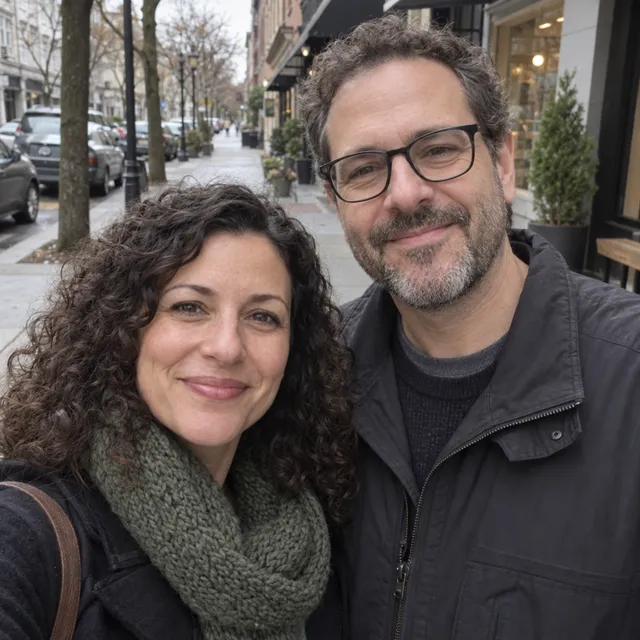
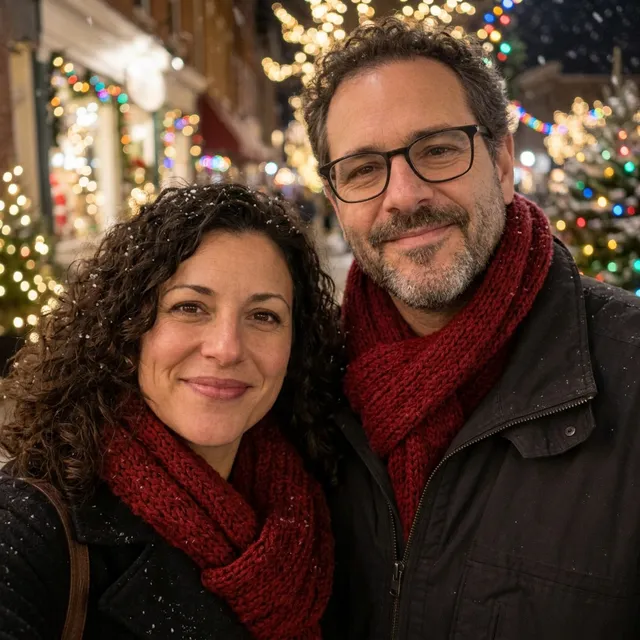
A festive portrait for WhatsApp, Instagram or your work chat, on your own or as a couple.
Prompt we ran
Make this a festive Christmas profile picture: soft bokeh of warm Christmas lights and light snowfall in the background, both wearing knitted scarves in deep red. Keep both faces, expressions, glasses and hair exactly the same. Square crop around their faces.
Suggested model: Nano Banana 2.1
Pick the 1:1 output in the editor so the picture fits a round profile frame.
6.Christmas card layout with greeting
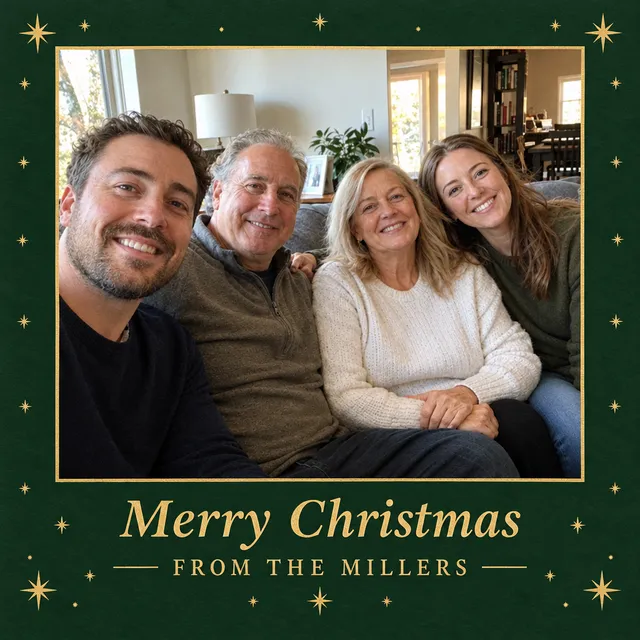
Your photo with a border and a short greeting, ready to send as an image.
Prompt we ran
Turn this photo into a printable Christmas card: add a tasteful dark green border with small gold stars and, at the bottom, the greeting "Merry Christmas from the Millers" in an elegant serif font. Keep all four people exactly as they are: same faces, expressions, hair, number of people and poses.
Suggested model: GPT Image 2.5
Check the greeting letter by letter. If a letter is wrong, regenerate or switch model. The editor makes an image, not a print file: check your print shop’s size requirements.
7.Pet in a Christmas hat
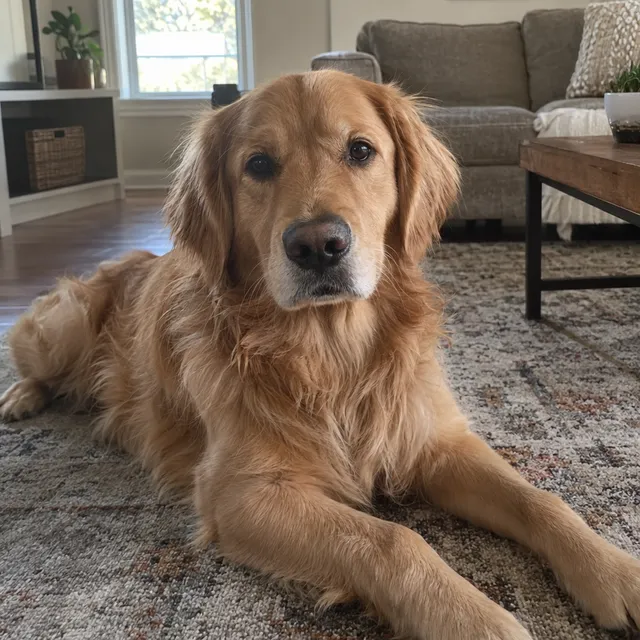
Dogs and cats get a hat and a few presents; the fur and markings stay theirs.
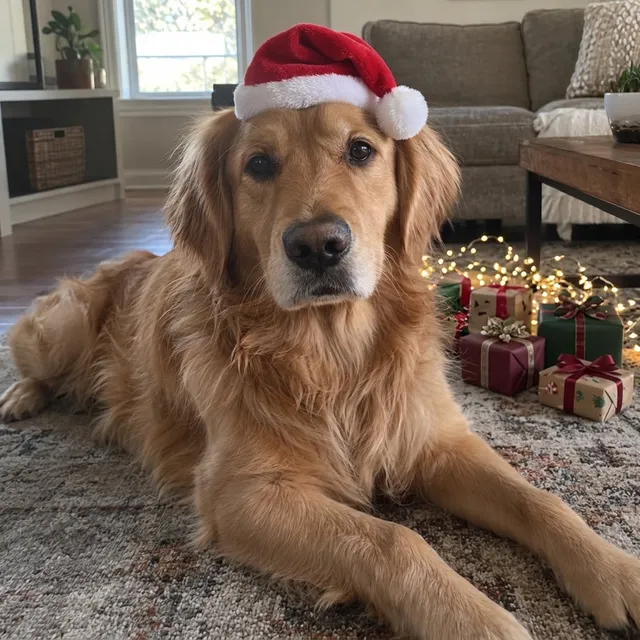
Prompt we ran
Put a small red Santa hat on the dog's head and add a few wrapped presents and warm Christmas lights on the floor behind it. Keep the dog exactly the same: breed, face, fur colour and pose.
Suggested model: Nano Banana 2.1
8.Vintage Christmas look
Make a new photo look like it came out of a 1970s family album.
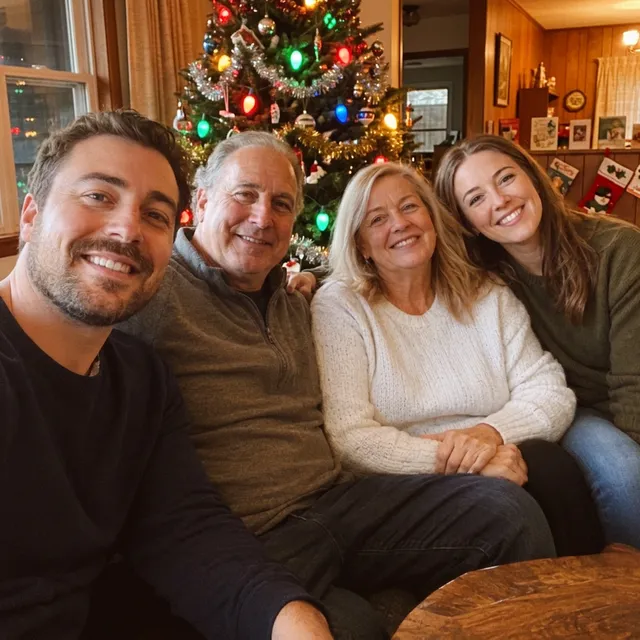
Prompt we ran
Give this photo the look of a 1970s Christmas snapshot: warm film colours, soft grain, tinsel and a vintage Christmas tree with large coloured bulbs in the background. Keep all four people exactly as they are: same faces, expressions, hair, number of people and poses.
Suggested model: Nano Banana 2.1
9.Christmas cartoon of your family
An illustrated version of your family. This is the better choice for photos of children.
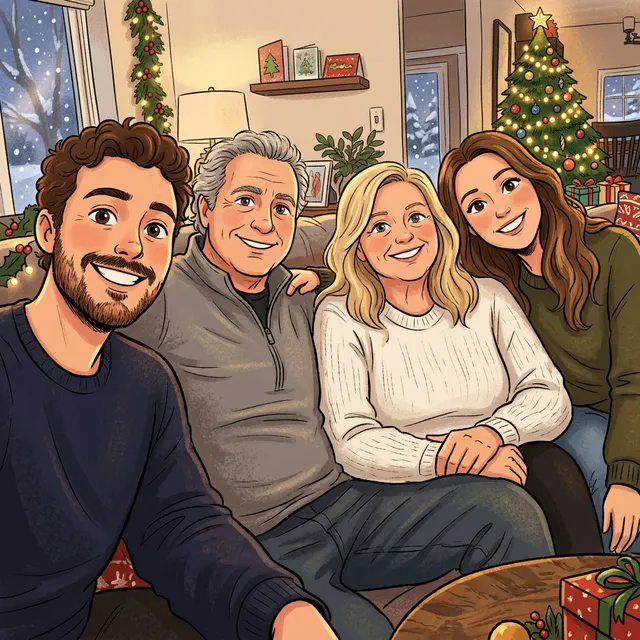
Prompt we ran
Turn this family photo into a warm, hand-drawn Christmas cartoon illustration with a decorated tree and snow outside the window. Keep each person recognisable: hair colour, glasses-free faces, clothing colours and seating order.
Suggested model: Nano Banana 2.1
A stylized look keeps the family recognizable without producing a photorealistic image of a child.
10.Kids’ photos: safety notes
Before you upload a photo that shows children:
- Upload photos of children only if you are their parent or guardian, or have the guardian’s consent.
- Prefer stylized looks (cartoon, storybook, illustration) to photorealistic edits of children.
- Share results inside the family rather than posting them publicly.
- Your images stay in your workspace unless you share them, and you can delete them from your library.
- Uploads are processed by the AI provider that runs the model you pick. Retention, processors and deletion requests are covered in the privacy policy.
Keep faces looking like your family
- Change one thing per edit. With several people, change the scene first and add hats, sweaters or Santa in a second edit.
- Always end the prompt with a keep line: faces, number of people, poses, expressions.
- When you add someone, say how many people the result must show. In our Santa example the first prompt said to keep “all four people”, and the model kept four by swapping the daughter for Santa. Asking for Santa “as a fifth person” and adding “The photo must show five people” fixed it. Count the people in every result.
- Compare the result with the original at full size: eyes, teeth, glasses, hairline and hands are where changes show first.
- If a face drifts, do not keep editing the result. Go back to the original and ask for a smaller change, or use Muse Image, the model our guide recommends for keeping a photo intact.
- Generative editing can still change a face even when you ask it not to. Exact likeness is not guaranteed, so check before you print or share.
Which model to use
Every model runs in the same editor and draws from the same credits. Prices are for one edit in the web app.
| Model | Credits per edit | On Starter | Use it for |
|---|---|---|---|
| Muse Imageone size, about 2.5 MP | 2 | $0.038 | Cheap single changes that keep the photo intact: hats, sweaters, profile pictures. |
| Nano Banana 2.11K | 9 | $0.171 | Scene changes: a new room, snow, Santa, the cartoon look. 14 credits at 2K and 31 at 4K when you want to print. |
| GPT Image 2.5high quality | 11 | $0.209 | Cards with a greeting or other lettering. Still check every letter. |
The editor shows the credit cost before you generate. Prices checked .
Turn your Christmas photo into a short video
Once you like the still, you can animate it: a slow push-in on the tree, falling snow, a wave at the camera. On Kling O3 Pro, the default video model, clips run 3 to 15 seconds and a 5-second clip costs 85 credits with audio off.
Exact prompt we ran
Snow keeps falling outside the window, the fire flickers, the tree lights twinkle, the family smile and move only slightly. Static camera. Keep every face unchanged.
What it costs
One edit costs 2 credits on Muse Image, 9 on Nano Banana 2.1 at 1K and 11 on GPT Image 2.5. On the Starter plan ($19 for 1,000 credits a month) that is $0.038 to $0.209 per edit.
Every edit needs a paid plan. Plans start at $19/month. Unused subscription credits roll over, downloads carry no watermark, and paid plans include a commercial license.
Frequently asked questions
How do I make an AI Christmas photo of my family?
Upload a clear family photo to the editor, describe the Christmas scene in one or two sentences and add a keep line for faces, the number of people and poses. Generate, compare the result with the original, and download the version you like.
Can AI put Santa in my photo?
Yes. Ask for Santa Claus “as a fifth person” (or whatever the new count is), give him a place in the photo, and say that everyone else stays unchanged. In our test, a prompt that only said to keep all four people made Santa replace one of them. Santa is generated, so count the people and check his hands before you share the photo.
Will the faces still look like us?
Usually close, but not guaranteed. Change one thing per edit, end every prompt with a keep line, and compare faces with the original at full size. If a face drifts, start again from the original with a smaller change or use Muse Image.
Is it safe to upload photos of my kids?
Upload photos of children only as their parent or guardian or with the guardian’s consent, and prefer stylized looks such as a cartoon. Your images stay in your workspace unless you share them, and you can delete them from your library. Uploads are processed by the AI provider that runs the model you pick. The privacy policy explains retention, processors and how to request deletion of your data.
Can I make a Christmas card with my photo and a greeting?
Yes. Ask for a card layout with a border and your greeting in quotation marks, ideally with GPT Image 2.5. Check the greeting letter by letter and regenerate or switch model if it is wrong. The result is an image; check your print shop’s size requirements before you order prints.
How much does it cost? Is there a free option?
One edit costs 2 credits on Muse Image, 9 on Nano Banana 2.1 at 1K or 11 on GPT Image 2.5. AI Media Studio has no free tier. Every edit needs a paid plan. Plans start at $19/month.
Can I make a Christmas profile picture?
Yes. Use a head-and-shoulders photo, ask for a festive background and a Santa hat, keep your face unchanged, and pick the 1:1 output so it fits a profile frame.
Can I turn the photo into a video?
Yes. Send the finished still to an image-to-video model. On Kling O3 Pro, the default, a 5-second clip costs 85 credits with audio off, and clips run 3 to 15 seconds.
Can I print it?
Muse Image outputs one size of about 2.5 MP, fine for screens and small prints. For larger prints, edit with Nano Banana 2.1 at 2K (14 credits) or 4K (31 credits); 4K is available on paid plans. Check faces and text at full size before you print.
Is the result labelled as AI?
Downloads carry no visible watermark, so labelling is up to you. Several social platforms ask for AI-edited images to be labelled, and it is fair to tell family and friends that a photo was made with AI, especially when it shows real people.
Uploads are processed by the AI provider that runs the model you pick. Retention, processors and deletion requests are covered in the privacy policy.