Remove objects from photos
Remove an object or a person from a photo with AI
Upload the photo, say exactly what to remove and where it is (“the man in the red cap on the right”), say what should fill the space, and end with what must stay the same. We removed tourists, power lines, a stranger, a friend, graffiti and desk clutter this way; one removal uncovered a second person, and doing it in two steps fixed it. One edit costs 2 credits on Muse Image, 9 on Nano Banana 2.1 or 11 on GPT Image 2.5, and you see the cost before you generate.
Every edit needs a paid plan. Plans start at $19/month.
How do I remove an object from a photo?
- 01
Upload the photo
Use the original, not a screenshot or a compressed copy: the model fills the gap from what it can see around it. JPEG, PNG, WebP, HEIC and other common formats up to 10 MB work.
- 02
Name what to remove, and where
Describe it by colour, position and what it is doing: “the stranger in the orange jacket walking behind the three friends”. In a busy photo, list each thing you want gone.
- 03
Say what fills the space
“Fill the space with the empty promenade and sea wall that would be behind them.” Naming the background keeps the model from inventing something new in the gap.
- 04
Keep the rest, then check the gap
End with “Keep … exactly the same” and list the people and things that must not change. Then compare at full size: look at the filled area, and at anything the removal might have uncovered.
6 removals with the prompts we ran
Each example starts from a synthetic photo. The prompt card is the exact prompt we ran; copy it and change the description to what is in your photo. Your result will differ from ours, so check the filled area before you use it.
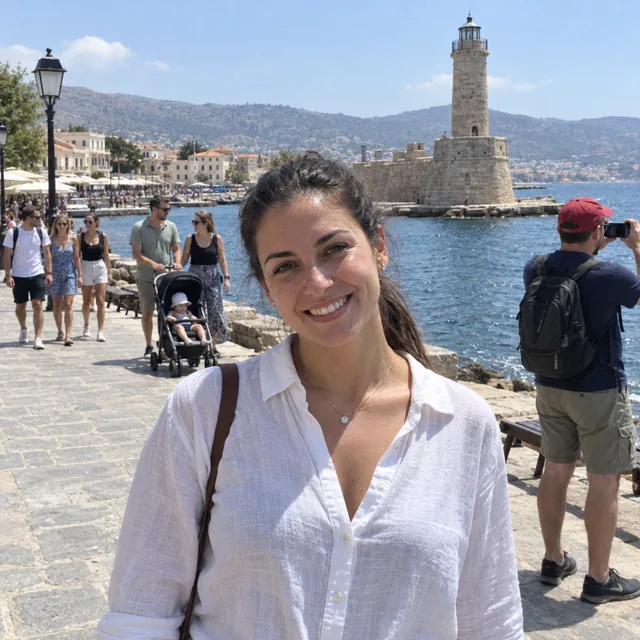
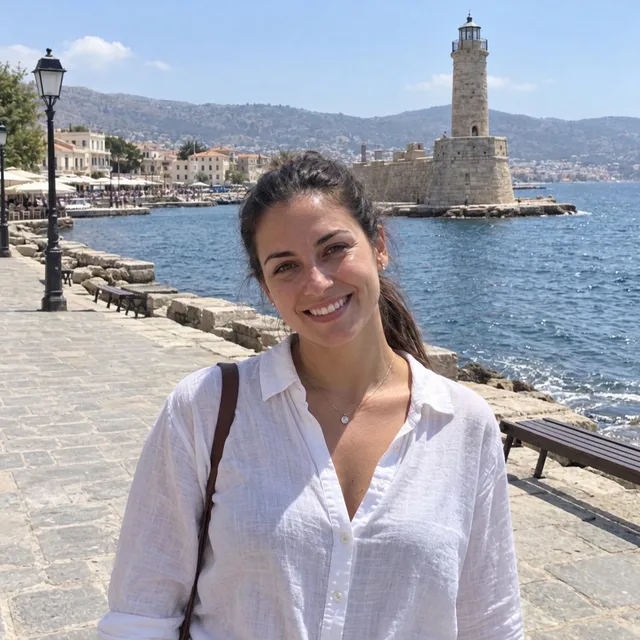
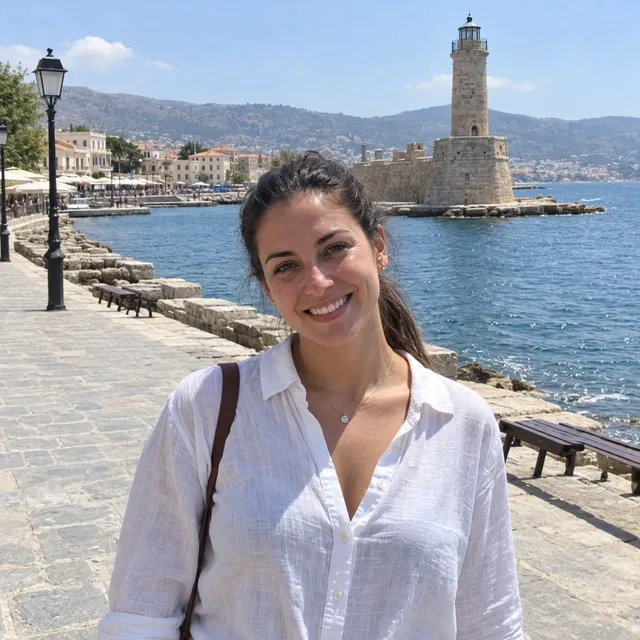
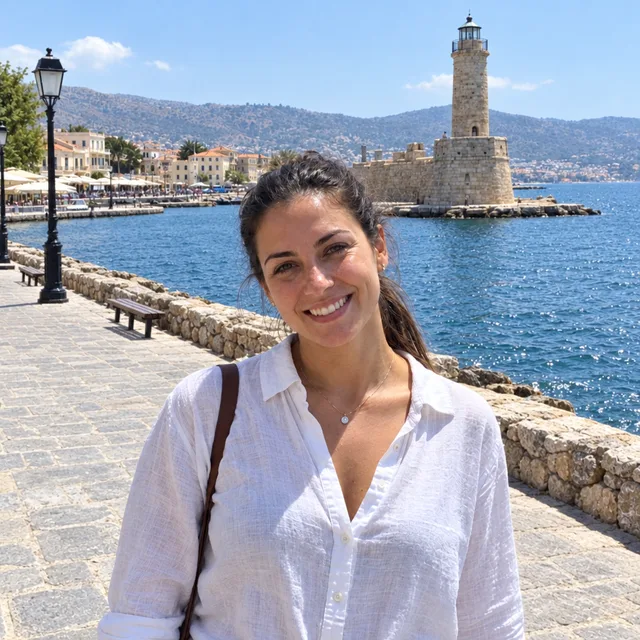
1.Tourists in a travel photo, on three models
The most common removal: other people behind you at a landmark. All three models removed the photographer, the stroller couple and the walkers. Nano Banana 2.1 and Muse Image kept the framing; GPT Image 2.5 redrew more of the scene. None removed the tiny distant figures by the cafés, which the prompt did not name.
Prompt we ran
Remove all the other tourists from the background: the man in the red cap taking a photo, the couple with the stroller and the people walking on the promenade. Fill the space with the empty promenade, sea wall and water that would be behind them. Keep the woman in the white shirt, the lighthouse, the harbour and the light exactly the same.
Suggested model: Nano Banana 2.1
To clear distant people too, name them (“and the small figures along the café terrace”). The more you remove, the more background the model has to invent.
2.Power lines and a utility pole
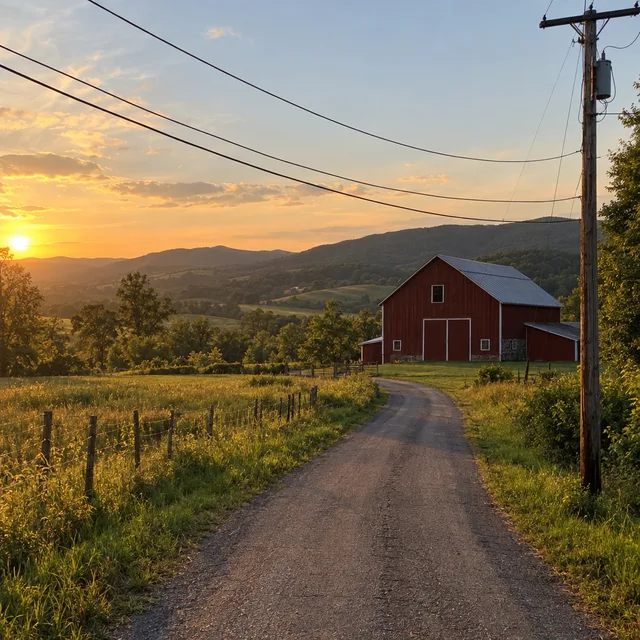
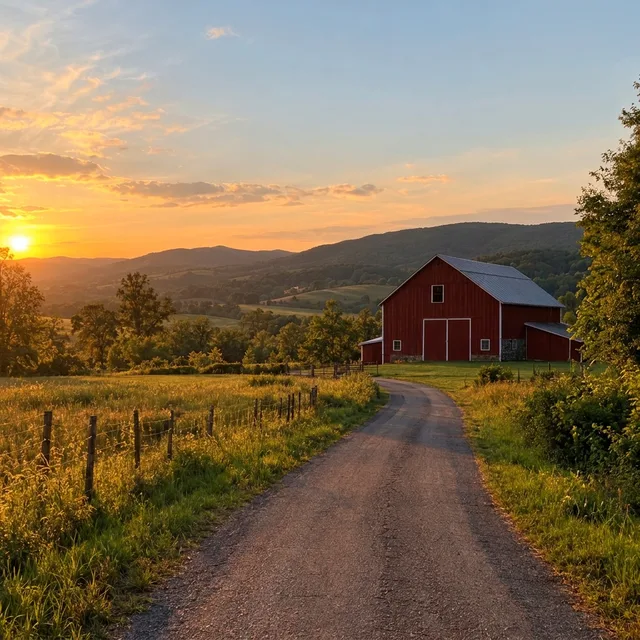
Thin lines across the sky are tedious to clone out by hand. One prompt removed the pole and every wire and filled the sky and trees behind them.
Prompt we ran
Remove the wooden utility pole on the right and all the power lines crossing the sky. Fill the space with the sunset sky and the trees and hillside that would be behind them. Keep the road, the barn, the fence and the light exactly the same.
Suggested model: Nano Banana 2.1
3.A stranger in the background
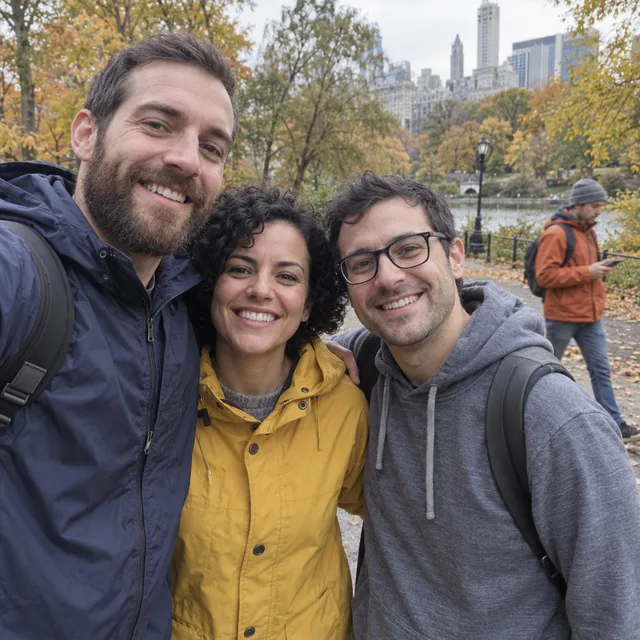
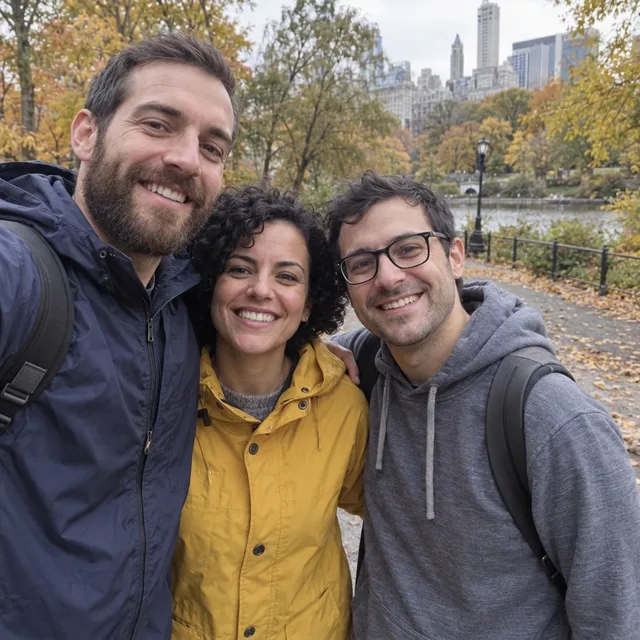
A photobomber walking behind a group. Describe them by clothing and where they are relative to the people you keep.
Prompt we ran
Remove the stranger in the orange jacket walking in the background behind the three friends. Fill the space with the park path and trees that would be behind him. Keep the three friends, their faces, expressions and clothes, and the rest of the background exactly the same.
Suggested model: Nano Banana 2.1
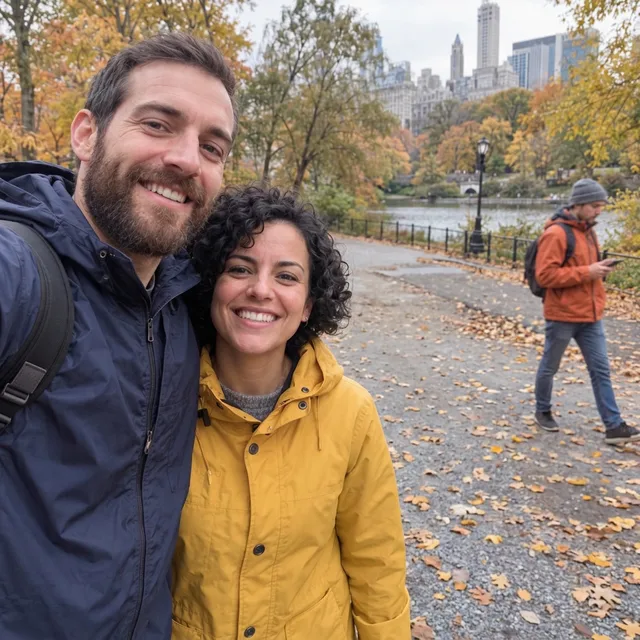
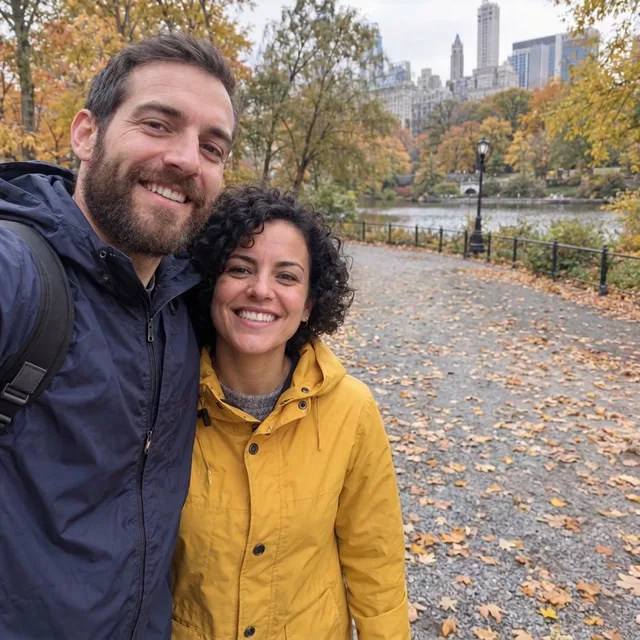
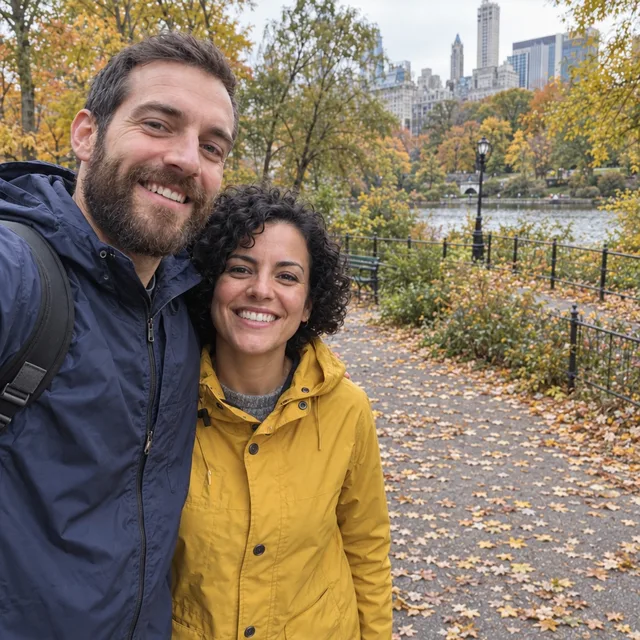
4.Remove a person from a group photo
Taking out someone in the group is harder: whatever they were hiding comes back. When we removed the friend on the right, Nano Banana 2.1 uncovered the stranger walking behind him. Removing the stranger first, then the friend from that result, gave a clean photo of two. GPT Image 2.5 removed both in one go, though we had only asked for the friend.
Prompt we ran
Remove the man with glasses in the grey hoodie on the right, so only the bearded man and the woman in the yellow raincoat remain. Fill the space with the park background that would be behind him. Keep the other two people, their faces, expressions, clothes and poses exactly the same.
Suggested model: Nano Banana 2.1
Look at the area behind the person you removed. If someone or something appears there, remove it first and then run the same prompt on that result.
5.Graffiti and text on a wall
Lettering behind a person, cleaned off while the person stays as they are. Say what the clean surface should look like.


Prompt we ran
Remove all the black graffiti from the white brick wall so it is a clean white painted brick wall. Keep the man, his face, sweater and coffee cup, the table and the light exactly the same.
Suggested model: Nano Banana 2.1
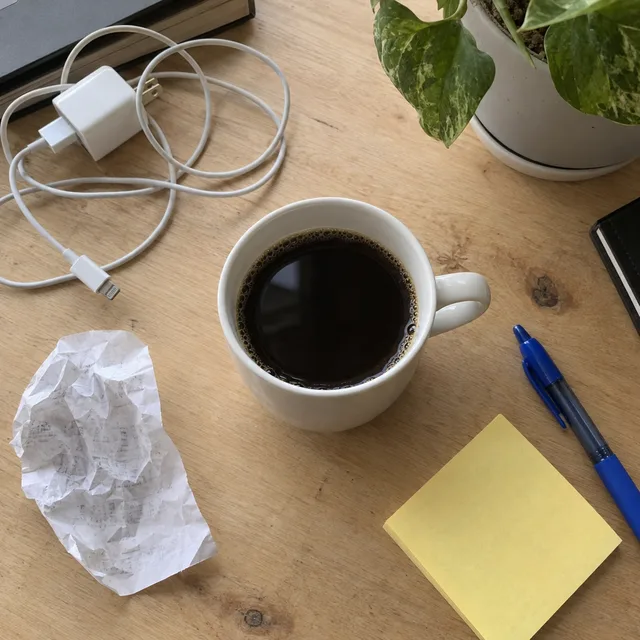
6.Clutter around a product
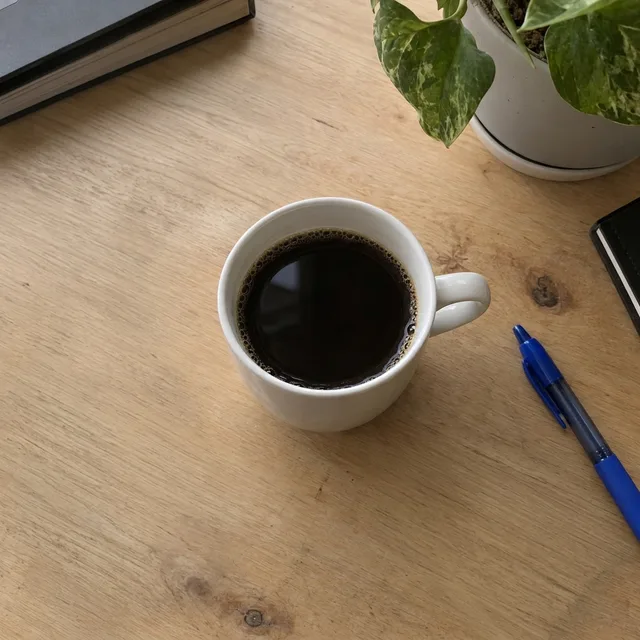
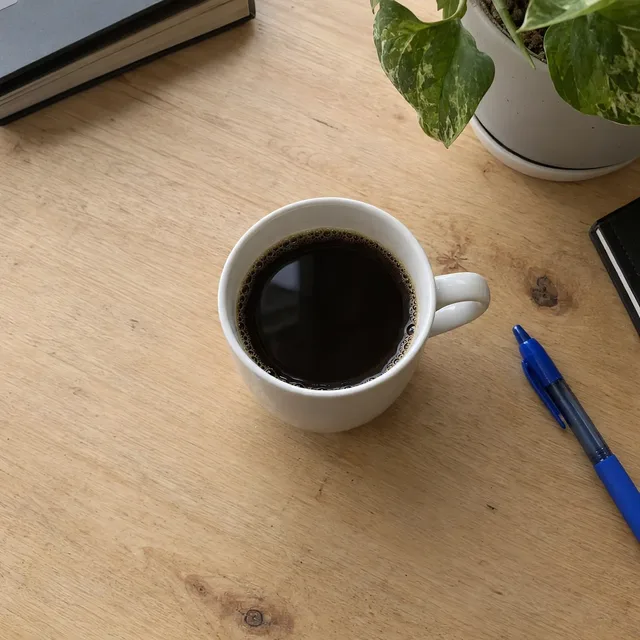
Cables, receipts and notes around the thing you want to show. Both models removed the same items; Muse Image did it for 2 credits instead of 9.
Prompt we ran
Remove the charging cable and charger, the crumpled receipt and the yellow sticky note from the desk. Fill the space with the same light wooden desk surface. Keep the mug, the coffee, the pen, the plant and the light exactly the same.
Suggested model: Muse Image
Check before you use it
- Look behind what you removed. A person or object can hide something else, and removing it brings that back: our group-shot removal uncovered a stranger.
- Remove one thing at a time when the things overlap, and run the next prompt on the result you kept.
- Name everything you want gone. Models remove what you describe: tiny people in the distance stayed because the prompt did not mention them.
- Compare the filled area at full size. Repeating patterns such as bricks, paving and wood grain are redrawn, not restored, so they may not line up exactly with the original.
- If the framing or a face changes, start again from the original photo with Nano Banana 2.1 or Muse Image, which kept the framing in our tests.
Which model to use
Every model runs in the same editor and draws from the same credits. Prices are for one edit in the web app.
| Model | Credits per edit | On Starter | Use it for |
|---|---|---|---|
| Muse Imageone size, about 2.5 MP | 2 | $0.038 | Simple removals on a plain background, such as clutter on a desk; kept the framing in our tests. |
| Nano Banana 2.11K | 9 | $0.171 | Our default for removals: all six worked and the framing stayed put. 14 credits at 2K for a larger file. |
| GPT Image 2.5high quality | 11 | $0.209 | A second try when the first leaves something behind; it redraws more of the photo, so check the framing. |
The editor shows the credit cost before you generate. Prices checked .
What it costs
One edit costs 2 credits on Muse Image, 9 on Nano Banana 2.1 at 1K and 11 on GPT Image 2.5. On the Starter plan ($19 for 1,000 credits a month) that is $0.038 to $0.209 per removal; the two-step group-shot fix cost 18 credits.
Every edit needs a paid plan. Plans start at $19/month. Unused subscription credits roll over, downloads carry no watermark, and paid plans include a commercial license.
Frequently asked questions
How do I remove an object from a photo?
Upload the photo to the editor, describe the object and where it is, say what should fill the space, and end with what must stay the same. Compare the result with the original at full size and download it.
How do I remove a person from a photo?
Describe the person by clothing and position (“the man in the grey hoodie on the right”), say what background fills the space, and keep everyone else by name or description. Then check what was behind them: in our test, removing one friend uncovered a stranger, and removing the stranger first fixed it.
Do I need to paint over or select the object?
No. Every removal on this page was a text prompt: we described the object and its position, and the model found it. Precise descriptions matter more in busy photos.
Will the rest of the photo change?
Usually very little, but the model redraws the image. With Nano Banana 2.1 and Muse Image the framing stayed the same in our tests; GPT Image 2.5 shifted it. The filled area is new, so patterns there may not match the original exactly.
Can it remove text, watermarks or logos?
It removed graffiti lettering from a wall in our test. Only remove watermarks or logos from images you own or have the rights to edit; a watermark usually means someone else holds the rights.
Can I remove several things at once?
Yes, if they do not overlap: list each one, as in our tourists and desk examples. If one object sits behind another, remove them one at a time.
How much does it cost? Is there a free option?
One edit costs 2 credits on Muse Image, 9 on Nano Banana 2.1 at 1K or 11 on GPT Image 2.5. AI Media Studio has no free tier. Every edit needs a paid plan. Plans start at $19/month.
Uploads are processed by the AI provider that runs the model you pick. Retention, processors and deletion requests are covered in the privacy policy.