AI product videos
AI product video generator: turn a product photo into a video
Attach one product photo in the Video tab, describe one camera move and what must stay the same, and generate. Kling 4.0, the default model, makes 3 to 15-second clips with sound; a 5-second clip at 720p costs 115 credits. The clip keeps the framing of your photo, so a 9:16 photo gives a 9:16 video for TikTok and Reels. Ecommerce product visuals can also add a 6-second 9:16 story ad clip made from the same product photo. There are no avatars or talking presenters: you get short product clips and add text and music in your own editor.
Every edit needs a paid plan. Plans start at $19/month. Paid plans include a commercial license.
How to make a product video with AI from one photo
- 01
Pick one clear product photo
Sharp, the whole product in view, the label readable. A phone photo works. Crop it to the shape of the video first: 9:16 for TikTok, Reels and Stories, 1:1 or 4:5 for a feed, 16:9 for a website. Kling 4.0 keeps the framing of the photo.
- 02
Clean it up into a start frame, if you need to
If the product sits on a bed or a cluttered counter, restage it first in the image composer: a plain wall, a studio backdrop or a table by a window, in the shape of the video. On Nano Banana Pro that costs 30 credits. Examples 3 and 4 show two start frames.
- 03
Describe one move and what must stay
Open the Video tab, attach the photo and keep Kling 4.0. Name one camera move or one thing that moves (a slow push-in, steam, a hand turning the bottle), then end with “keep the product, its colours and label exactly as in the image”.
- 04
Pick the length and check the product
Clips run 3 to 15 seconds. Before you post, compare the clip with your product: label, logo, shape, colour, the number of buttons. Then add captions, music and your call to action in your video editor.
AI product video examples, from photo to clip
Examples 1 and 2 are real clips made from one product photo each. Examples 3 and 4 are still images: a phone photo and the start frame made from it, with the video prompt to run next. Each card has the prompt to copy.
1.One product photo, one prompt, three video models
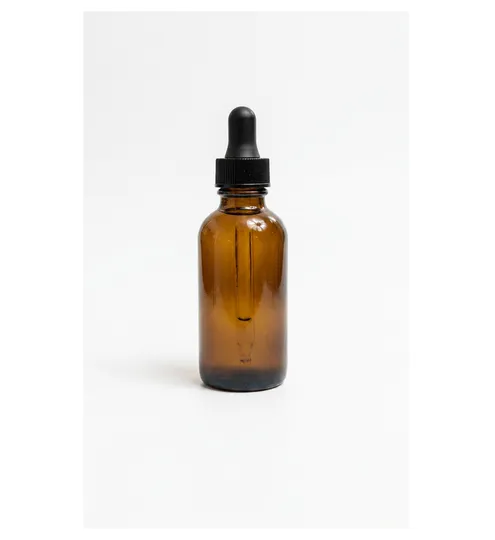
An unbranded amber dropper bottle on white, the kind of packshot every shop already has. The prompt asked for an orbit; none of the models made a full one. Kling 4.0, the default, made a slow push-in and kept the bottle exactly as it is. Kling v3 Pro made the strongest move, close in on the bottle. Seedance 2.0 moved only a little and kept the bottle unchanged. A short, steady camera move on a still product is what most product clips are made of.
Prompt we ran
Slow camera orbit around the bottle on the table, soft studio light glinting off the glass, premium skincare advert. Keep the bottle and its label exactly as they are.
Suggested model: Kling 4.0
2.Hands holding the product, in a real setting
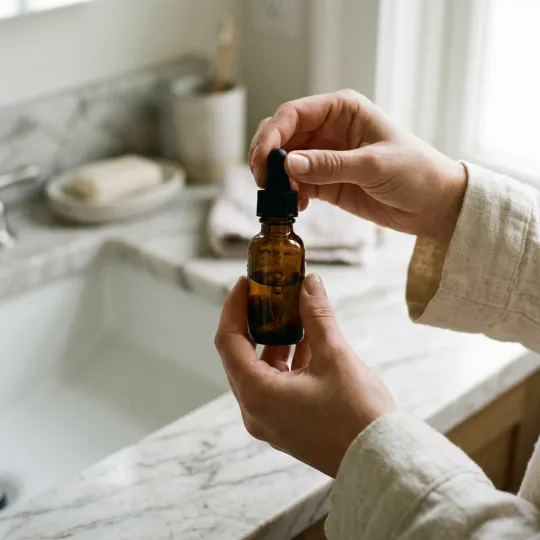
Hands turning a product over a bathroom counter look like a customer filmed it, without a face in frame. The starting still was generated with Nano Banana 2.1. Kling 4.0 made the smallest, most believable move: the fingers lift the dropper a little. Kling v3 Pro tilted the bottle sideways, the clearest take on “turn the bottle”; Seedance 2.0 lifted the bottle and moved the camera closer. All three kept the bottle and the bathroom the same through the clip.
Prompt we ran
She gently turns the bottle in her hands to show it from the side, soft natural light, premium skincare advert. Keep the bottle exactly as it is.
Suggested model: Kling 4.0
Show hands, not faces: Seedance 2.0 declines photos with a real-looking face, and a face draws the eye away from the product.
3.A secondhand listing: from a photo on the bed to a 9:16 start frame
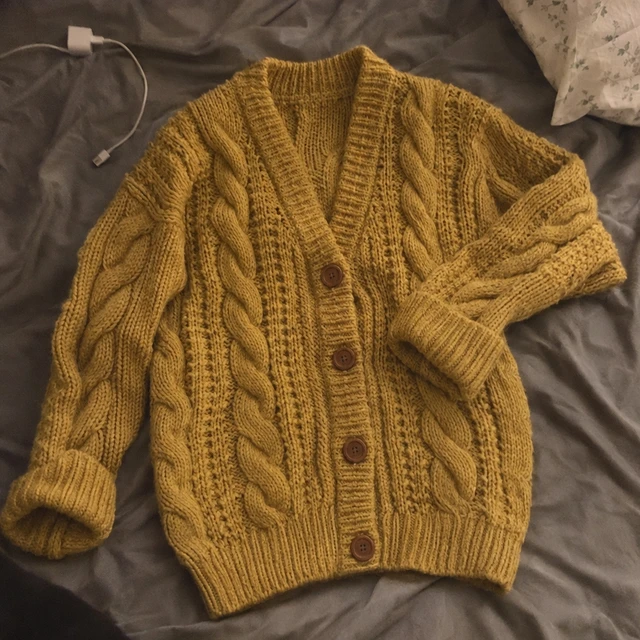
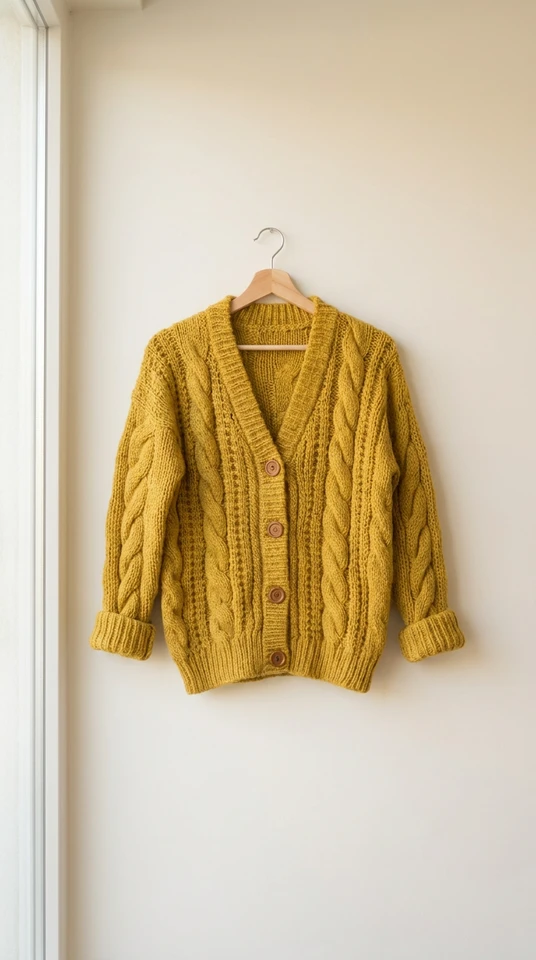
Resellers photograph items where they are: on the bed, at night. A video model animates whatever is in the photo, so we made a clean vertical start frame first. Nano Banana Pro kept the mustard colour, the cable-knit pattern and all four wooden buttons. It also rolled up both cuffs (only one was folded in the photo) and made the cardigan look a little neater than it lies on the bed. Buyers compare what they see with what arrives, so check every detail and keep your real photos in the listing.
Prompt we ran
Make a vertical 9:16 start frame for a short product video of this cardigan: the same cardigan hanging on a light wooden hanger in front of a plain warm off-white wall, front view, centred, soft morning daylight from a window on the left, some empty space above and below it. Keep the cardigan exactly as in the photo: the mustard colour, the cable-knit pattern, the four wooden buttons, the shape and the length. No people, no text, no logos.
Suggested model: Nano Banana Pro
Next, animate the start frame in the Video tab on Kling 4.0 with a prompt such as: “The cardigan sways gently on its hanger as if in a light breeze, soft daylight shifts slowly across the wall, slow push-in. Keep the cardigan, its mustard colour, the cable-knit pattern and the four wooden buttons exactly as in the image.” We did not render this clip; both images here are stills.
4.A handmade product, from the kitchen counter to a lifestyle scene
A handmade mug photographed next to the kettle. The start frame puts it on an oak table by a window with coffee in it and empty space above for steam and a caption. Nano Banana Pro kept the speckled cream glaze, the sage-green rim and the handle; the mug came out a little shorter and wider at the base than in the photo. Small changes like that are easy to miss in a moving clip, so compare the start frame with your product before you animate it.


Prompt we ran
Make a vertical 9:16 start frame for a short product video of this mug: the same mug filled with black coffee on a light oak table by a window, soft morning sunlight from the side, a blurred linen curtain behind it, the mug in the lower middle of the frame with empty space above it. Keep the mug exactly as in the photo: its shape, the speckled cream glaze, the sage-green rim and the handle. No people, no text, no logos.
Suggested model: Nano Banana Pro
Next, animate it on Kling 4.0 with a prompt such as: “Steam rises slowly from the coffee, sunlight flickers softly through the curtain, the camera pushes in slowly toward the mug. Keep the mug, its speckled glaze, the green rim and the handle exactly as in the image.” We did not render this clip; both images here are stills.
5.A 9:16 story ad clip from the ecommerce workflow
If you need listing photos as well, Ecommerce product visuals takes one product photo (or pulls the photos and name from your Shopify store address) and makes a listing set. Select Story ad clip in the review step and it adds a 6-second 9:16 video at 720p with sound: one slow push-in on your product, with room at the top and bottom for a headline and a call to action. Feed ad clip adds a 6-second 3:4 clip without sound for Instagram and Facebook feeds. Both clips start from the photo you uploaded, not from the generated studio shots, so upload your best photo. The review step shows the credit cost of every output before you generate. We did not run the workflow for this page.
6.What it does not make: avatars, scripts and finished ads
Many AI product video tools build a finished ad from a product link: a script, an AI presenter, a voiceover and an edit. AI Media Studio does not. There are no avatars or talking presenters, no lip sync, no video from a product URL and no timeline editor. You get short clips of your real product, and you cut them into your ad with captions, music and your offer in the editor you already use.
Tips for product videos from photos
- Crop before you animate: Kling 4.0 has no aspect ratio setting for image to video and keeps the framing of your photo. The image aspect ratio calculator gives the pixel sizes for 9:16, 4:5 and 16:9.
- One move per clip. A slow push-in, light moving across the product, steam, a hand turning it. In our test none of the models finished a full orbit around the bottle.
- Name what must not change: the label, the logo, the colour, the number of buttons. Video models can invent details: on the same bottle, Grok Imagine Video 1.5 turned it and showed a label that is not in the photo (see the model comparison).
- Start from a clean photo. The AI product photo generator and product background replacement turn a rough photo into a studio or lifestyle shot you can animate.
- For a voiceover, make it with AI voice over and lay it under the clip in your editor; nothing here lip-syncs. For still ads with your headline set in the image, use the AI ad creative generator.
- Make several short clips from one photo (a push-in, a close-up, a hand) and cut them together for a longer video.
Which video model to use for product videos
Prices are per second of video in the web app. Kling 4.0 is the default in the Video tab.
| Model | Credits per second | Use it for |
|---|---|---|
| Kling 4.03 to 15 s, 720p, with sound | 23 | Our pick and the default: a steady push-in that kept the bottle unchanged in both of its clips here. 34 credits per second at 1080p. |
| Kling v3 Proaudio off | 17 | The strongest camera moves in our clips, and the clearest turn of the bottle in the hands. 25 credits per second with sound. |
| Kling O3 Pro3 to 15 s, audio off | 17 | Up to 3 product photos as references for a new scene (reference-to-video). |
| Seedance 2.0720p | 44 | Subtle, steady motion at a higher price. Declines photos with a real-looking human face. |
A start frame on Nano Banana Pro costs 30 credits at 1K or 2K. The editor shows the credit cost before you generate. Prices checked .
What an AI product video costs
A 5-second product clip on Kling 4.0 costs 115 credits at 720p and 170 credits at 1080p; a 15-second clip costs 345 credits at 720p. With a start frame on Nano Banana Pro first, a clip from a phone photo comes to 145 credits at 720p if both work the first time.
Plans start at $19/month. Downloads carry no watermark, and paid plans include a commercial license.
Product photos and ads to go with your videos
A product video is usually one part of a listing or a campaign. These pages cover the stills.
- AI product photo generator
Studio, lifestyle and white background photos from one product shot: the start frames for your clips.
- AI product photography
A full product photoshoot from one photo, with real results and what each one cost.
- Product lifestyle image generator
Your product in a kitchen, a bathroom or on a desk, for scenes worth animating.
- AI ad creative generator
Still ad images with your headline and call to action set in the design.
- Instagram ad creative generator
Feed and Reels placements for Instagram ads.
- Photo to video
Every way to animate a photo, with clips from each video model.
Frequently asked questions
How do I make a product video with AI?
Open the Video tab, attach a clear photo of your product, describe one camera move and say what must stay the same, then pick the length and generate. Kling 4.0 is the default and makes 3 to 15-second clips with sound. Add captions and music in your editor.
Can AI create a product video from a photo?
Yes, a short one. Image to video starts from your photo, so the clip shows your real product with camera movement or a small action. It does not film new angles of the product that are not in the photo, and it can change details, so check the label and shape in every clip.
Will the product look exactly like my product?
Not guaranteed. In our clips Kling 4.0, Kling v3 Pro and Seedance 2.0 kept the bottle unchanged, but Grok Imagine Video 1.5 showed a label that was not there. Keep the move simple, end the prompt with “keep the product exactly as in the image” and compare before you post.
What size should a product video for TikTok, Reels or Stories be?
Vertical 9:16. Crop your product photo to 9:16 before you animate it, because Kling 4.0 keeps the framing of the photo. For a feed, 1:1 or 4:5 works; for a website banner, 16:9.
Can I make a product video ad?
You can make the clips for one. Ecommerce product visuals adds a 6-second 9:16 story ad clip with sound and a 6-second 3:4 feed clip from your product photo, with room for a headline. Captions, your offer and the call to action go on in your video editor or ad manager. For still ad images with your headline in them, see the AI ad creative generator.
Does it make videos with AI avatars or a voiceover?
No. There are no avatars, talking presenters or lip sync. Kling 4.0 clips come with sound; for a spoken voiceover, make one with AI voice over and add it in your editor.
Can I make a product video from my Shopify store?
In Ecommerce product visuals, paste your Shopify store address and it pulls the product photos and name; the story and feed ad clips are made from the photo you pick. There is no video from a product page URL with a script.
Can I use the product videos commercially?
Yes. Clips made on a paid plan include a commercial license and carry no watermark. Label AI content where the platform you post on asks for it.
Is there a free AI product video generator?
AI Media Studio has no free tier. Every edit needs a paid plan. Plans start at $19/month. A 5-second product clip on Kling 4.0 costs 115 credits at 720p.
Uploads are processed by the AI provider that runs the model you pick. Retention, processors and deletion requests are covered in the privacy policy.