Santa cam
Santa cam: catch Santa on camera in your own home
Take a still from your security camera, doorbell or phone at night, upload it, and ask for Santa small in the frame, lit like the room and as grainy as the footage. Then turn the picture into a 5-second clip with an image-to-video model. One picture costs 2 to 11 credits and a 5-second Kling O3 Pro clip 85 credits; you see the cost before you generate.
Every edit needs a paid plan. Plans start at $19/month.
How do I catch Santa on camera?
- 01
Grab a frame from your camera
A screenshot from your security camera or doorbell app, or a night photo from a phone on a shelf. Empty room, lights as they would be on Christmas Eve.
- 02
Ask for a Santa the camera caught
Say where he is and what he is doing (“kneeling by the tree, placing a present”), keep him small, and ask for the same light and grain as the footage. A big, sharp Santa looks posed.
- 03
Keep the room
End with “Keep the room, the camera angle and the lighting exactly the same”, so the picture still looks like your camera.
- 04
Animate it
Send the picture to an image-to-video model with a short action and “static camera”. A 5-second clip of Santa walking out of the frame is enough to surprise a child.
Santa caught on three home cameras
Each example starts from an empty camera frame we generated. The prompt card is the exact prompt we ran; the clips show the prompt we sent to the video model under “Prompt we ran”.
1.Living-room security camera, on three models
Santa at the presents under the tree, seen from a camera high in the corner. All three models kept the room and the angle. Muse Image gave the darkest, smallest Santa, which looks most like real footage; we animated that one.
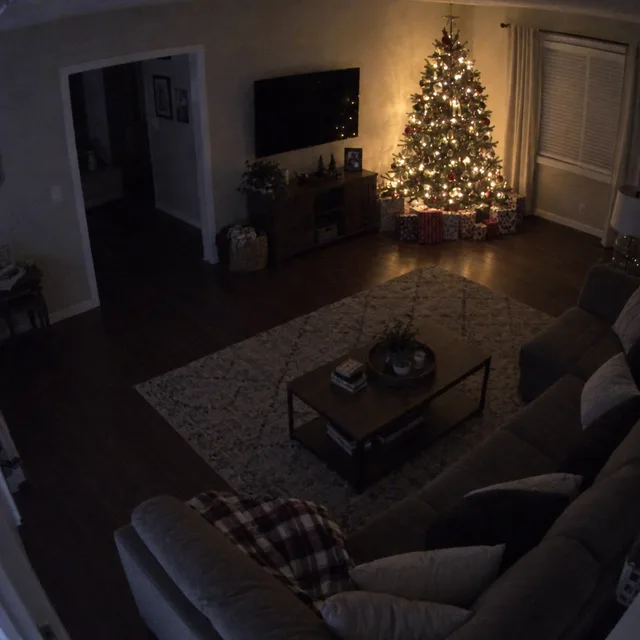
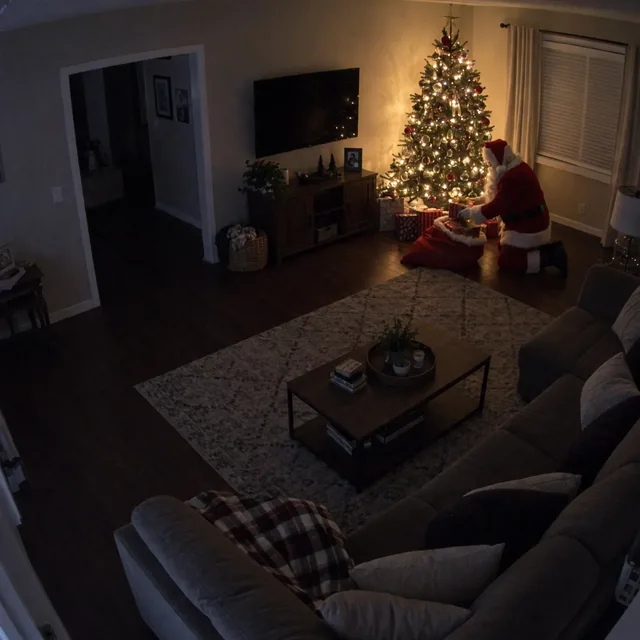
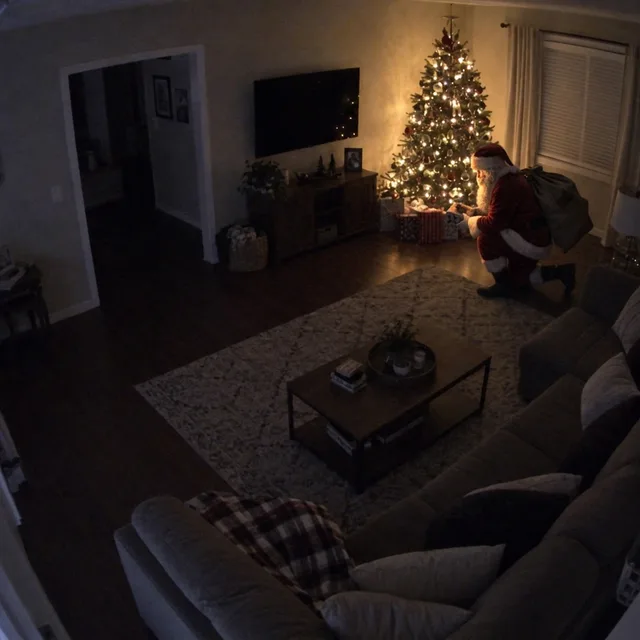
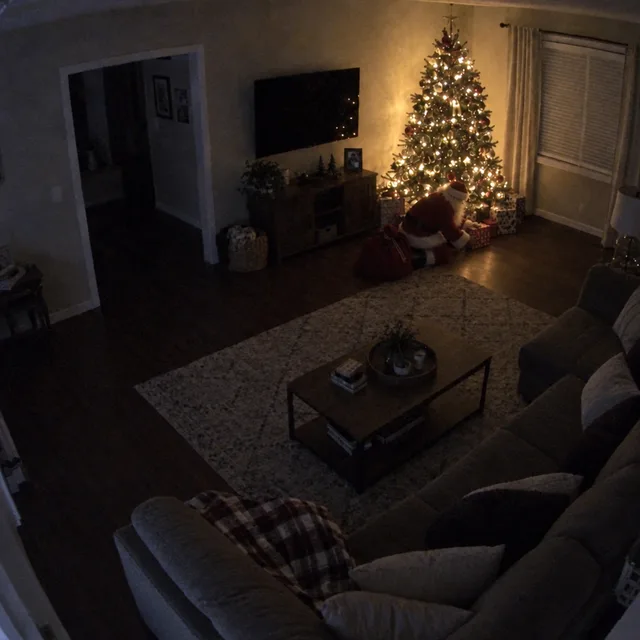
Prompt we ran
Add Santa Claus to this security camera frame, as if the camera caught him: he is kneeling next to the Christmas tree, placing a wrapped present under it, seen from the side, in his classic red suit with a white beard and a big sack beside him. Light him only by the tree lights and match the camera's grainy, slightly blurry night footage, so he looks like part of the same frame. Keep the room, the tree, the furniture, the camera angle and the lighting exactly the same.
Suggested model: Muse Image
2.The clip: Santa leaves the room
Kling O3 Pro turned the Muse Image picture into a short clip: Santa stands up, lifts his sack and walks out of the frame. His legs smear a little while he stands; at security-camera quality it passes.
Exact prompt we ran
Security camera footage: Santa Claus places the present under the tree, stands up, picks up his sack and walks out of the frame to the right. The tree lights twinkle. Static camera, grainy night footage, no camera movement.
3.Fireplace camera: keep him small
Our first fireplace prompt asked for Santa eating a cookie at the table. He came out large, sharp and facing the camera, more like a posed photo than a camera catch. Asking for him small, partly turned away and slightly blurred by the stockings fixed it.
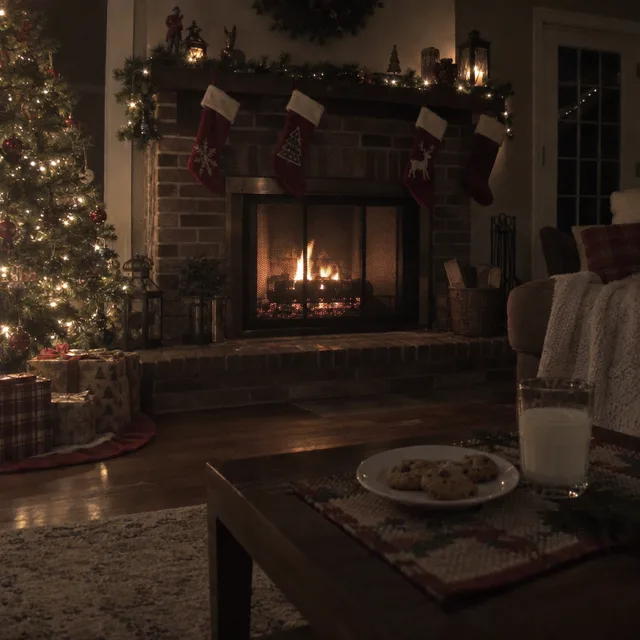
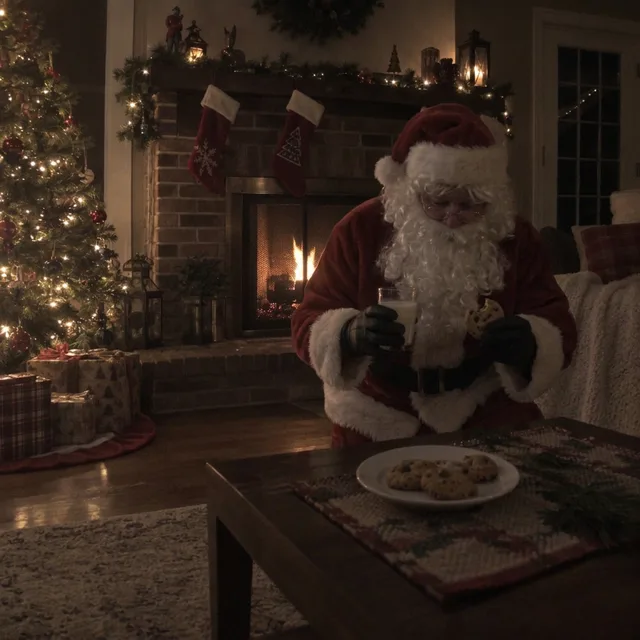
Exact prompt we ran
Add Santa Claus to this home camera frame, as if it caught him: he is standing at the small table in front of the fireplace, eating one of the cookies and holding the glass of milk, in his classic red suit with a white beard. Light him by the fire and the tree, and match the camera's grainy night footage. Keep the fireplace, the stockings, the tree, the camera angle and the lighting exactly the same, and leave one bite missing from the cookie he holds.
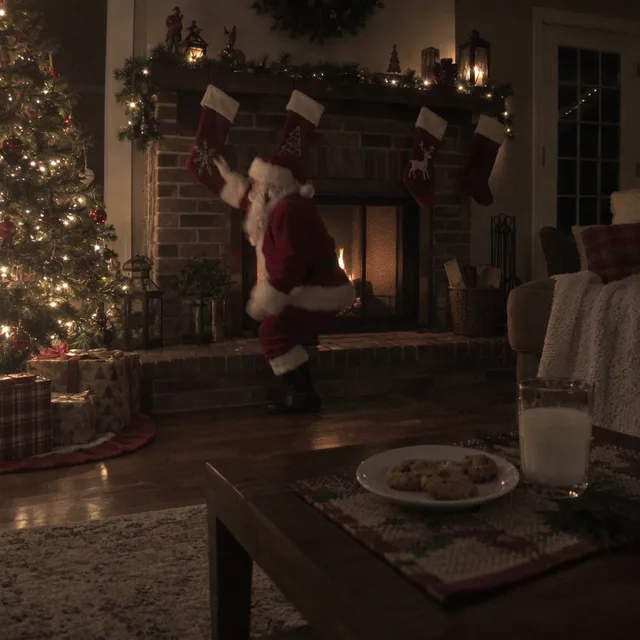
Exact prompt we ran
Home camera footage: Santa Claus fills a stocking on the mantel, turns, and quickly steps out of the frame. The fire flickers. Static camera, grainy night footage, no camera movement.
Prompt we ran
Add Santa Claus to this home camera frame, as if it caught him by surprise: he is small in the frame, standing back by the fireplace and reaching for one of the stockings, partly turned away from the camera, in his classic red suit with a white beard. He is slightly motion-blurred, dimly lit by the fire, with the same grain and soft focus as the rest of the night footage. Keep the fireplace, the stockings, the tree, the cookies, the milk, the camera angle and the lighting exactly the same.
Suggested model: Nano Banana 2.1
If Santa looks like he is posing, make him smaller, further from the camera and slightly blurred. Real cameras rarely catch anyone facing them.
4.Video doorbell on a snowy night
Santa coming up the path with his sack, footprints behind him. The fisheye view and the porch light stayed, and the clip shows him walking back to the street.
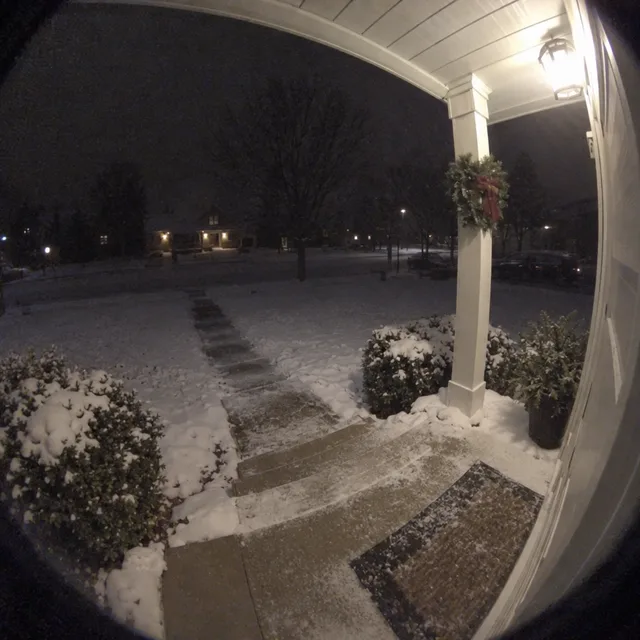
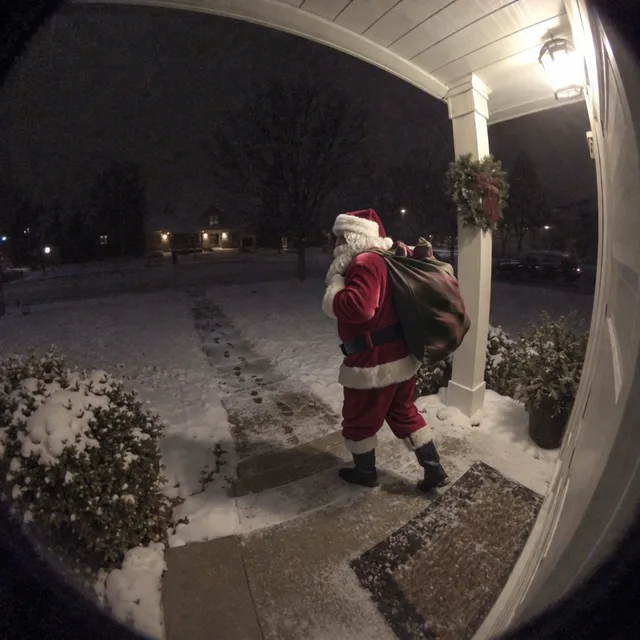
Exact prompt we ran
Doorbell camera footage: Santa Claus walks down the snowy path away from the door with his sack over his shoulder, leaving footprints, while light snow falls. Static fisheye camera, grainy night footage, no camera movement.
Prompt we ran
Add Santa Claus to this doorbell camera frame, as if it caught him: he is walking up the snowy path towards the door with a big sack over his shoulder, in his classic red suit with a white beard, lit by the porch light, with his footprints in the snow behind him. Keep the fisheye view, the porch, the wreath, the snow and the night lighting exactly the same, and match the grainy doorbell camera look.
Suggested model: Nano Banana 2.1
5.A camera overlay with the date and time
A camera name, a Christmas Eve timestamp and a recording dot make it look like a real recording. GPT Image 2.5 wrote the overlay exactly. In the clip the text stayed sharp, but the clock did not move: it read 11:47:32 for all five seconds.
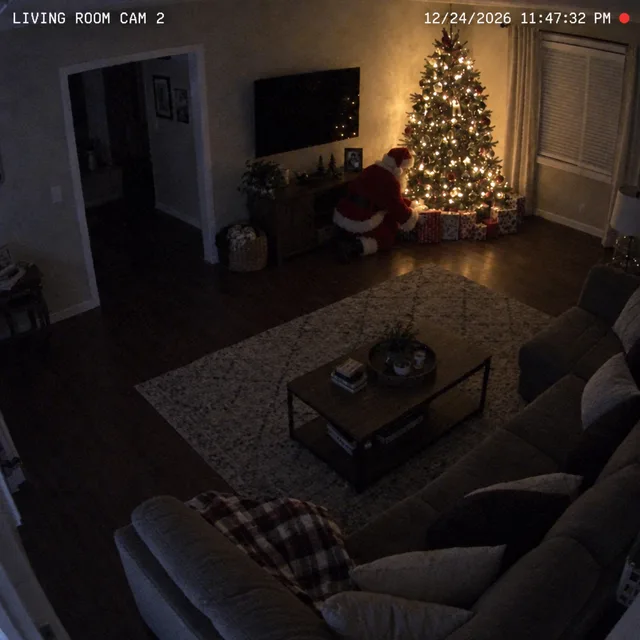
Exact prompt we ran
Security camera footage: Santa Claus places the present under the tree and stands up, the tree lights twinkle. The camera overlay text stays fixed in the corners and the clock keeps running. Static camera, grainy night footage, no camera movement.
Prompt we ran
Add Santa Claus to this security camera frame, as if the camera caught him: he is kneeling next to the Christmas tree, placing a wrapped present under it, seen from the side, in his classic red suit with a white beard. Match the camera's grainy night footage. Add a security camera overlay: in the top left corner, small white monospace text "LIVING ROOM CAM 2", and in the top right "12/24/2026 11:47:32 PM", plus a small red recording dot. Keep the room, the tree, the furniture and the camera angle exactly the same.
Suggested model: GPT Image 2.5
For a running clock, use the picture without an overlay for the clip, or accept a frozen time; a viewer who reads the seconds will notice.
6.Showing it to children
A few things before the big reveal:
- Use a frame from your own camera so the room is one they know.
- Check every frame of the clip for smeared hands or legs before showing it.
- Keep the original files private: the picture is generated, and a child old enough to find the project may ask.
- Images and clips stay in your workspace until you share them, and you can delete them from your library.
- Uploads are processed by the AI provider that runs the model you pick. Retention, processors and deletion requests are covered in the privacy policy.
Make it look like real footage
- Keep Santa small and away from the camera. Our posed-looking fireplace result was the one where he stood close and faced the lens.
- Ask for the same grain, blur and light as the footage. A sharp Santa in a noisy night frame gives the picture away.
- Use “static camera” and “no camera movement” in the video prompt; security cameras do not pan.
- Video models redraw motion: check hands and legs in every frame, and regenerate if Santa smears.
- Overlay text stays still in the clip, including the clock. Leave the overlay out if the seconds should tick.
Which model to use
Every model runs in the same editor and draws from the same credits. Prices are for one edit in the web app.
| Model | Credits per edit | On Starter | Use it for |
|---|---|---|---|
| Muse Imageone size, about 2.5 MP | 2 | $0.038 | The most camera-like Santa in our living-room test: small and dark. |
| Nano Banana 2.11K | 9 | $0.171 | Fireplace and doorbell frames; follows placement and size instructions well. |
| GPT Image 2.5high quality | 11 | $0.209 | Camera overlays with text and timestamps; spelled ours exactly. |
The editor shows the credit cost before you generate. Prices checked .
What it costs
One picture costs 2 credits on Muse Image, 9 on Nano Banana 2.1 at 1K or 11 on GPT Image 2.5, and a 5-second Kling O3 Pro clip 85 credits. On the Starter plan ($19 for 1,000 credits a month) a picture and a clip together cost about $1.65 to $1.82.
Every edit needs a paid plan. Plans start at $19/month. Unused subscription credits roll over, downloads carry no watermark, and paid plans include a commercial license.
Frequently asked questions
How do I catch Santa on camera?
Take a night still from your security camera, doorbell or phone, upload it, and ask for Santa small in the frame, lit like the room and as grainy as the footage. Keep the room and the camera angle the same, then animate the picture into a short clip.
Is this a Santa cam app?
No. It is a photo and video editor: you bring the camera frame and describe the scene, and the models add Santa to your own room. There are no ready-made Santa clips to pick from.
Can I make a video of Santa, not just a picture?
Yes. Send the finished picture to an image-to-video model. Our clips are Kling O3 Pro, 5 seconds without audio for 85 credits each.
Can I add a date and time like a real camera?
Yes. Ask for the overlay text in quotes, preferably with GPT Image 2.5, which wrote ours exactly. In the clip the timestamp stays frozen rather than ticking.
Why does my Santa look fake?
Usually because he is too big, too sharp or facing the camera. Ask for him smaller, further away, partly turned and slightly motion-blurred, with the same grain as the footage.
How much does it cost? Is there a free option?
A picture costs 2 to 11 credits and a 5-second clip 85 credits. AI Media Studio has no free tier. Every edit needs a paid plan. Plans start at $19/month.
Uploads are processed by the AI provider that runs the model you pick. Retention, processors and deletion requests are covered in the privacy policy.