AI image extender
AI image extender: expand a photo to a new aspect ratio
To extend an image with AI, upload the photo, pick the new shape (9:16 for a story, 16:9 for a banner, 1:1 or 4:3 for a marketplace) and describe what should fill the new space. The editor redraws the photo at that shape and continues the scene around the subject, so compare the result with the original. One extension costs 2 credits on Muse Image, 9 on Nano Banana 2.1 at 1K or 13 on GPT Image 2.6, and you see the cost before you generate.
Plans start at $19/month. Paid plans include a commercial license.
How do I expand an image with AI?
- 01
Upload the photo
Use the largest version you have. Leave some background around the subject if you can: a person cut off at the edge of the frame is harder to continue than a gap of sky or floor.
- 02
Pick the new aspect ratio
Open the ratio menu and choose 9:16, 16:9, 1:1, 4:5, 3:4, 2:3, 3:2 or 4:3. With “Original” the editor keeps the photo’s own shape, so pick the new one before you generate.
- 03
Describe the new space
“More sky above and sand below”, “continue the white background”, “a wooden table on the right”. Add “do not crop or zoom in”, or the model may reframe the photo instead of extending it.
- 04
Compare with the original
The model redraws the whole picture at the new shape, so check the face, the product and any text at full size. If something changed, run it again from the original and add it to the keep list.
Extend a photo for stories, banners and marketplaces
Each idea comes with a prompt. The first sentence says where the new space goes; the last says what must stay as it is.
1.Square to 9:16 story or reel
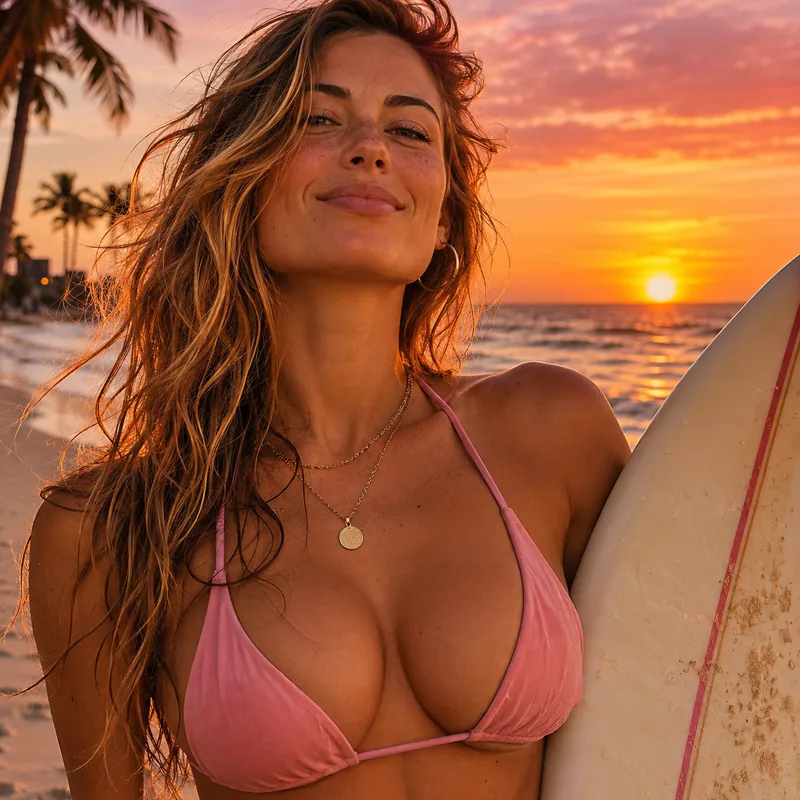
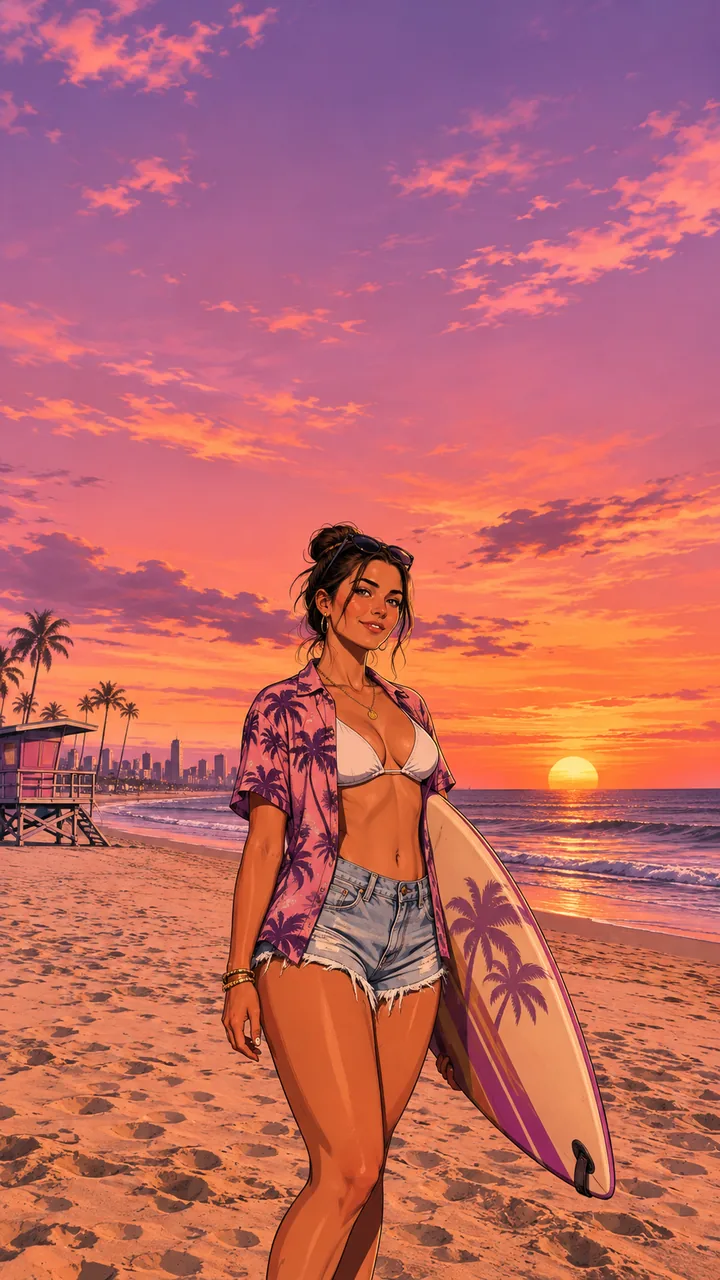
A square post becomes a full-screen story when the scene continues above and below. Keep the subject in the middle third: apps cover the top and bottom of a story with the profile name and the reply bar.
Prompt to try
Extend this photo to a 9:16 vertical format: show more of the evening sky above and more wet sand and small waves below, continuing the scene naturally. Keep her, the surfboard, the light and the colors exactly as they are, at the same size. Do not crop or zoom in.
Suggested model: Nano Banana 2.1
2.A 16:9 banner, thumbnail or website header
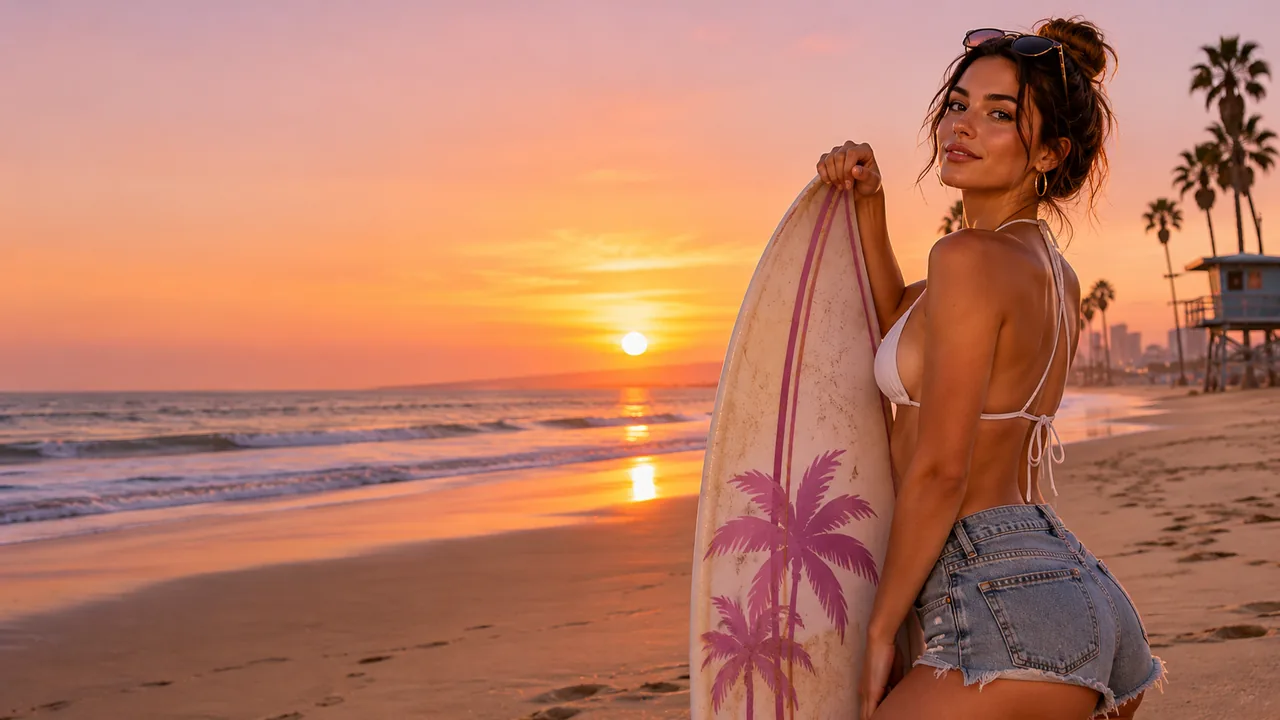
Wide formats need new space at the sides. Ask for empty space on one side when a title or a button will sit there, so the text does not cover the subject.
Prompt to try
Extend this photo to a wide 16:9 format: continue the beach, the sea and the sunset sky to the left and right, with more empty space on the left for text. Keep her, the surfboard, the light and the colors exactly as they are, at the same size. Do not crop or zoom in.
Suggested model: Nano Banana 2.1
3.Marketplace sizes for Etsy, Shopify and Amazon
A product shot in portrait format leaves empty bars in a square grid. Extend the background instead of stretching the product, then check the pixel size the marketplace asks for.
- Amazon: a square 1:1 main image on pure white; at least 1,000 px on the longest side for zoom.
- Shopify: a square 1:1 image, 2048 × 2048 px recommended, the same ratio across the catalog.
- Etsy: a landscape or square first photo, at least 2000 px wide and high; 4:3 is a good start.
- For those sizes, run Nano Banana 2.1 at 2K or 4K and check the size of the download.
- Uploads are processed by the AI provider that runs the model you pick. Retention, processors and deletion requests are covered in the privacy policy.
Prompt to try
Extend this product photo to a square 1:1 format: continue the plain white background evenly on the left and right, with the product centred and filling most of the frame. Keep the product, its label, its shadow and its colors exactly as they are.
Suggested model: Nano Banana 2.1
4.Uncrop a photo that was framed too tightly
When the top of the head or the hands are cut off, ask the model to zoom out and show more. It has to invent what was outside the frame, so check hands and hair closely.
Prompt to try
Zoom out on this photo: show the whole person from head to knees, continuing the room, the wall and the light naturally around them. Keep the face, hair, clothes and expression exactly as they are.
Suggested model: Nano Banana 2.1
5.Choose what fills the new space
The new area does not have to be more of the same. Name what goes there and in which light, and it becomes part of the scene.
Prompt to try
Extend this photo to 16:9 and fill the new space on the right with a wooden table with a cup of coffee and an open notebook, in the same light. Keep everything in the original photo exactly as it is.
Suggested model: Nano Banana 2.1
Extend without changing the photo
- Pick the ratio first, then write the prompt: “Original” keeps the old shape.
- Say where the new space goes (above, below, left, right) and add “do not crop or zoom in”.
- Name what must stay at the same size: the person, the product, a logo, the light.
- Run every new attempt from the original photo, not from an extended one.
- For text on a banner, ask for empty space and add the text in a design tool afterwards.
Which model to use
Every model runs in the same editor and draws from the same credits. Prices are for one extension in the web app.
| Model | Credits per edit | On Starter | Use it for |
|---|---|---|---|
| Muse Imageone size, about 2.5 MP | 2 | $0.038 | The cheapest way to try a new shape before you run it at a larger size. |
| Nano Banana 2.11K | 9 | $0.171 | The editor’s button opens it by default, with every ratio on this page. 14 credits at 2K and 31 at 4K, for marketplace sizes. |
| GPT Image 2.6high quality | 13 | $0.247 | A second opinion on the same prompt; it offers every ratio here except 4:3. |
The editor shows the credit cost before you generate. Prices checked .
What it costs
One extension costs 2 credits on Muse Image, 9 on Nano Banana 2.1 at 1K and 13 on GPT Image 2.6. On the Starter plan ($19 for 1,000 credits a month) that is $0.038 to $0.247 per photo. A story and a banner from the same photo are two edits.
Plans start at $19/month. Unused subscription credits roll over, downloads carry no watermark, and paid plans include a commercial license.
Frequently asked questions
What is an AI image extender?
An AI image extender, also called a photo expander, changes a photo to a new shape by adding new image content around the subject instead of cropping or stretching it. You describe what the new space should show, or let the model continue the scene.
How does extending an image work here?
You upload the photo, pick a new aspect ratio and describe the new space. The image model redraws the picture at that shape and continues the scene. Because it redraws rather than pasting the original into a bigger canvas, small details can shift, so compare the result with the original.
How do I expand an image without stretching it?
Pick the new aspect ratio in the editor and ask the model to continue the background. The subject keeps its proportions and the new space is filled with new content, so nothing is stretched.
Which aspect ratios can I extend to?
1:1, 4:5, 3:4, 2:3, 9:16, 16:9, 3:2 and 4:3 on Nano Banana 2.1, Muse Image and FLUX 3 Image. GPT Image 2.6 offers all of them except 4:3. Use the aspect ratio calculator to find the ratio of a size you need.
Can I extend the background of a product photo?
Yes. Ask to continue the plain background and keep the product, label and shadow exactly as they are, then check the label text at full size. For marketplace sizes, run Nano Banana 2.1 at 2K or 4K.
Why did my photo get cropped instead of extended?
The model sometimes reframes the picture to fit the new shape. Add “do not crop or zoom in” and say where the new space goes, such as “more sky above and sand below”, then run it again from the original.
How do I extend a photo on an iPhone?
Open the editor in Safari or any browser on your iPhone, upload the photo from your library, pick the new ratio, describe the new space and download the result. The editor is a web app, so there is nothing to install.
How do I expand an image in Photoshop?
In Photoshop you drag the crop frame past the edges of the photo and fill the new area, by hand or with its generative fill. Here you pick the new ratio and describe the new space in words, without a desktop app.
How much does it cost to expand an image?
One extension costs 2 credits on Muse Image, 9 on Nano Banana 2.1 at 1K or 13 on GPT Image 2.6. Plans start at $19/month.
Uploads are processed by the AI provider that runs the model you pick. Retention, processors and deletion requests are covered in the privacy policy.